

1
Open Claude with Crealix filled in
Click Add to Claude in Crealix (Settings › Connected Apps › Claude), or open this link:Add Crealix to Claude →It opens Claude’s connector settings with the name Crealix and the URL
https://mcp.crealix.ai/mcp already filled in.2
Click Add, then Connect
Claude adds the connector and sends you to Crealix to sign in.
3
Sign in and choose your limits
Sign in to Crealix and review what Claude will be able to do. Choose a daily credit limit, when it should ask before spending, and whether it may publish. Then allow access.
4
Start a chat
In a new conversation, make sure Crealix is enabled in the tools menu and ask for something — “What can I make with Crealix?” is a good first message.
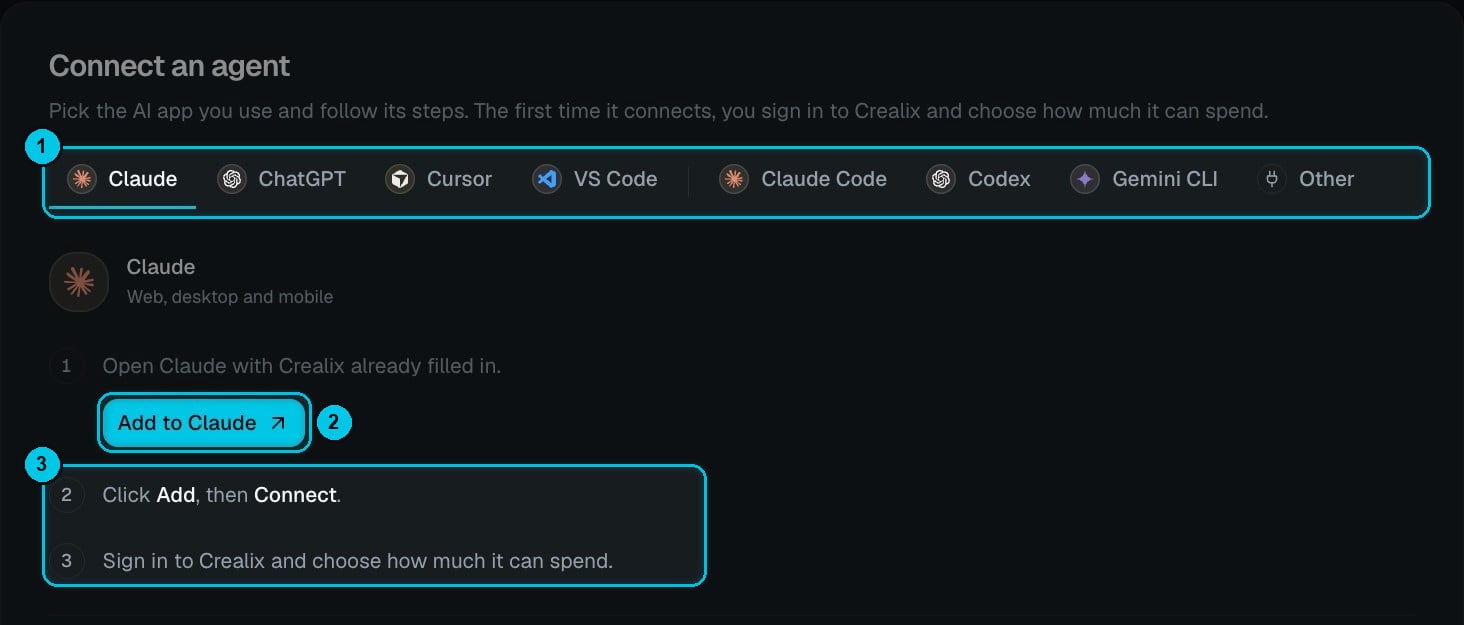
Settings › Connected Apps › Connect an agent: ① Pick your AI app · ② Add to Claude · ③ The remaining steps
Team and Enterprise plans
On Claude Team and Enterprise, an organization owner adds Crealix once in Organization settings › Connectors using the URLhttps://mcp.crealix.ai/mcp. Each member then connects their own Crealix account.