

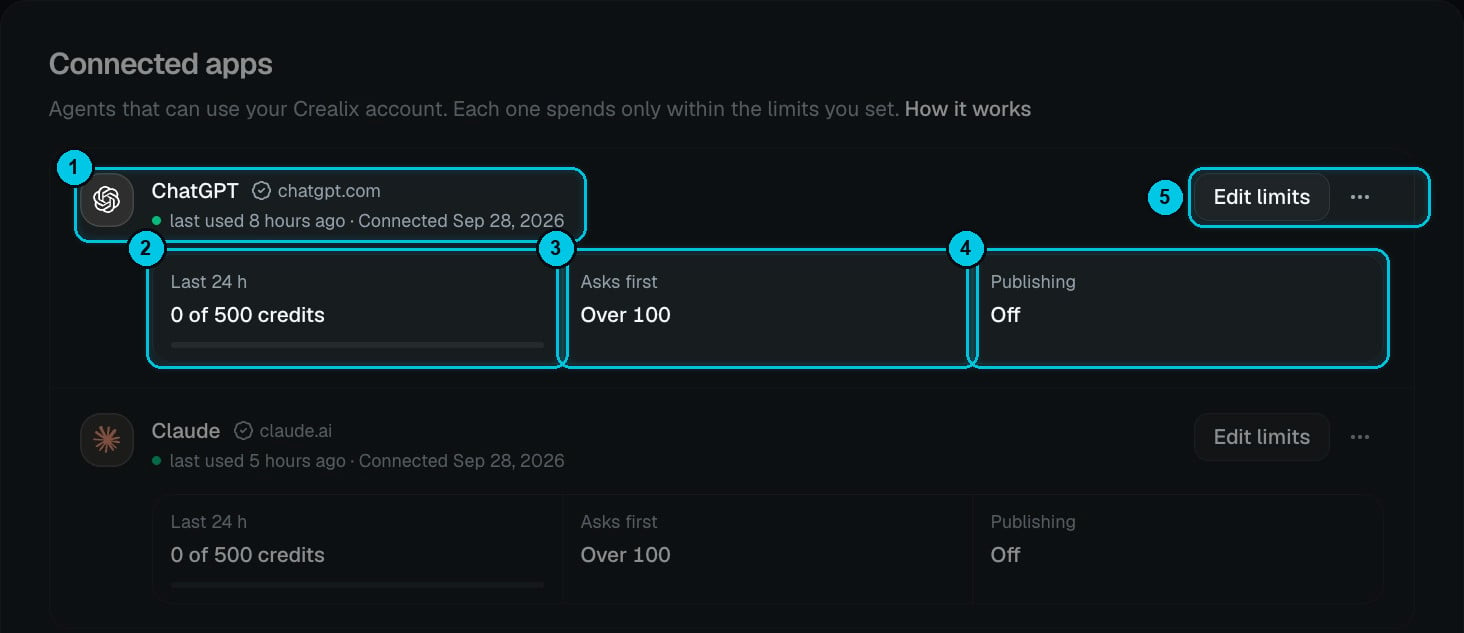
① A connected app, its last use and connection date · ② Credits spent in the last 24 hours · ③ When it asks first · ④ Publishing on or off · ⑤ Edit limits and the ⋯ menu
What an app can do
When you connect an app, Crealix shows exactly what it’s asking for. A connected app can:- See your name and email.
- See your projects, the catalog (voices, styles, music) and your credit balance.
- Create, edit and render videos, spending credits within your limits.
- Stay connected until you disconnect it.
Edit the limits
Click Edit limits (⑤) on any app: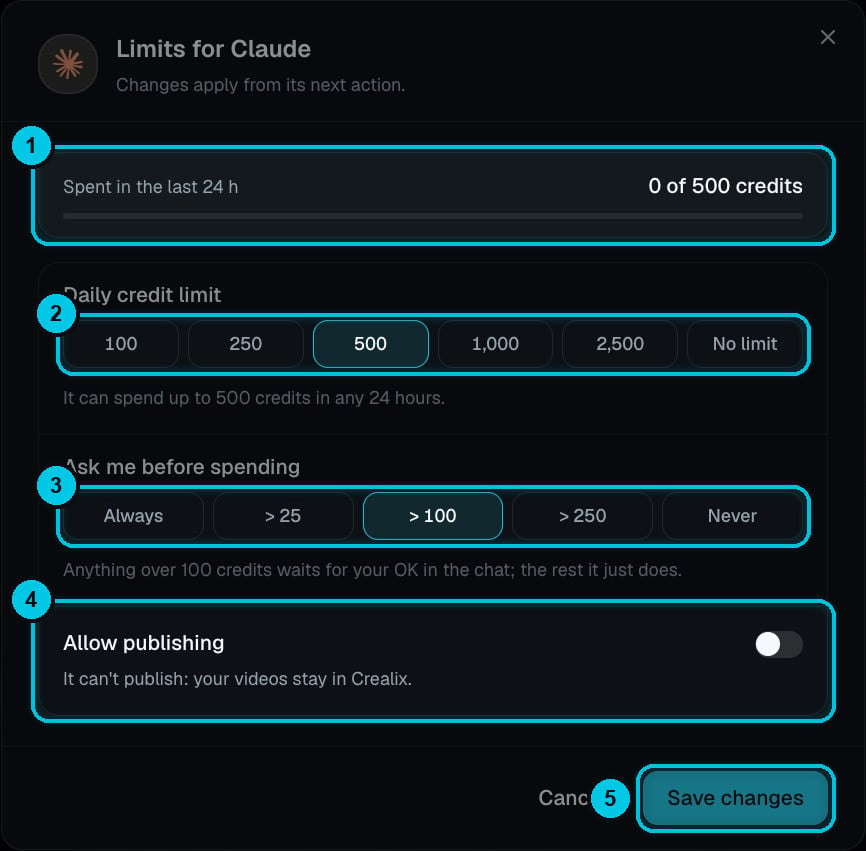
① Spent in the last 24 h · ② Daily credit limit · ③ Ask me before spending · ④ Allow publishing · ⑤ Save changes
Click Save changes (⑤). Changes apply from the app’s next action.
Disconnect an app
Open the ⋯ menu on the app and disconnect it. Its access is revoked right away; your videos and credits are untouched. You can connect it again any time.Good practice
- Start with a modest daily limit and ask before spending on, then relax it as you get comfortable.
- Keep publishing off unless you want the agent to post for you.
- Give each assistant its own connection — limits are per app, so you can trust a coding agent with batch work and keep chat assistants tighter.