

Step by step
1
Add the song
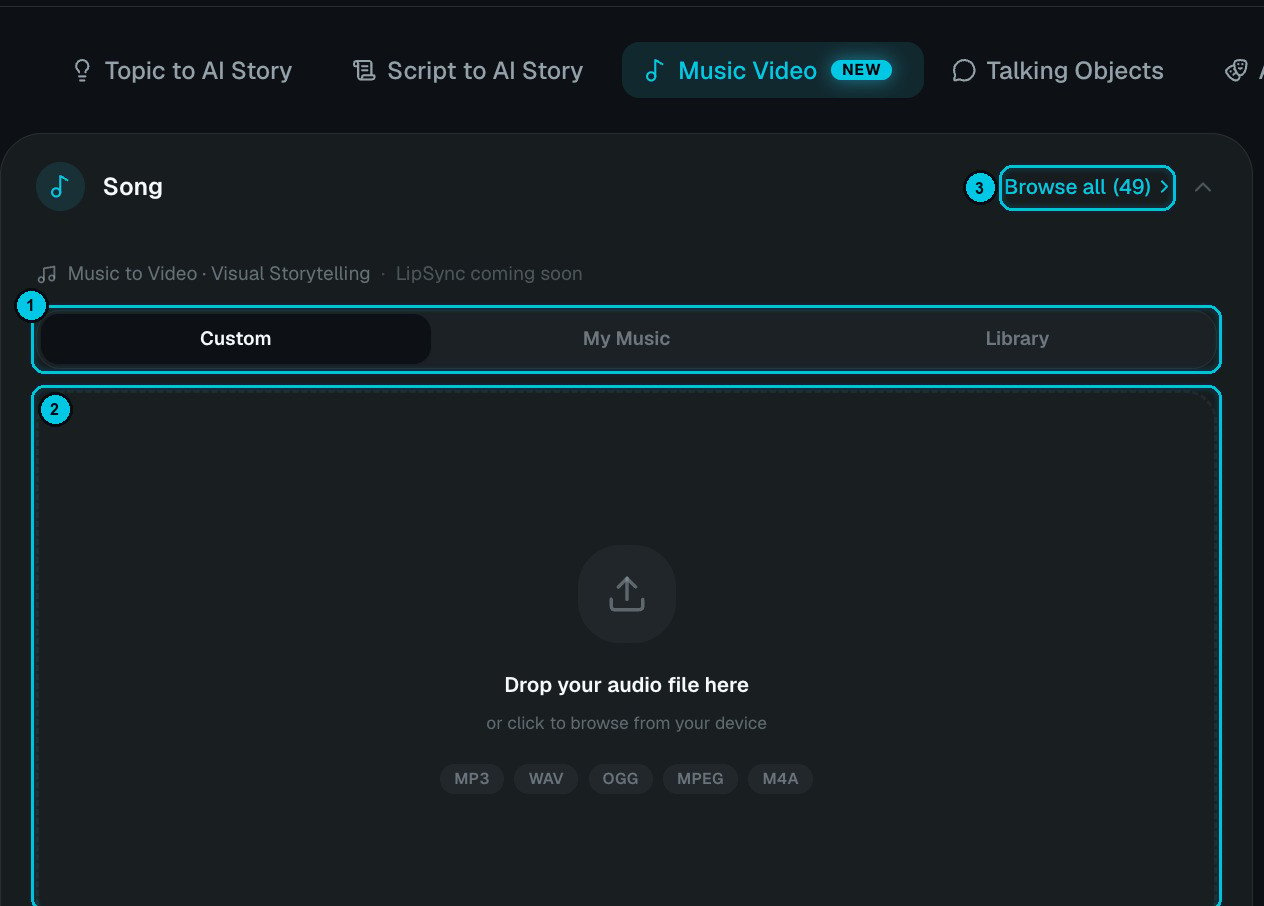
① Custom / My Music / Library · ② Drop or link your audio · ③ Browse all library tracks
- Custom — drop an audio file (MP3, WAV, OGG, MPEG or M4A), or paste a YouTube, Suno or direct audio link and click Process audio.
- My Music — a track you made with AI Music or uploaded before.
- Library — 49 ready-made tracks (Browse all shows them with mood tags).
2
Choose the format and quality
Aspect ratio and AI image quality (Basic, Pro or Ultra), as in Common settings.
3
Write the visual story (optional)
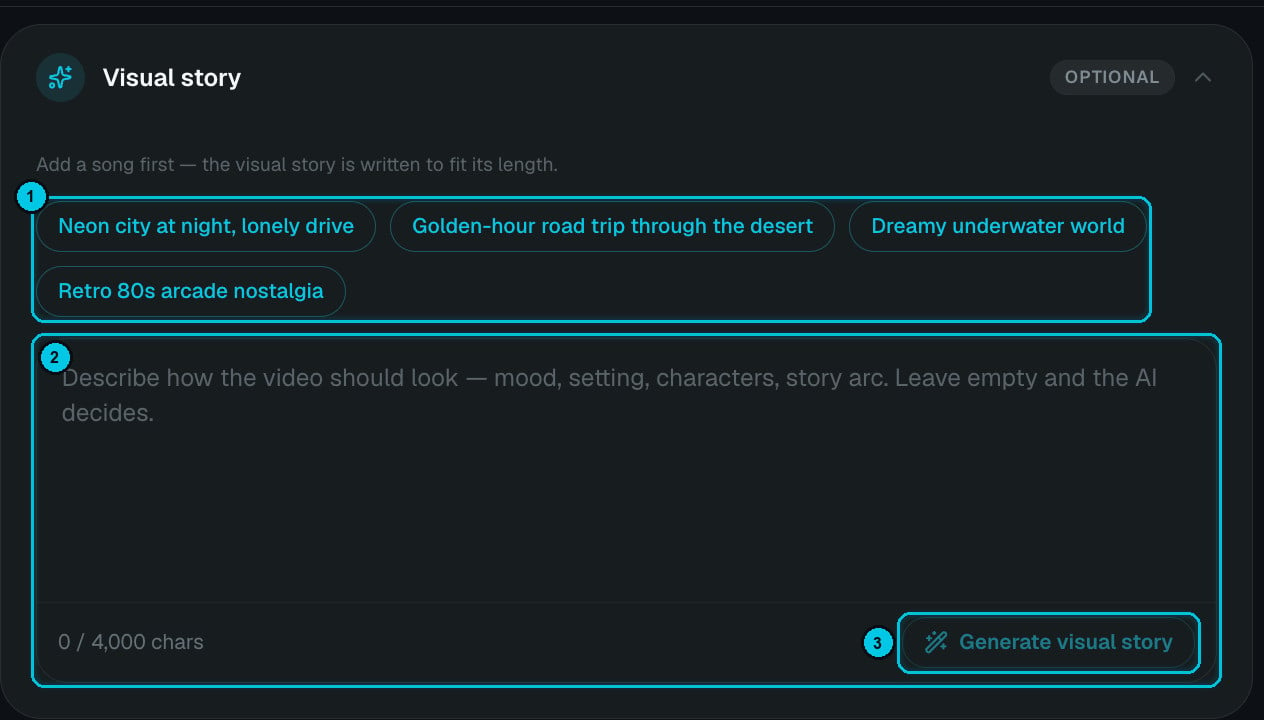
① Idea chips · ② Describe the look · ③ Generate visual story
4
Pick the style and captions
A visual style and a caption style. Lyric captions are transcribed from the song’s vocals for free.
5
Choose the generation path and scene length
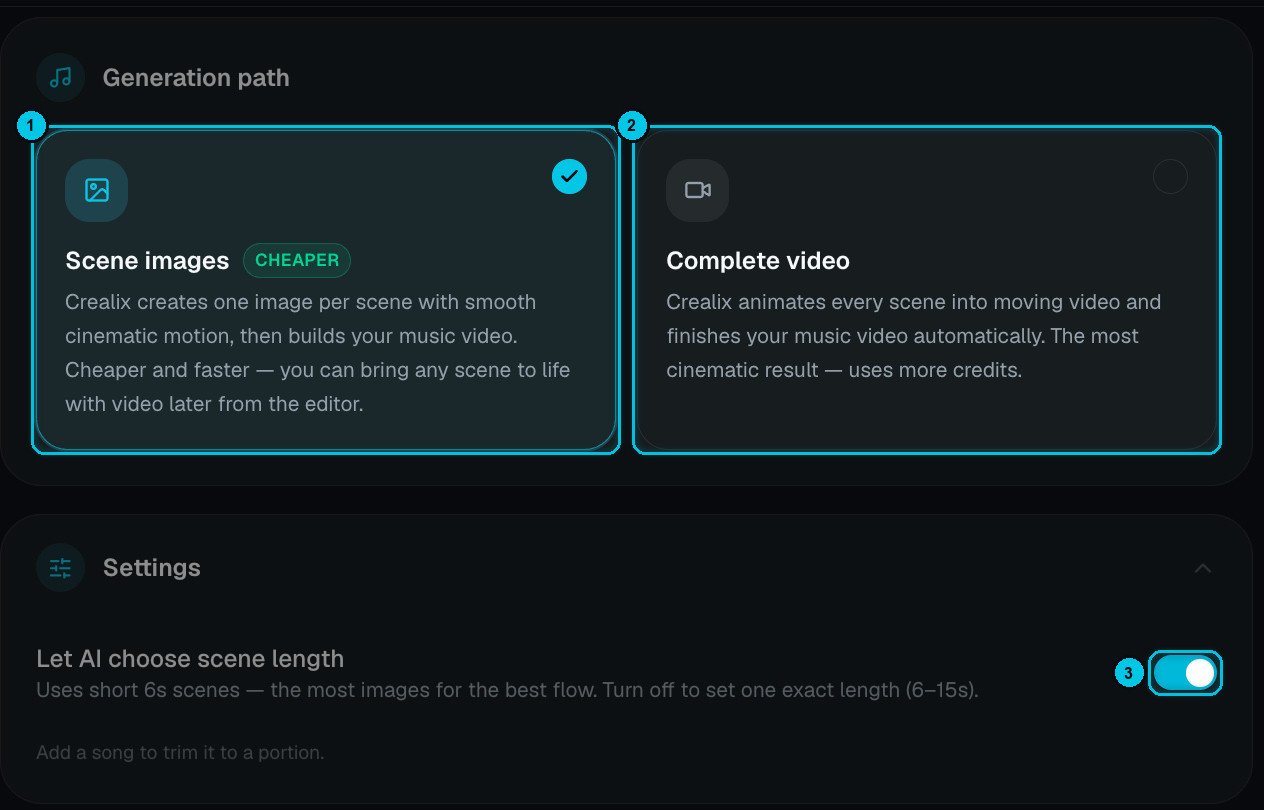
① Scene images · ② Complete video · ③ Let AI choose scene length
- Scene images (cheaper) — one image per scene with smooth cinematic motion. Cheaper and faster; bring any scene to life with video later in the editor.
- Complete video — every scene is animated into moving video and the music video is finished automatically. The most cinematic result; uses more credits.
- Let AI choose scene length — short 6-second scenes, the most images for the best flow. Turn it off to set one exact length between 6 and 15 seconds (longer scenes = fewer images = lower cost).
6
Style the waveform (optional)
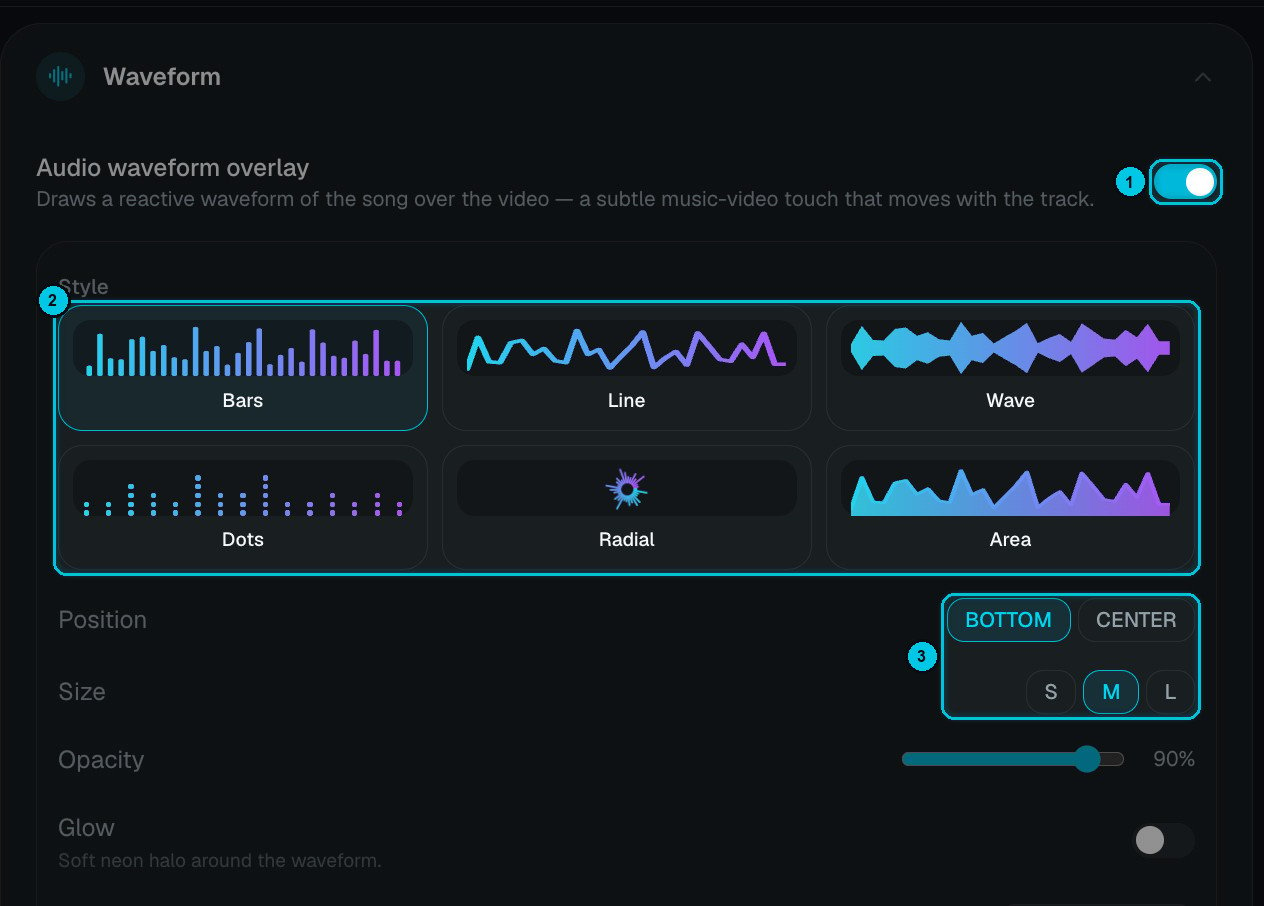
① Audio waveform overlay · ② Style · ③ Position and size
- Style — Bars, Line, Wave, Dots, Radial or Area.
- Position — bottom or center; Size — S, M or L.
- Opacity, Glow (a soft neon halo) and a start/end color gradient.
Lip-sync for singing characters is coming soon.
Tips
- Trim to the best 30–60 seconds for Shorts — the chorus usually works best.
- Describe a journey in the visual story (from a rainy city to a sunrise on the coast) so scenes progress instead of repeating.
- Use your own or AI-made music to avoid copyright claims when you publish.