

Step by step
1
Choose the two sources
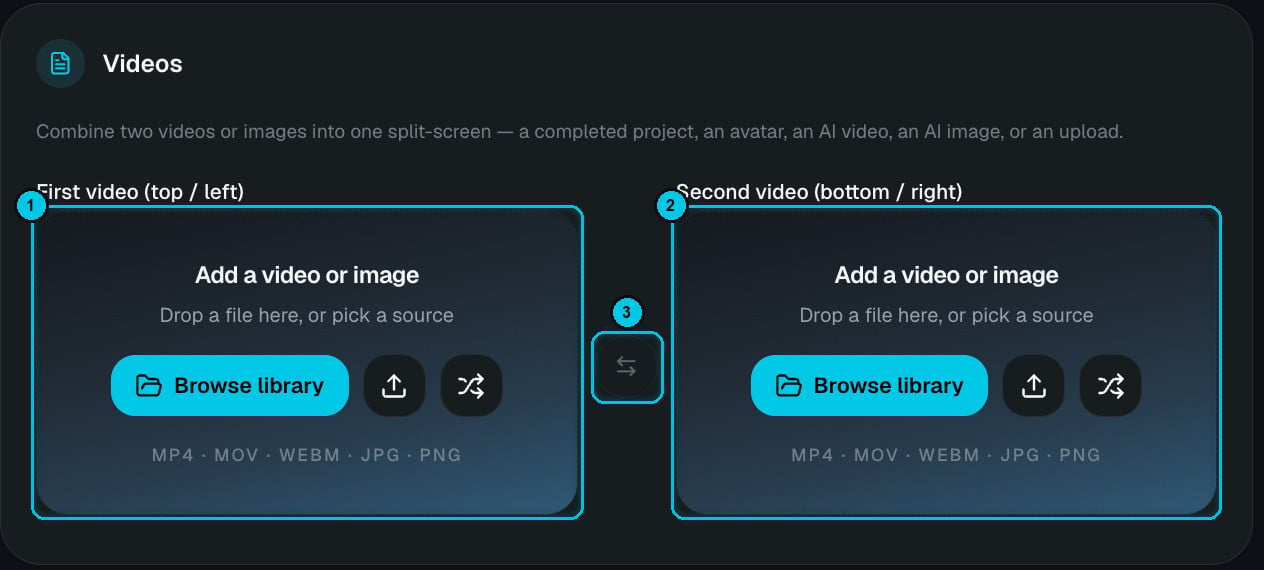
① First video (top / left) · ② Second video (bottom / right) · ③ Swap
- Browse library — pick from your media library.
- Upload (arrow icon) — or drop a file onto the slot.
- Random (shuffle icon) — picks a gameplay clip you haven’t used yet.
- Swap (③) — exchanges the two sources.
2
Choose format and language
9:16, 16:9 or 1:1 and the narration language.
3
Set the layout
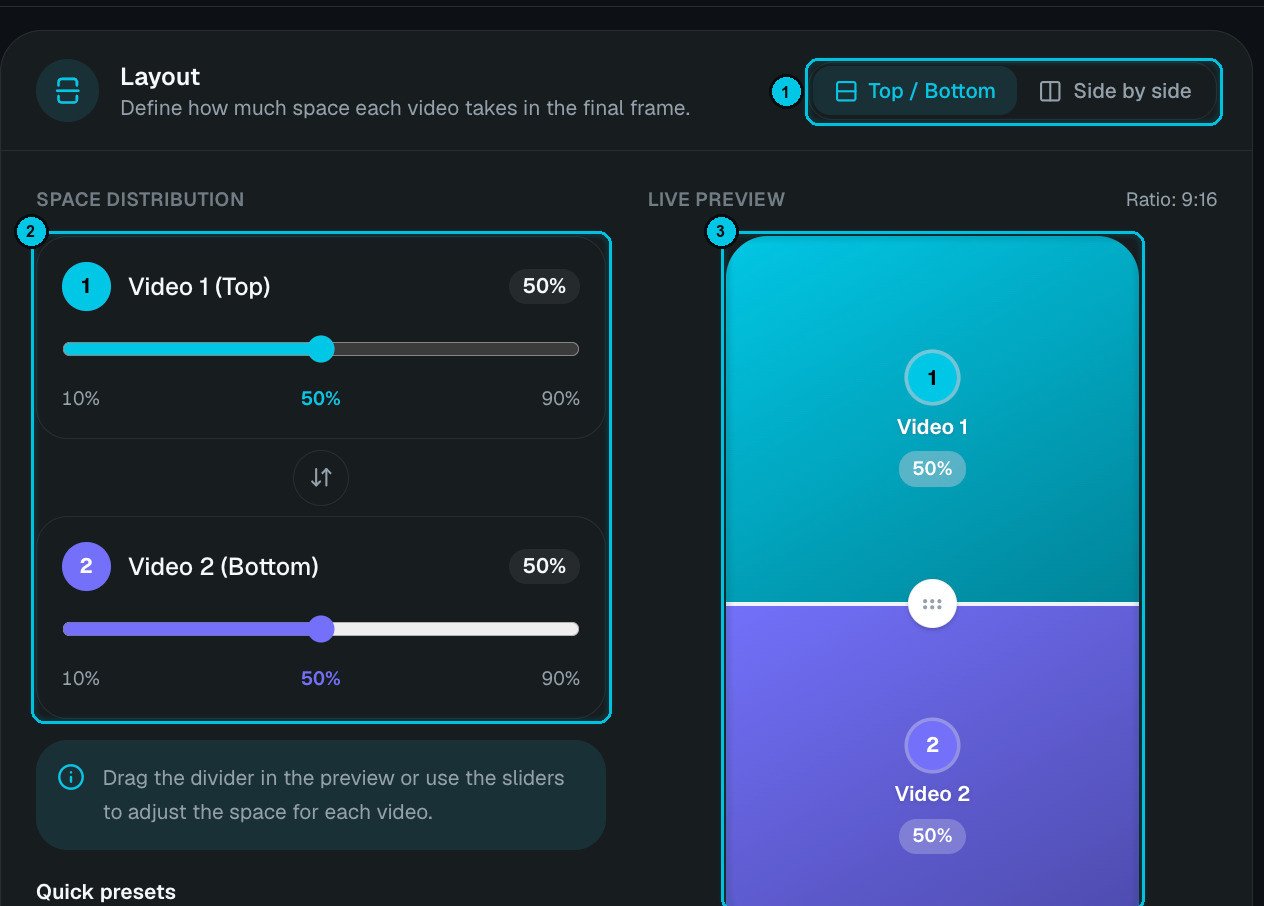
① Top / Bottom or Side by side · ② Space distribution · ③ Live preview
- Top / Bottom or Side by side (①).
- Space distribution (②) — a slider per video, from 10% to 90%, or Quick presets: 50/50, 60/40, 70/30 or Custom.
- Live preview (③) — drag the divider directly in the preview to fine-tune the split in real time.
- Seam — Blend (a soft gradient between the two) or Divider (a hard line).
4
Choose the length
- Auto — uses the narration’s length, or the longest clip if there’s no narration (the shorter one loops).
- 15, 30 or 60 seconds — both clips loop or trim to fit.
5
Add narration (optional)
Write a story to narrate over the split (up to 17,000 characters — the counter shows the estimated duration), or click Write with AI. Starters help: Hook + reveal, Problem → solution, Tutorial voiceover, Story time and Product demo. Leave it empty for no voiceover.
6
Pick a caption style and create
Captions are transcribed from the audio that’s heard — your narration if you added one, otherwise the source that isn’t muted (the talking clip). Pick a style now; you generate or regenerate the captions in the editor after creating.