

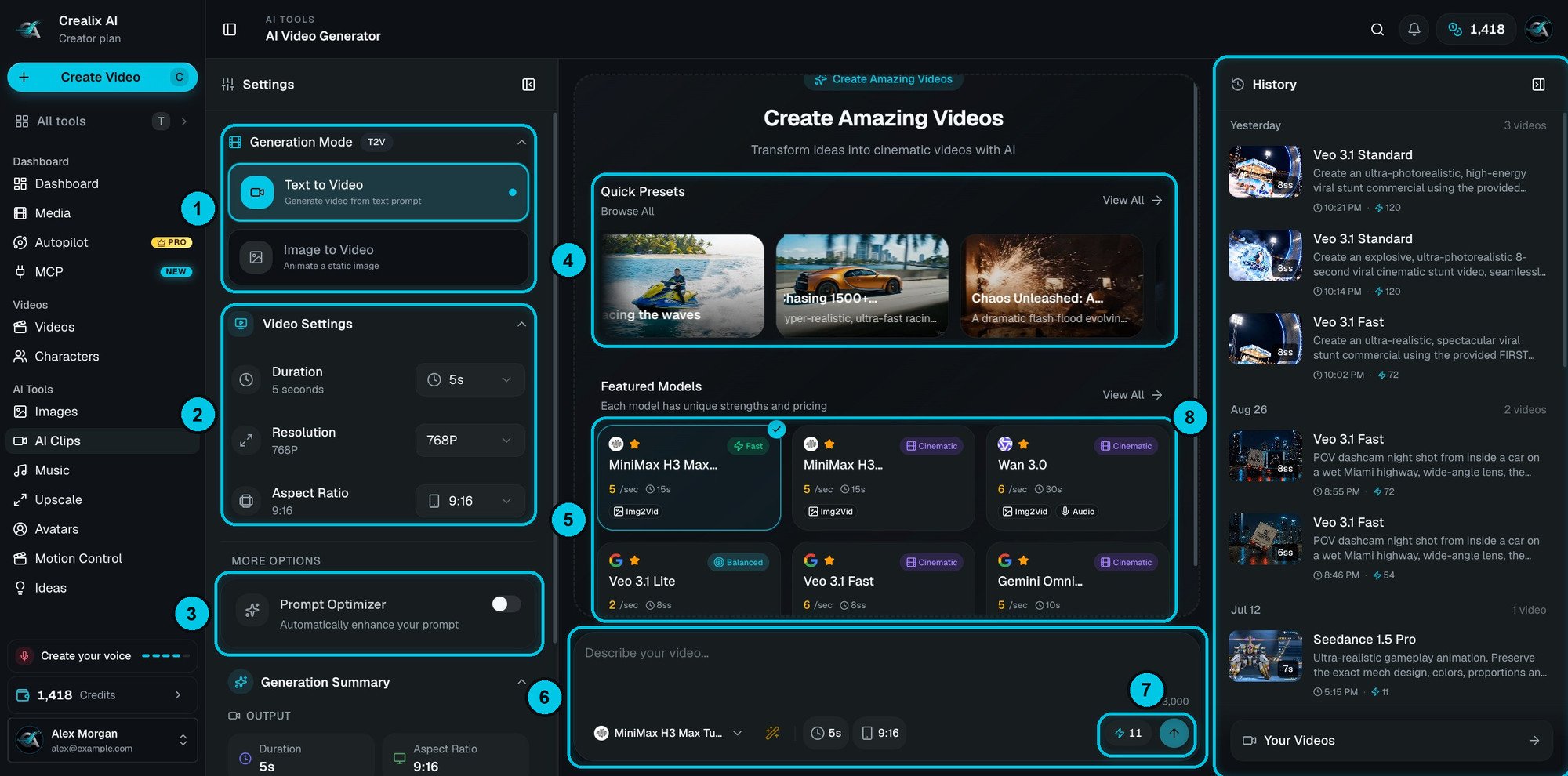
① Generation Mode · ② Video Settings · ③ Prompt Optimizer · ④ Quick Presets · ⑤ Featured Models · ⑥ Prompt bar · ⑦ Cost and generate · ⑧ History
Generate a clip
1
Choose the generation mode
In Generation Mode (①):
- Text to Video — describe the shot and the model creates it from scratch.
- Image to Video — upload or pick an image and describe how it should move. The image becomes the first frame, so this is the way to keep a character, a product or a style consistent. Tip: make the still in AI Images first.
2
Pick a model
Each card in Featured Models (⑤) shows the model’s strength (Fast, Balanced, Cinematic), its price per second, its maximum length, and badges for what it supports: Img2Vid (image to video) and Audio (it generates sound). View All opens the full catalog. You can also switch model from the prompt bar.
3
Set duration, resolution and aspect ratio
In Video Settings (②). The options adapt to the model — for example MiniMax H3 Max Turbo does 5–15 seconds at 480p, 768p or 1080p; Wan 3.0 goes up to 30 seconds with audio; Veo 3.1 Fast and Standard reach 4K. Use 9:16 for TikTok, Reels and Shorts.
4
Write the prompt
In the prompt bar (⑥), up to 3,000 characters. Describe the subject, the action, the setting, the camera and the mood. Turn on Prompt Optimizer (③) to let the model enrich your prompt automatically, or start from one of the Quick Presets (④).
5
Generate
The button (⑦) shows the total cost — for example a 5-second 768p clip with MiniMax H3 Max Turbo costs 11 credits. Generation Summary, at the bottom of the settings, recaps duration, aspect ratio, resolution and cost. The clip appears in History (⑧) when it’s ready; Your Videos lists them all in your media library.
Writing prompts that work
A strong clip prompt has five parts:- Describe one action per clip. Long chains of events make models drift.
- Name the camera move: slow push-in, orbit, handheld, drone shot, static wide.
- For audio models, describe the sound too: “waves crashing, distant seagulls”.
Models
Clips with audio include sound made by the model (ambience, effects and sometimes speech). Models without audio make silent clips — add music and narration in the editor.