

Episodes
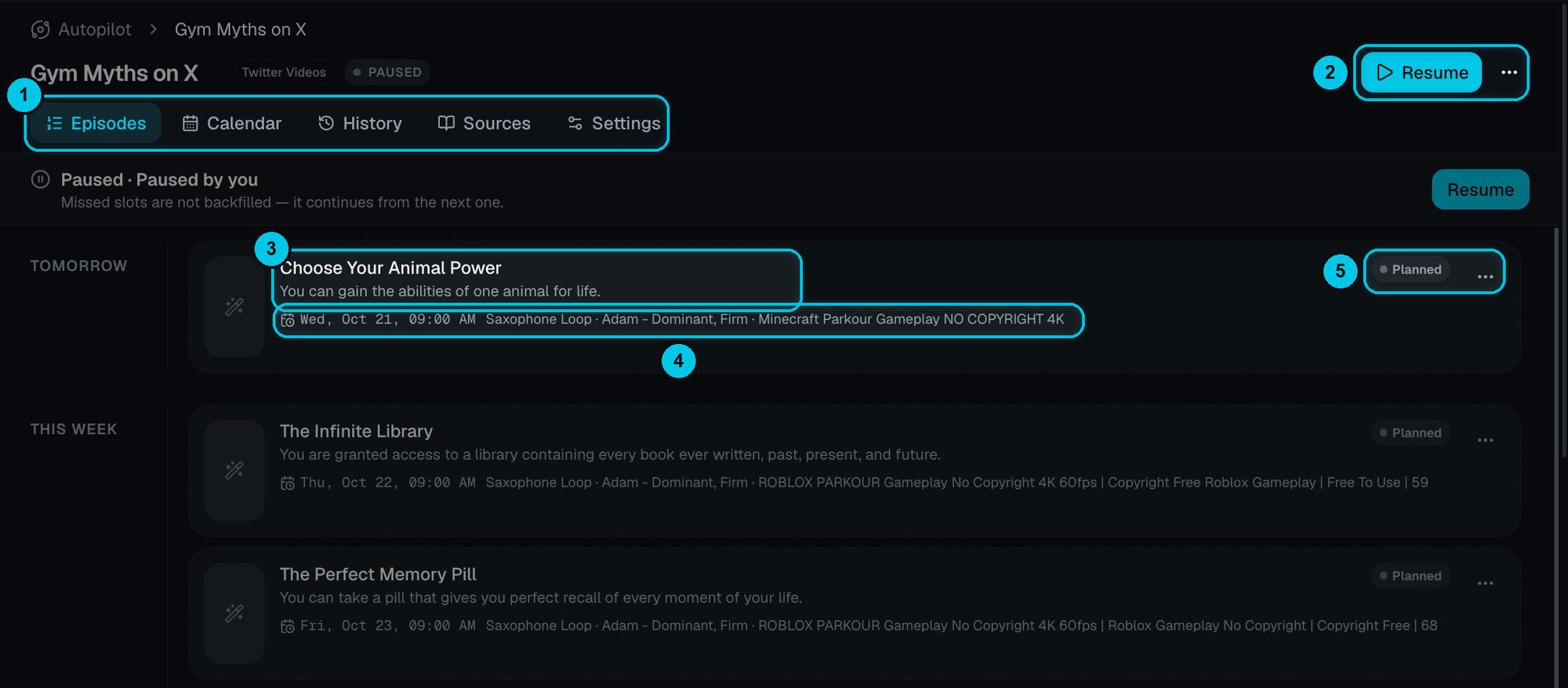
① The five tabs · ② Resume (or Pause) and more · ③ Episode title and idea · ④ Date, music, voice and background picked for it · ⑤ Status and actions
Episode statuses
Episode actions
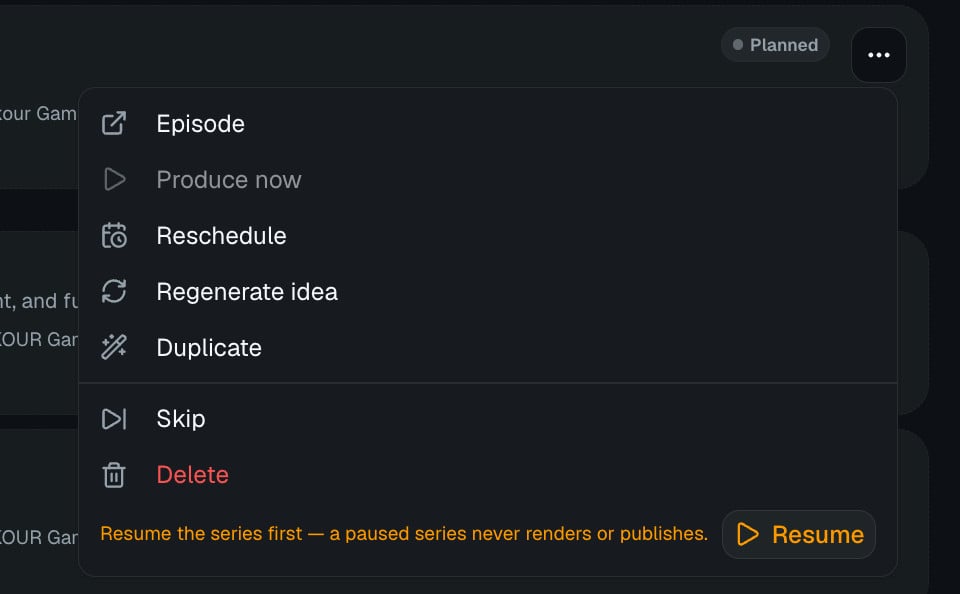
The ⋯ menu of a planned episode
Open the ⋯ menu on any episode. What you see depends on where the episode is:
- Episode — open it to read or edit its idea and brief.
- Produce now — make it immediately instead of waiting; the cost is on the button.
- Reschedule, Regenerate idea, Duplicate, Skip or Delete.
Before it's produced
Before it's produced
- Regenerate idea — write a new idea for this slot (useful after you change the brief).
- Edit the episode’s title and brief — the writer follows the brief, not the title.
- Produce now — don’t wait for the slot. The cost is shown on the button.
- Skip — it leaves the queue and is never produced; the slot goes to the next idea and nothing is charged.
- Reschedule, Hold, Duplicate or Delete.
After it's produced
After it's produced
- Review — watch it and decide.
- Approve & render — renders it now and schedules it for its slot.
- Open in editor — change anything before it goes out.
- Publish now — don’t wait for the slot.
If something went wrong
If something went wrong
- Retry — starts over from the same idea; the failed attempt is not charged twice.
- Republish — sends the finished video again, only to the channels that failed.
- Put back in queue — return it to the schedule.
- Dismiss — clear the alert.
Approvals
If the series uses I approve each episode, Crealix writes, voices and illustrates each episode (that generation is paid when the episode is produced) and emails you a preview. Rendering and publishing only happen once you approve, so you never pay to render something you didn’t want. When episodes are waiting, the series shows a banner such as “2 episodes are waiting for your approval”. Click Review, watch the episode, then Approve & render — or Regenerate, Hold or Skip it. Approve before the deadline shown (Approve before …), or the slot is missed.If you don’t have enough credits to render an approved episode, Crealix tells you how many you need. Top up and approve again — the episode waits for you.
Calendar
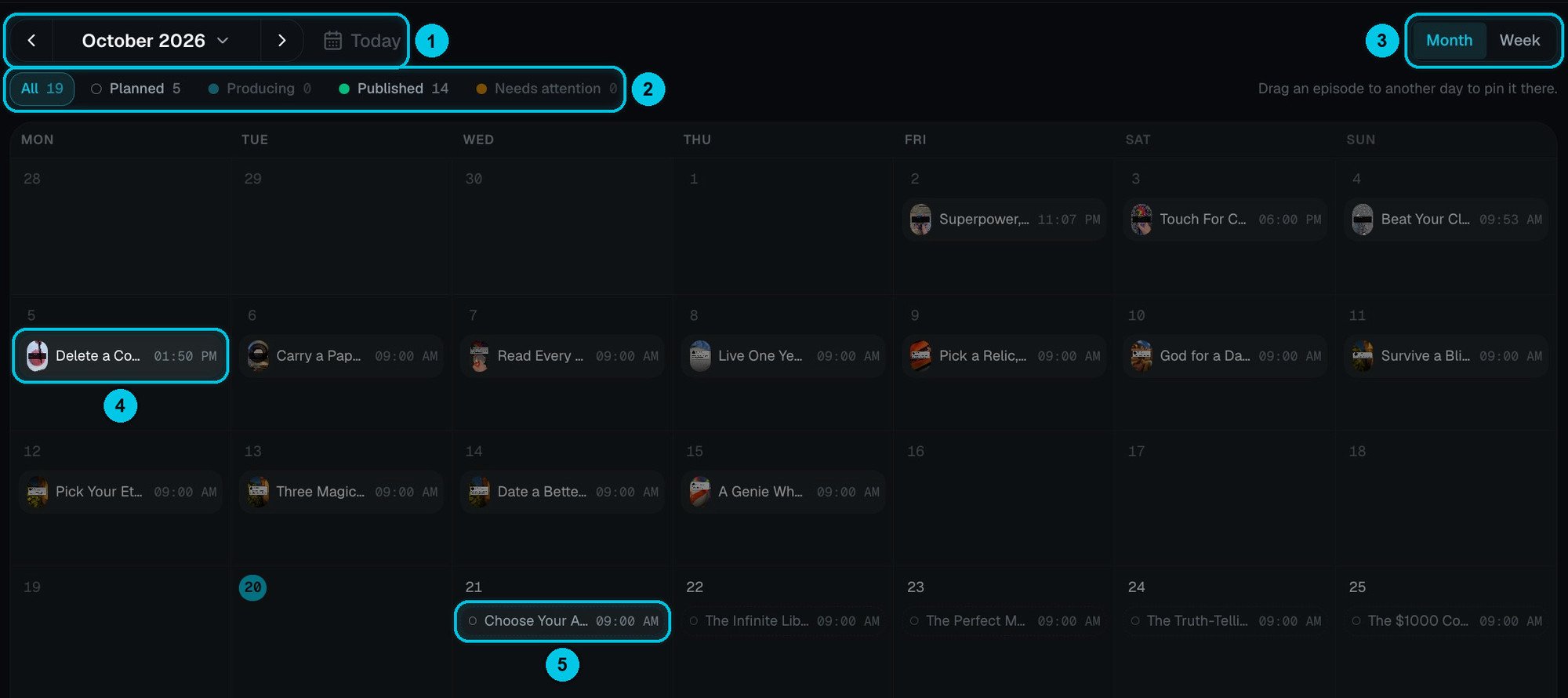
① Month and Today · ② Filters · ③ Month or week view · ④ A published episode · ⑤ A planned episode
History
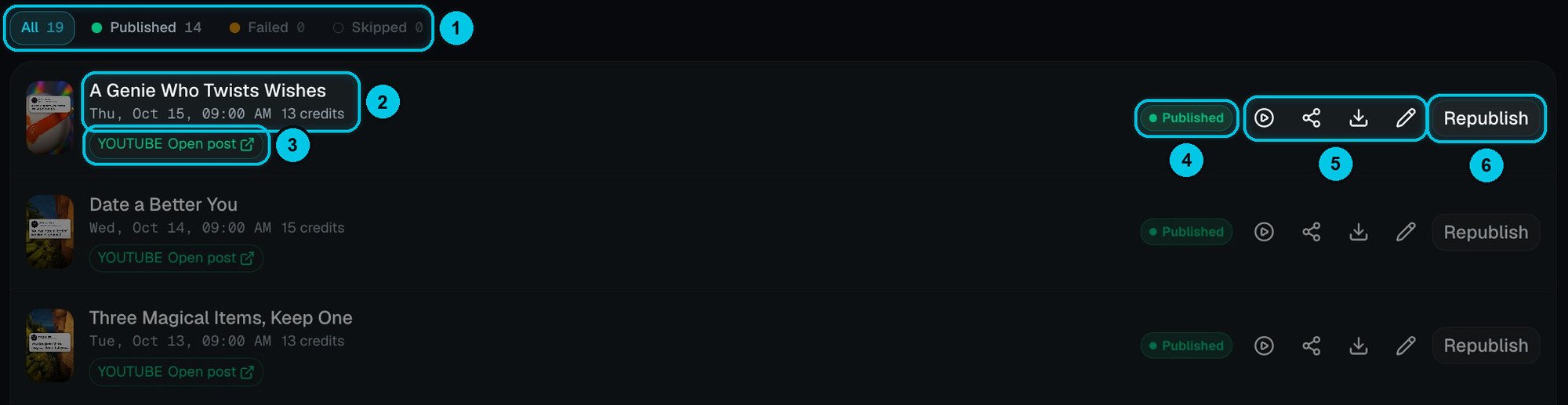
① Filters · ② Title, date and credits · ③ Open the post on the network · ④ Status · ⑤ Watch, share, download, edit · ⑥ Republish
Sources
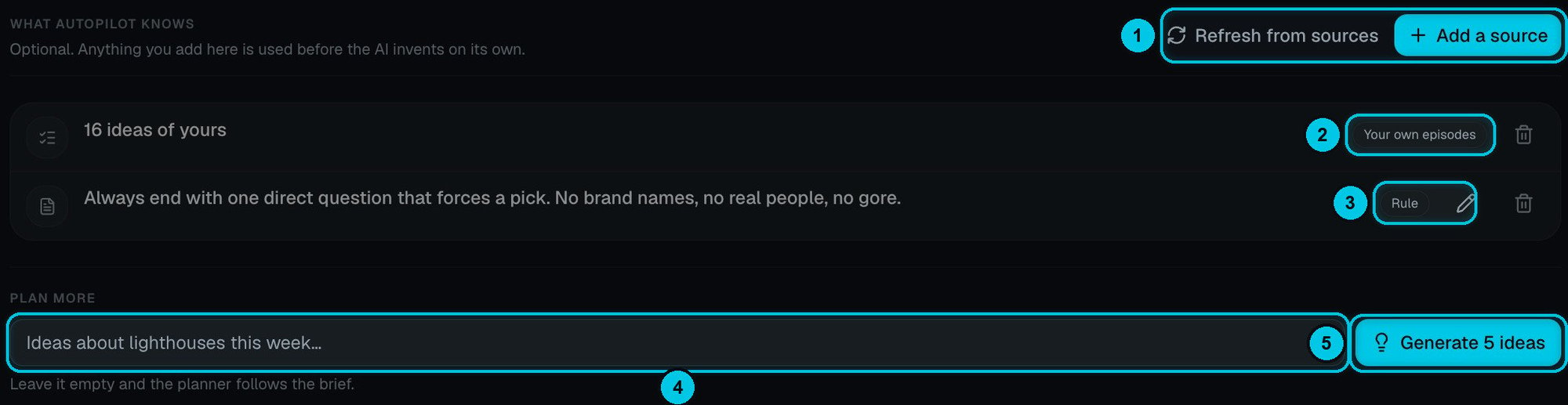
① Refresh from sources / Add a source · ② Your own episode ideas · ③ A rule · ④ Steer the next ideas · ⑤ Generate 5 ideas
- Brief — at the top; click Edit to change the creative direction.
- What Autopilot knows — your idea lists, pages to read and rules. Add a source to add more, Refresh from sources to re-read pages, or the bin to remove one.
- Plan more — optionally type a direction (“Ideas about lighthouses this week…”) and click Generate 5 ideas to add a batch to the queue right away. Leave it empty and the planner follows the brief.