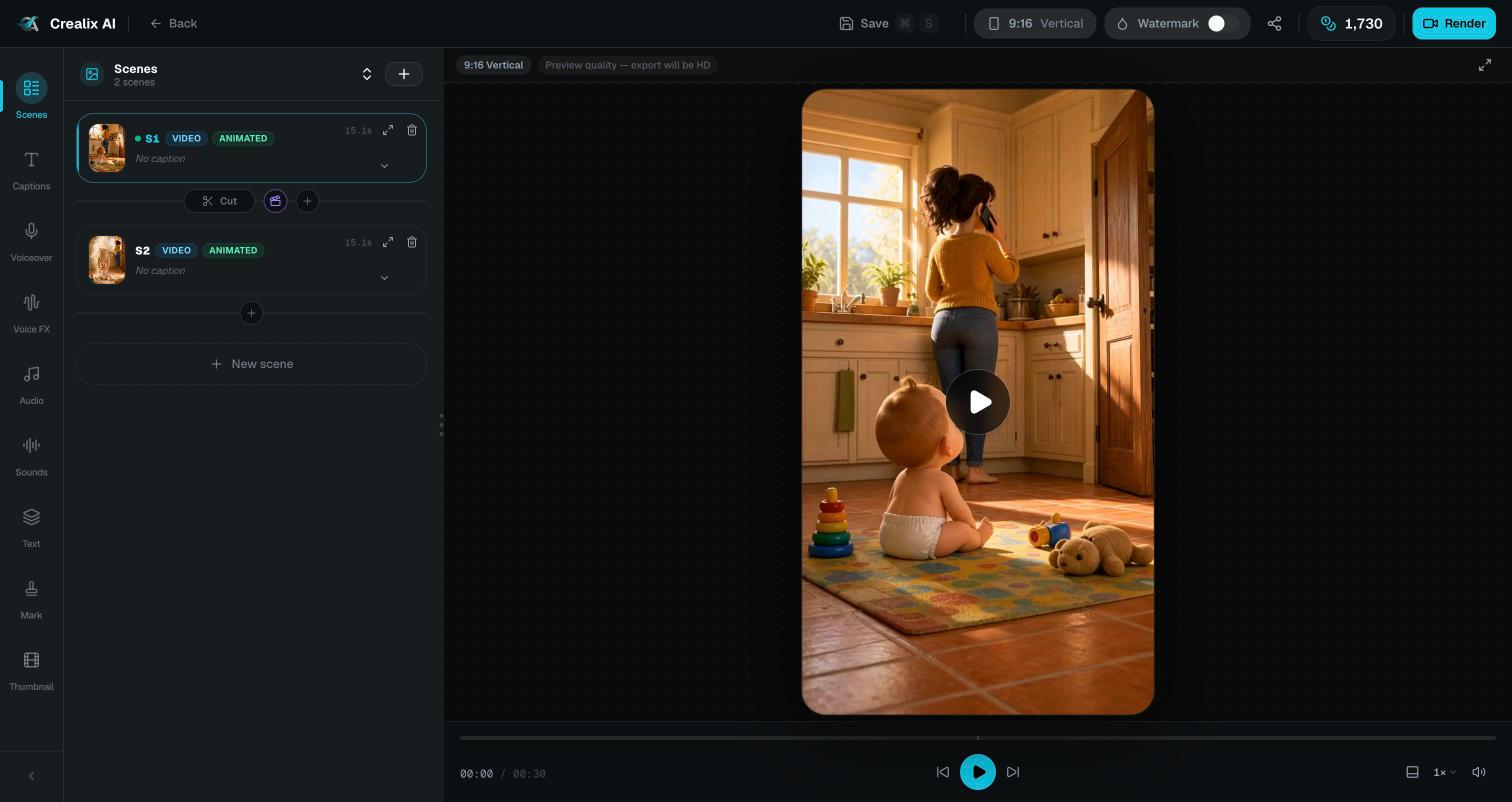
The scene list
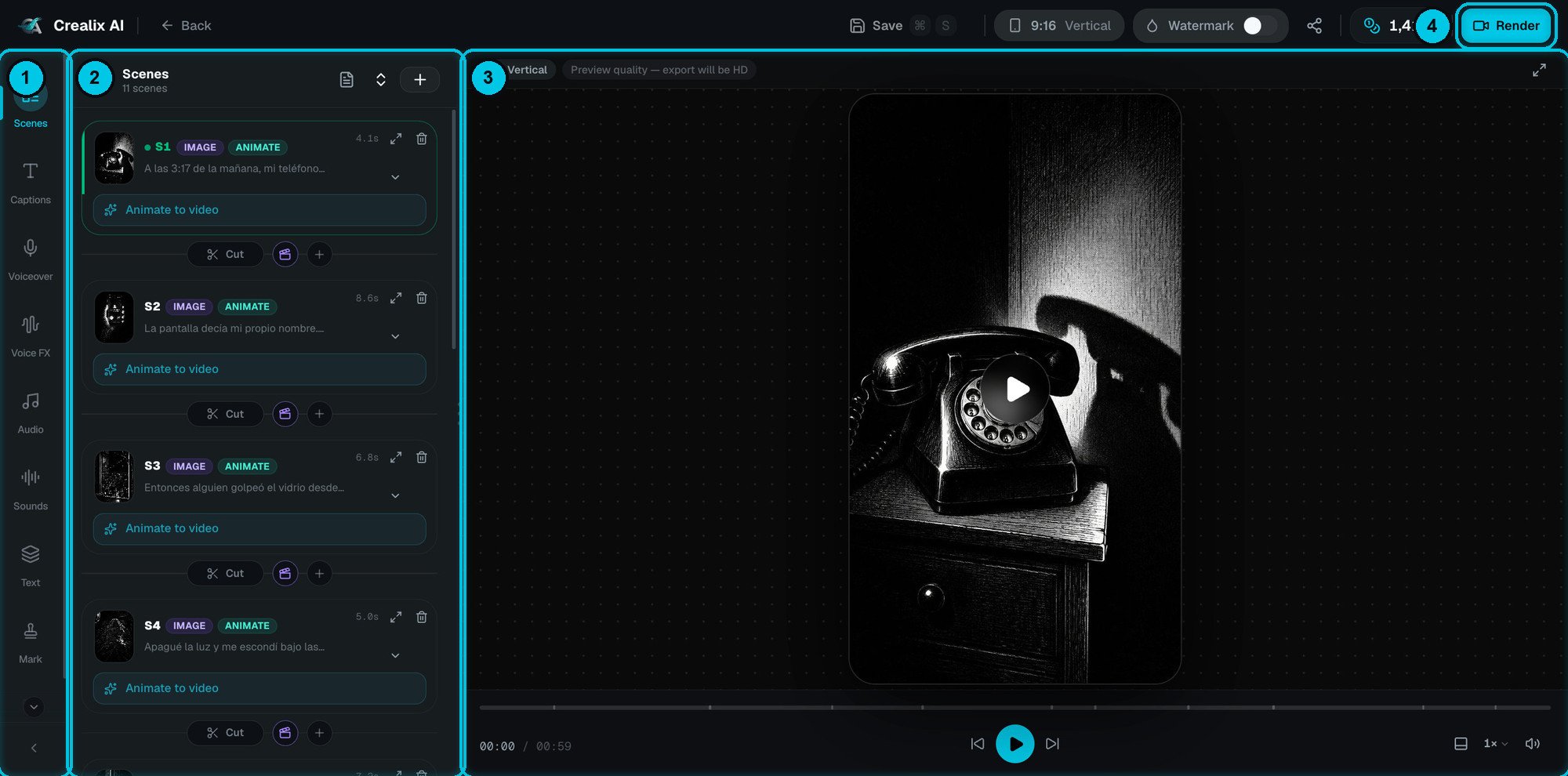
The Scenes panel: one card per scene, with the controls between cards
- View full script (document icon) — read and edit the whole script in one place.
- Expand / collapse all (arrows icon).
- + — add a new scene at the end.
- Click the card to jump the preview to that scene; click the chevron to expand it.
- Drag the card to reorder scenes.
- Open scene editor (diagonal arrows) opens the scene in a larger view.
- Delete (bin) removes the scene.
- Animate to video — shortcut to turn the image into a clip (see below).
- Transition chip (for example Cut) — choose how this scene changes into the next one.
- Transition scene (clapper icon) — generate a short AI clip that bridges the two scenes by interpolating from the last frame of one to the first frame of the next. Available when a first-and-last-frame video model is enabled.
- + — insert a new scene here.
Inside a scene
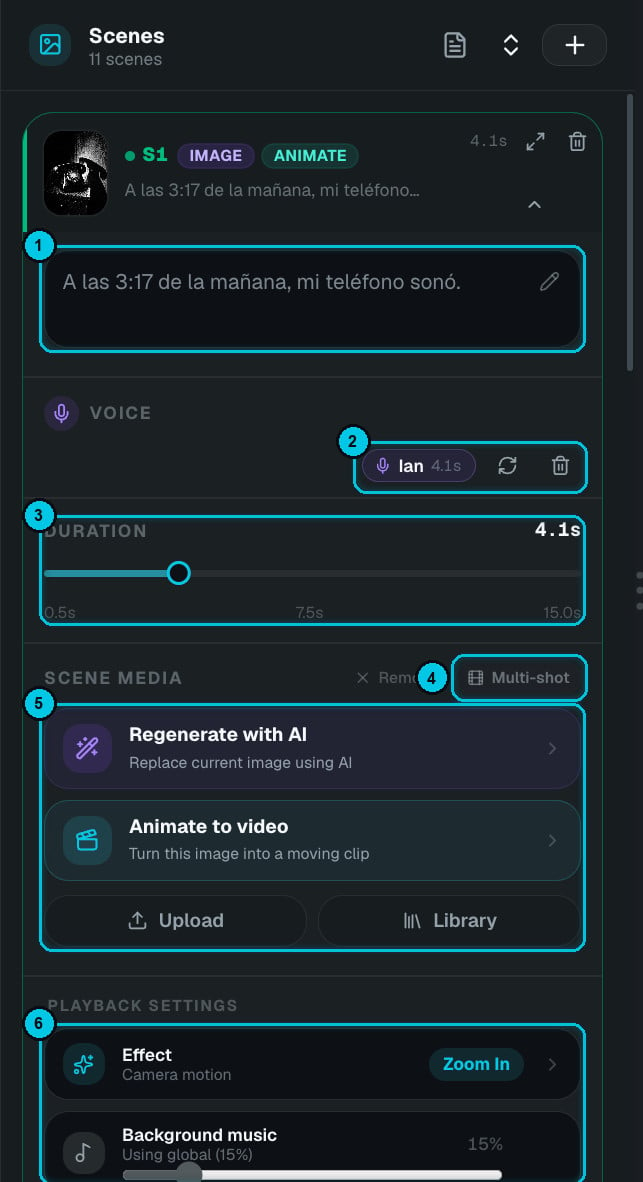
① Text · ② Voice · ③ Duration · ④ Multi-shot · ⑤ Scene media · ⑥ Playback
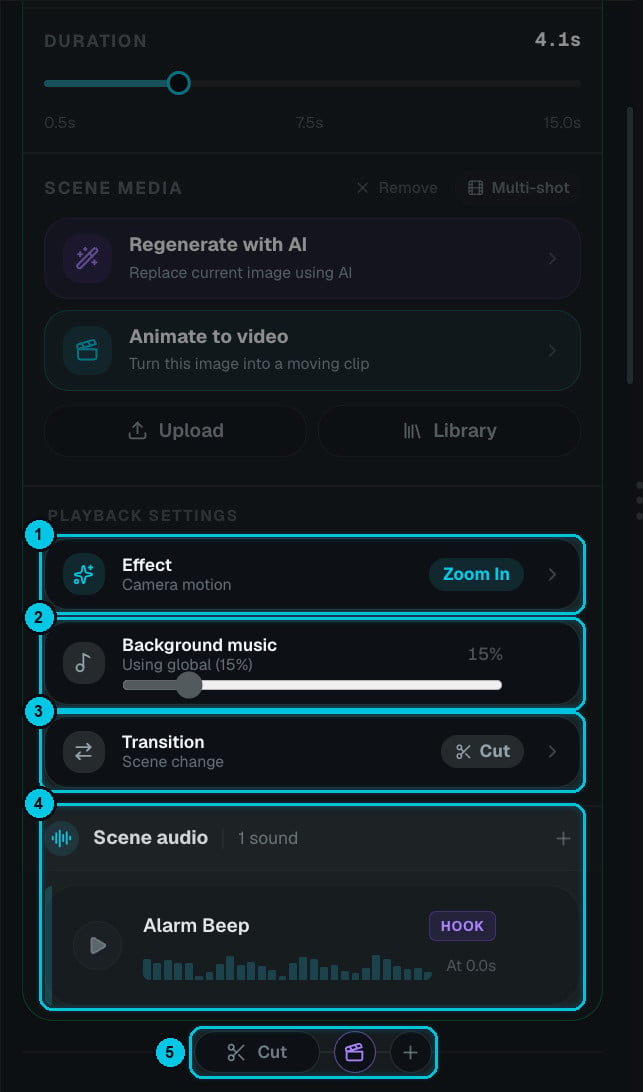
① Effect · ② Music level · ③ Transition · ④ Scene sounds · ⑤ Between scenes
① Text — what's said in this scene
① Text — what's said in this scene
② Voice — the recording
② Voice — the recording
③ Duration — how long the scene stays on screen
③ Duration — how long the scene stays on screen
④ Multi-shot and Remove
④ Multi-shot and Remove
⑤ Scene media — replace or animate the visual
⑤ Scene media — replace or animate the visual
- Regenerate with AI — replace the current image with a new one. You can edit the prompt first.
- Animate to video — turn this image into a moving AI clip (see below).
- Upload — use your own image or video.
- Library — pick anything from your media library.
⑥ Playback settings — motion, music and transition
⑥ Playback settings — motion, music and transition
- Effect — the camera motion on an image (see the gallery below).
- Background music — this scene’s music level. By default it uses the global level (for example Using global (15%)); drag the slider to duck the music under a key line.
- Transition — how this scene changes to the next.
- Scene audio — the sound effects that play in this scene, with their tag (HOOK, TRANS, PAYOFF…) and start time. Click + to add one.
Camera effects
Click Effect to choose how an image moves during playback. The change applies instantly in the preview.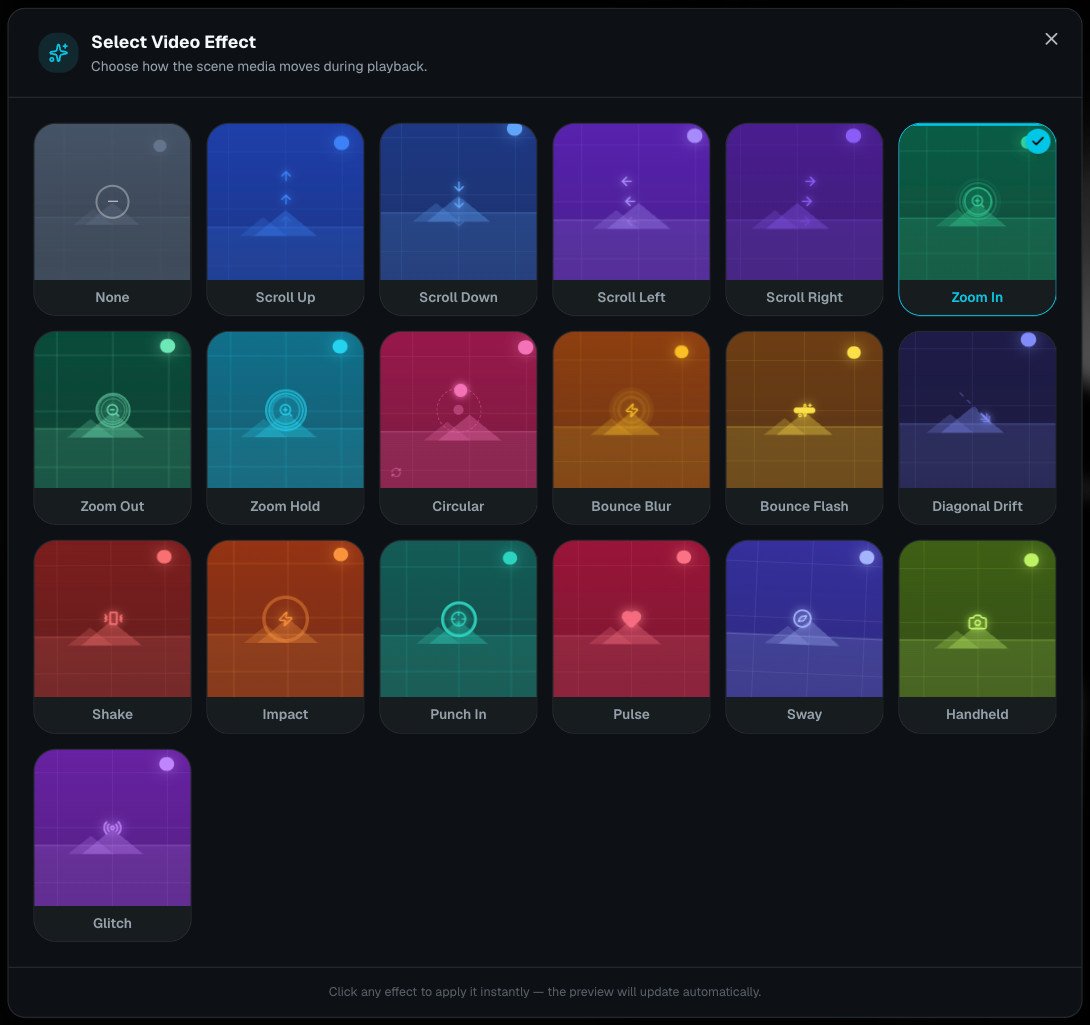
19 camera effects, from subtle zooms to punchy shakes and glitches
Transitions
Click the transition chip between two scenes (or Transition in the scene’s playback settings).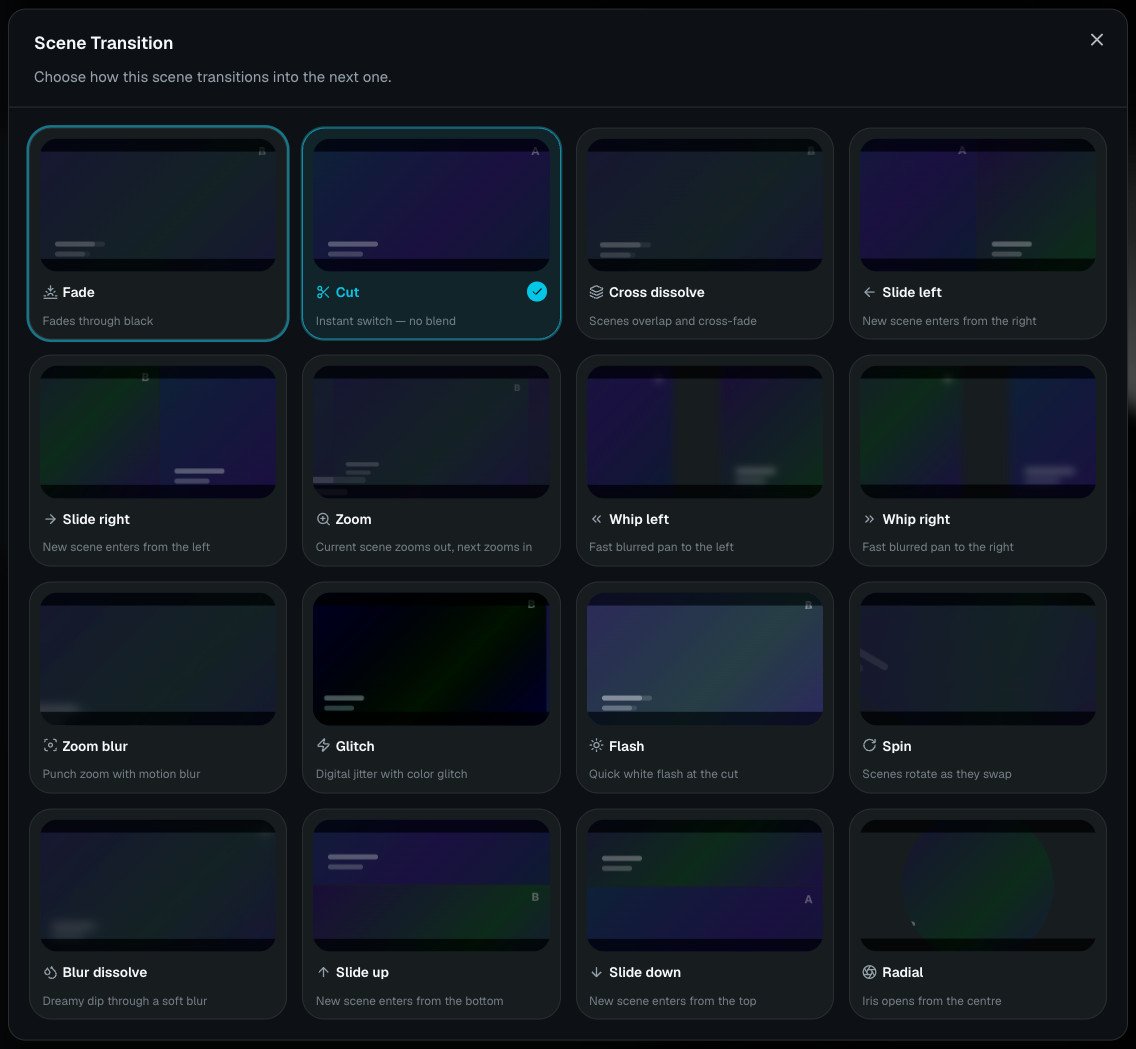
16 transitions with a live A→B preview
Animate a scene into video
Click Animate to video on any image scene. A composer opens at the bottom of the preview: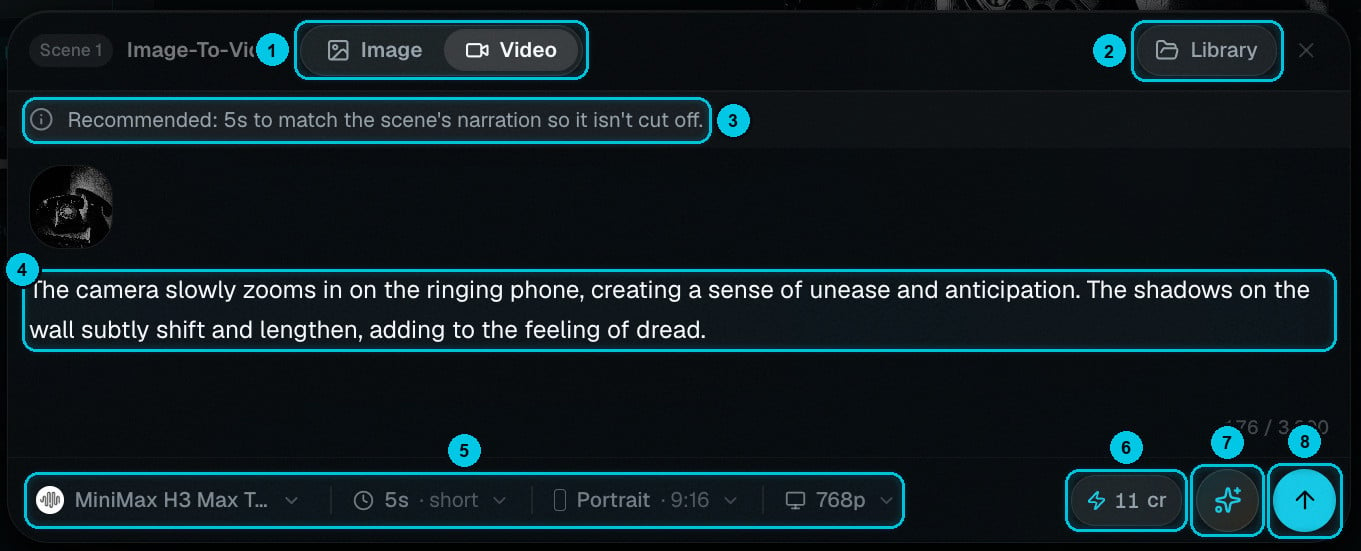
① Image or Video · ② Library · ③ Recommended length · ④ Motion prompt · ⑤ Model, length, orientation and resolution · ⑥ Cost · ⑦ Enhance prompt · ⑧ Generate
Describe the motion
Pick the model and settings
Generate
Choosing a video model
Click the model name to open the model picker. Each card shows the model’s price per second, its tier (Fast, Standard or Premium) and the clip lengths it supports. Search by name, filter by provider, or sort by Price.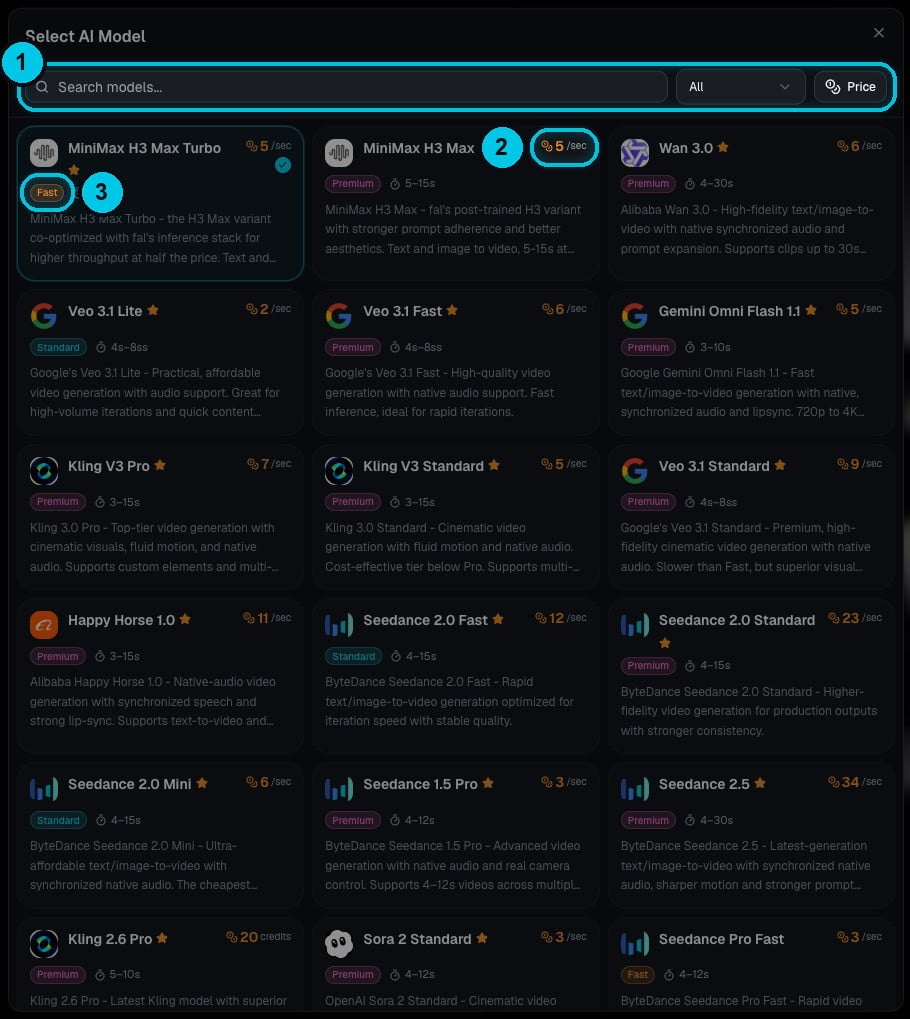
① Search, filter and sort · ② Price per second · ③ Tier
Studio projects
In Studio you build every scene yourself and can choose a different image or video model for each one. The scene panel works the same way, with extra controls for picking models per scene.