

Background music
Open Audio in the tool rail.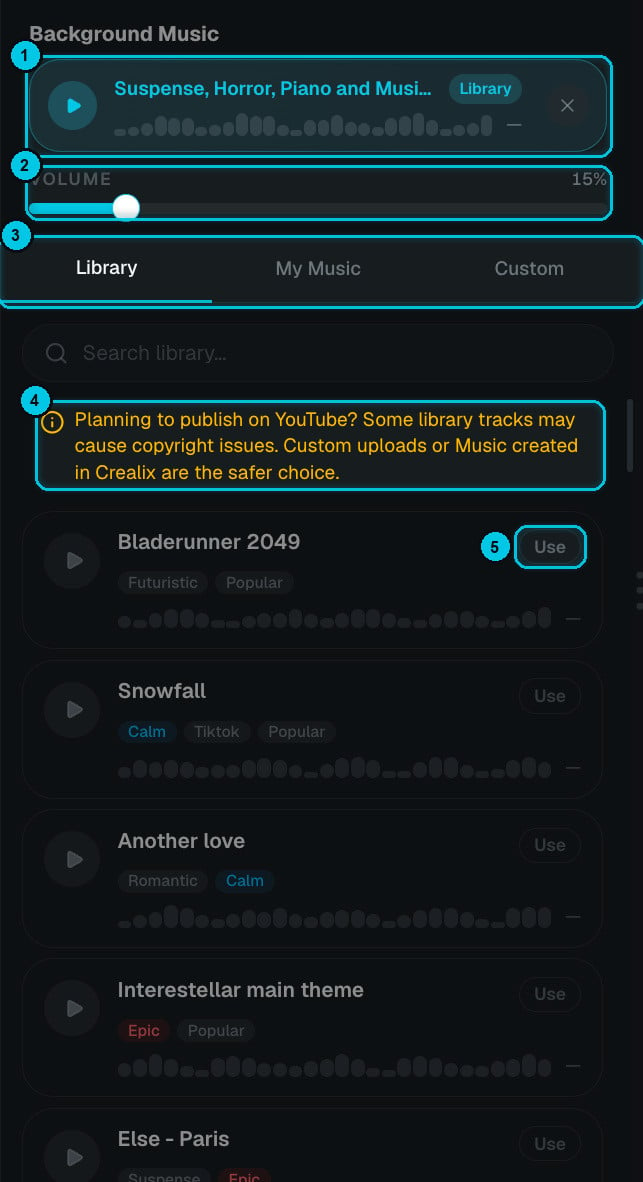
① Current track · ② Volume · ③ Library / My Music / Custom · ④ YouTube copyright note · ⑤ Use
- The current track (①) is pinned at the top with its source (Library, My Music or Custom). Press play to hear it, or × to remove it.
- Volume (②) sets the music level under the narration. 10–20% keeps the voice clear; go higher for music-led videos.
- Choose where the track comes from (③):
- Library
- My Music
- Custom
49 curated tracks tagged by mood — Calm, Epic, Suspense, Romantic, Futuristic, Tiktok, Popular and more. Search by name or mood, press play to preview, and click Use (⑤).
Music volume per scene
Each scene has its own Background music slider in its playback settings (see Scenes). By default every scene uses the global level; drag a scene’s slider to drop the music under a key line or raise it for a montage.Sound effects
Open Sounds to see every sound effect in the video.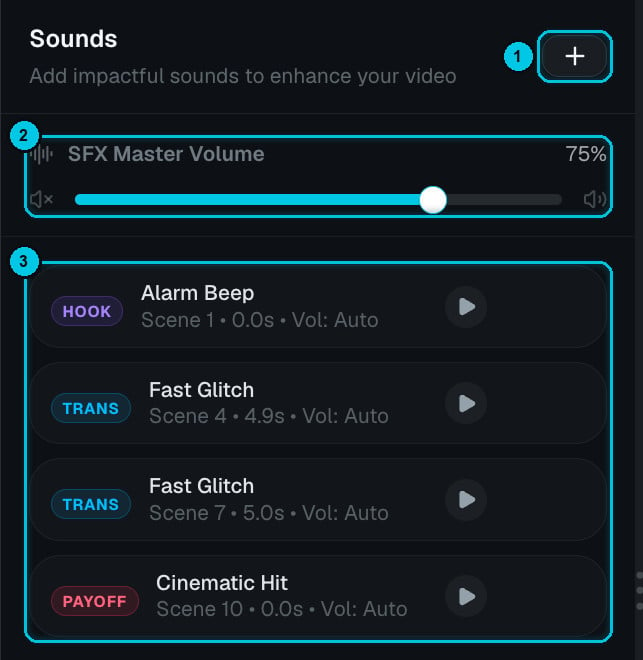
① Add a sound · ② SFX master volume · ③ Sounds in this video
- SFX master volume (②) controls all sound effects at once.
- Click a sound (③) to change it, move it or set its own volume, or press play to hear it.
Add a sound
Click + (①) to open the sound picker: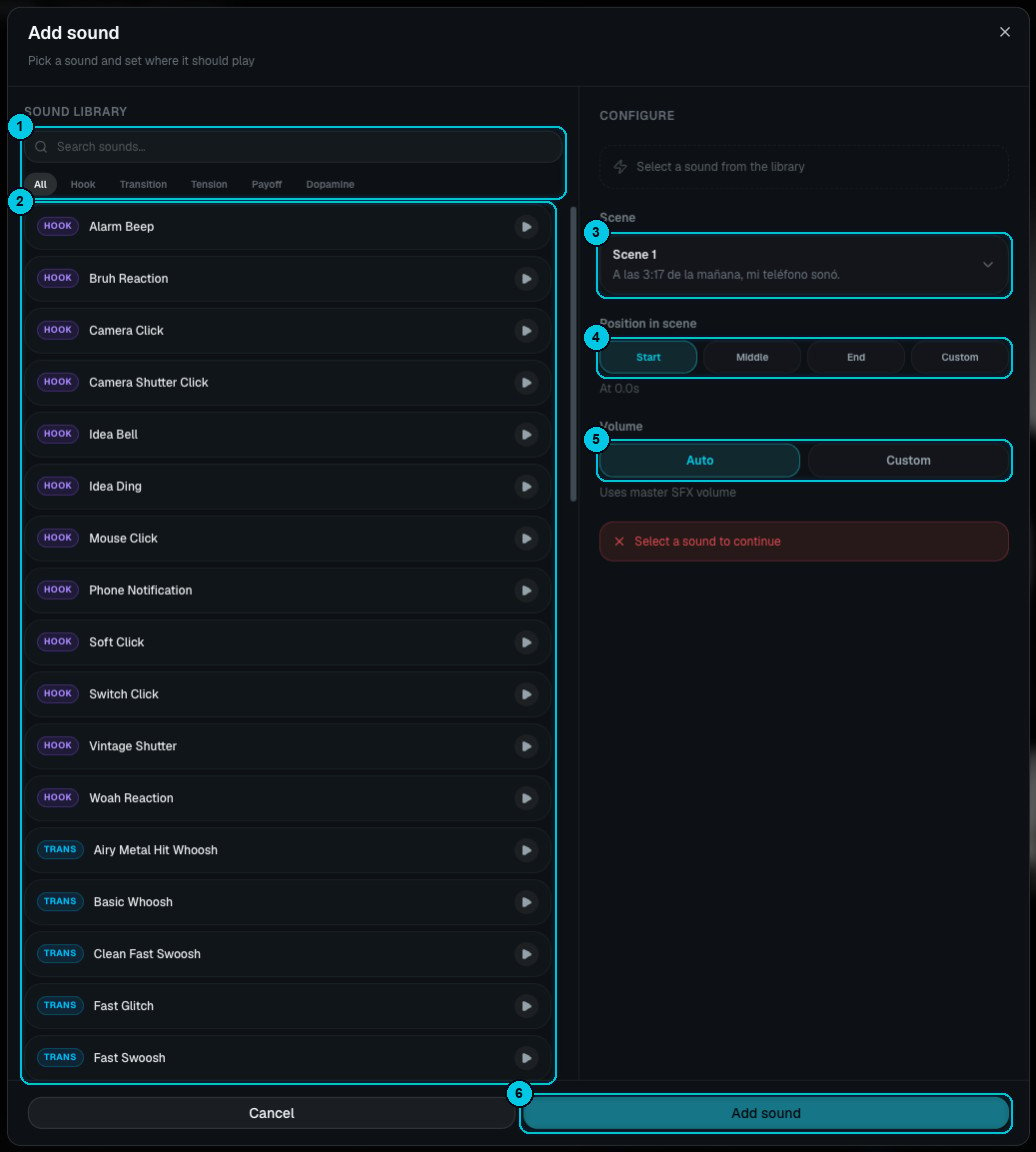
① Search and filter by tag · ② Sound library · ③ Scene · ④ Position in scene · ⑤ Volume · ⑥ Add sound
1
Pick a sound
Search, or filter by Hook, Transition, Tension, Payoff or Dopamine (①). Press play on any sound (②) to preview it, then click it to select it.
2
Choose where it plays
Pick the scene (③), then the position (④): Start, Middle, End, or Custom for an exact time offset.
3
Set the volume and add
Leave Auto to follow the master volume, or choose Custom (⑤). Click Add sound (⑥).