

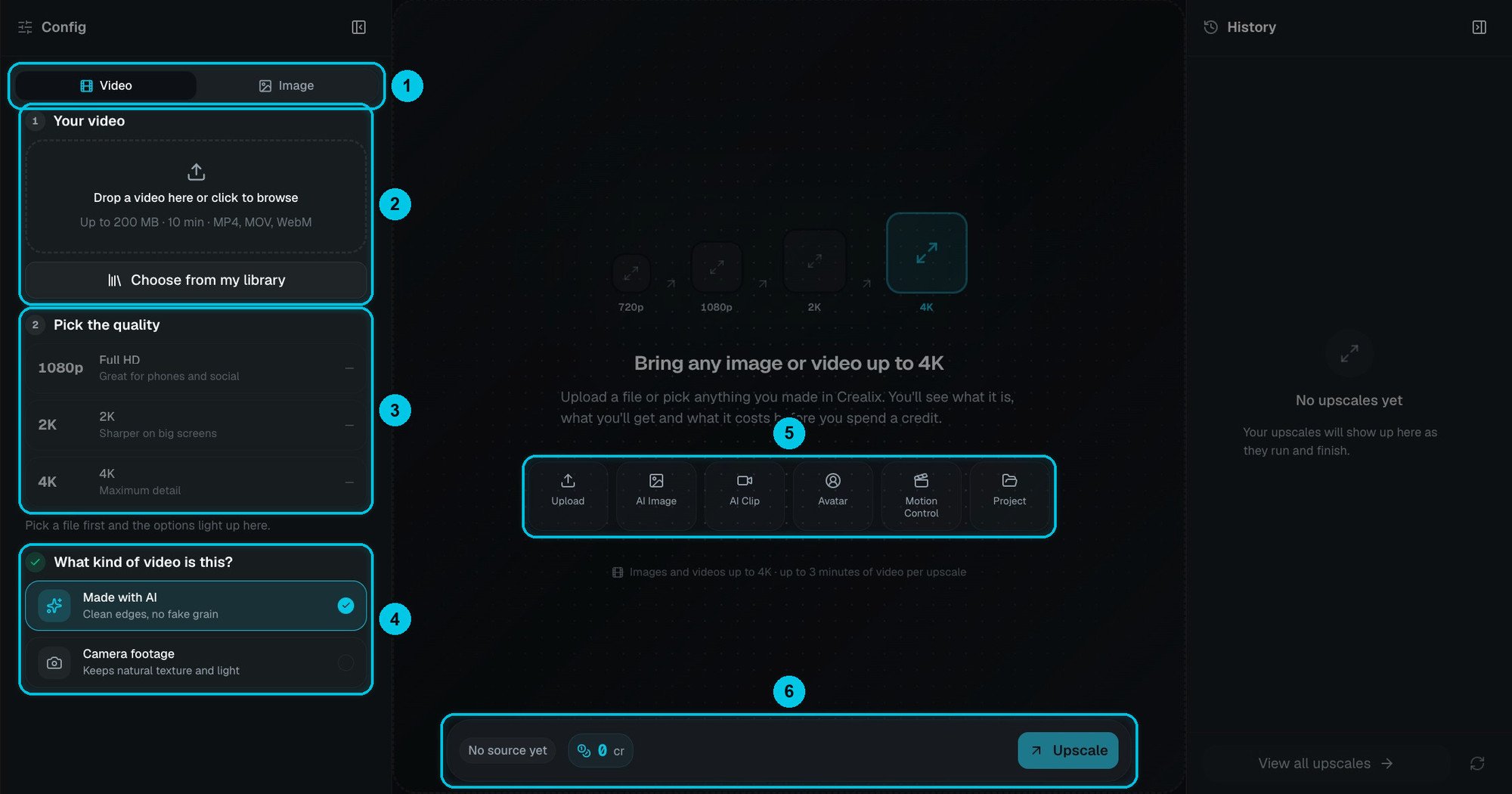
① Video or Image · ② Source · ③ Target quality · ④ Made with AI or Camera footage · ⑤ Quick sources from your library · ⑥ Cost and Upscale
Upscale a file
1
Choose Video or Image
The tabs at the top (①) switch between upscaling a video and an image.
2
Pick the source
Upload a file (②) — videos up to 200 MB and 10 minutes, MP4, MOV or WebM — or click Choose from my library. The shortcuts below (⑤) jump straight to your AI Images, AI Clips, Avatars, Motion Control videos or rendered Projects. For a long video, select the part you need: each upscale covers up to 3 minutes.
3
Pick the target quality
1080p Full HD, 2K or 4K (③).
4
Tell it what kind of content it is
(④)
- Made with AI — clean edges and no fake grain. Best for AI images, AI clips and Crealix renders.
- Camera footage — keeps natural texture. Best for real-world video.
5
Upscale
The cost is shown on the button (⑥) before you spend anything. The result appears under Upscales in your media library.
Pricing
A video upscale costs at least 2 credits — for example, 60 seconds to 4K costs about 91 credits. Upscaled videos keep the source’s frame rate, up to 30 fps. You can run up to 3 upscales at once.