

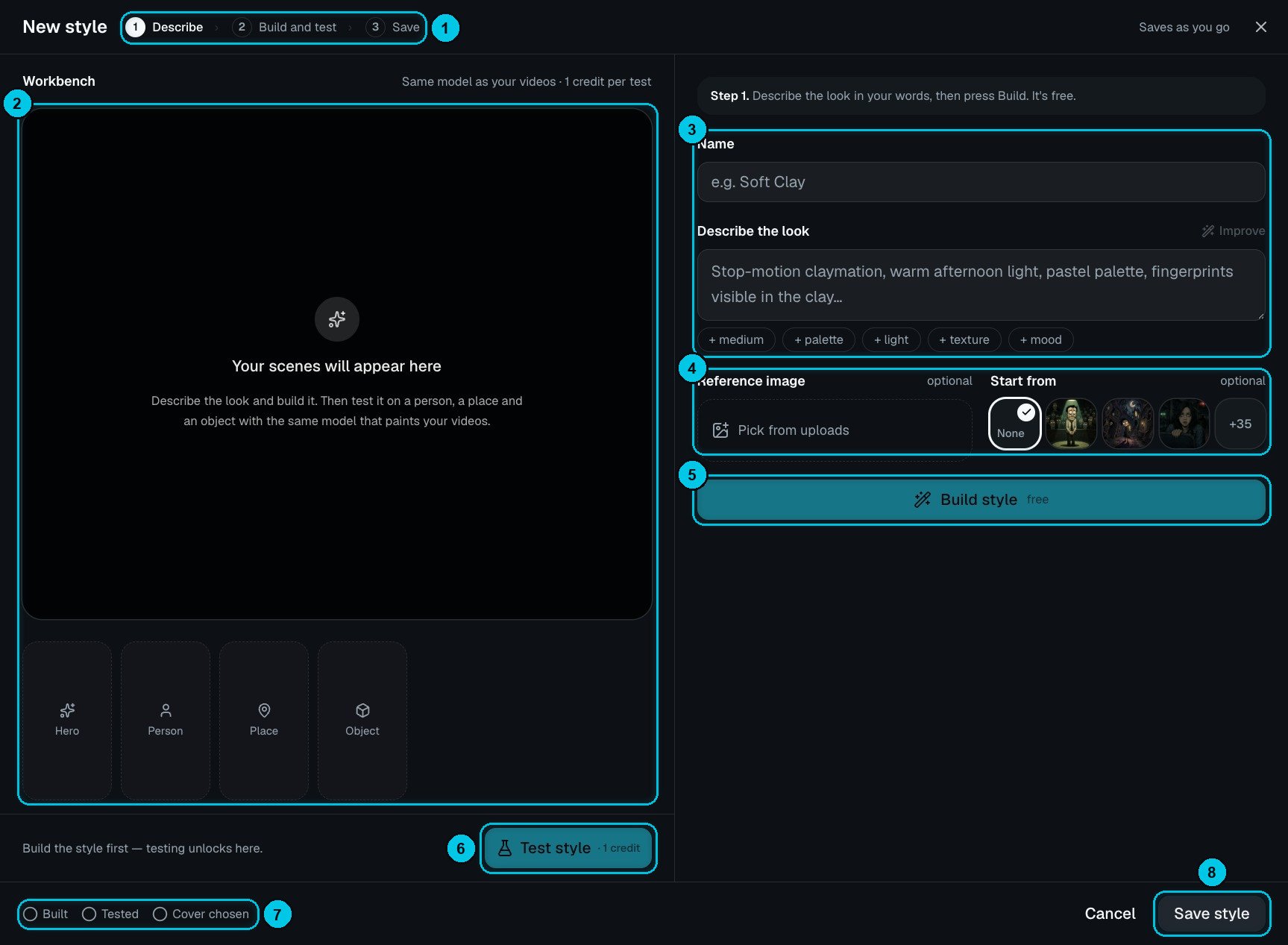
① The three steps · ② Workbench with the hero, person, place and object tests · ③ Name, description and quick chips · ④ Reference image and Start from · ⑤ Build style · ⑥ Test style · ⑦ Checklist · ⑧ Save style
1
Describe
Give it a name (e.g. Soft Clay) and describe the look in your own words (③) — for example “Stop-motion claymation, warm afternoon light, pastel palette, fingerprints visible in the clay”. The chips add a medium, palette, light, texture or mood, and Improve refines your description.Optionally add a reference image from your uploads, or start from one of the library styles (④).
2
Build and test
Click Build style (⑤) — it’s free. Then click Test style (⑥) to paint four sample scenes in the workbench (②) — a hero, a person, a place and an object — with the same model that paints your videos. Each test costs 1 credit. Adjust the description and test again until it’s right.
3
Save
Pick the cover image and click Save style (⑧). The checklist (⑦) shows Built, Tested and Cover chosen.