

Text overlays
Open Text in the tool rail. Overlays sit on top of your scenes — use them for hooks, emphasis and call-to-action moments. Some formats add a hook or CTA overlay automatically (like the “What would you do?” question below).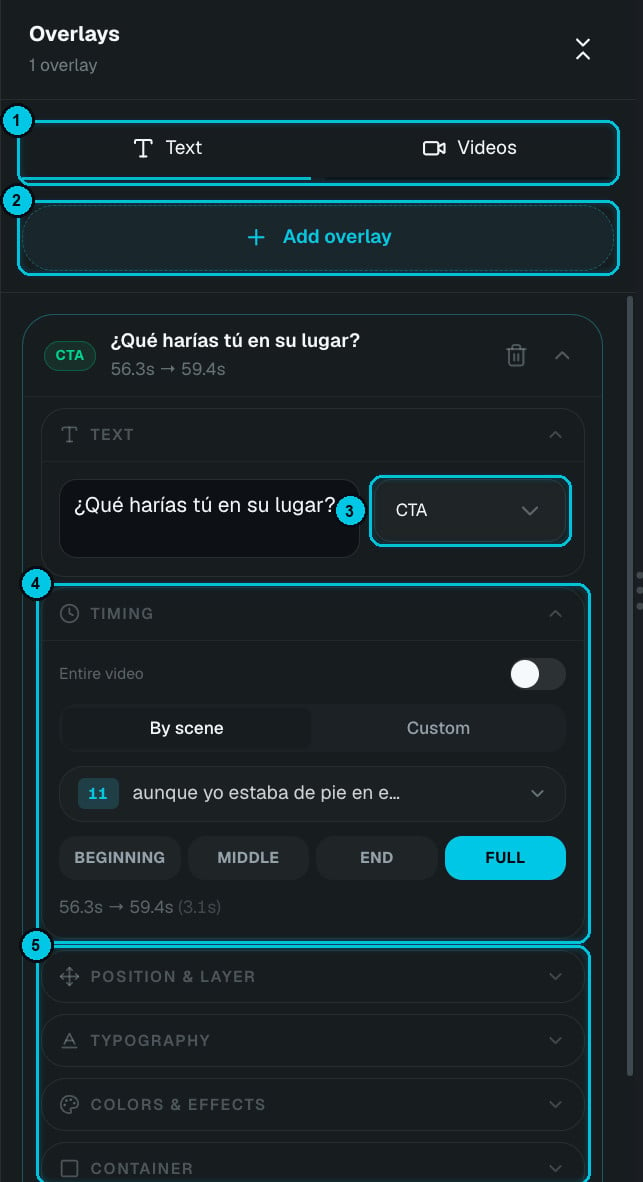
① Text / Videos · ② Add overlay · ③ Overlay type · ④ Timing · ⑤ Style sections
How to add one
- Click Add overlay (②).
- Type your text and choose its type (③).
- Set when it appears (④).
- Style it in the sections below (⑤).
- Drag it on the preview to fine-tune the position.
Overlay types
Timing
- Entire video — keep the overlay on screen for the whole video.
- By scene — tie it to one scene, then choose Beginning, Middle, End or Full (the whole scene). If you re-time the scene, the overlay moves with it.
- Custom — an exact start time and duration.
Style
Video overlays
The Videos tab places one of your AI avatars on top of the video — like a presenter in the corner. Adjust its position, size, rotation, shadow and feather, choose an entrance animation, set when it appears, and mute its audio if you only want the visual.Your logo (Mark)
Open Mark to put your own logo on the video.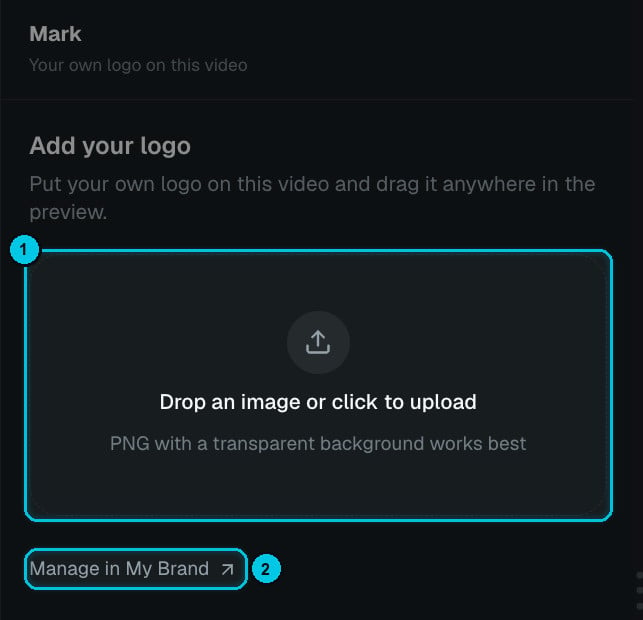
① Upload your logo · ② Manage it in My Brand
1
Upload your logo
Drop an image on the box or click to upload (①). A PNG with a transparent background works best.
2
Place it
Drag the logo anywhere in the preview. Use the sliders to set its size and opacity. Corners are the usual choice — avoid the bottom right on TikTok, where the app’s buttons sit.
3
Make it the default
Click Manage in My Brand (②) to save the logo as your default, so it’s ready on every new video.
Your Mark is separate from the Crealix watermark. The Crealix watermark is removed on any paid plan; your own Mark stays wherever you put it, on any plan.