

Where it goes
Destinations
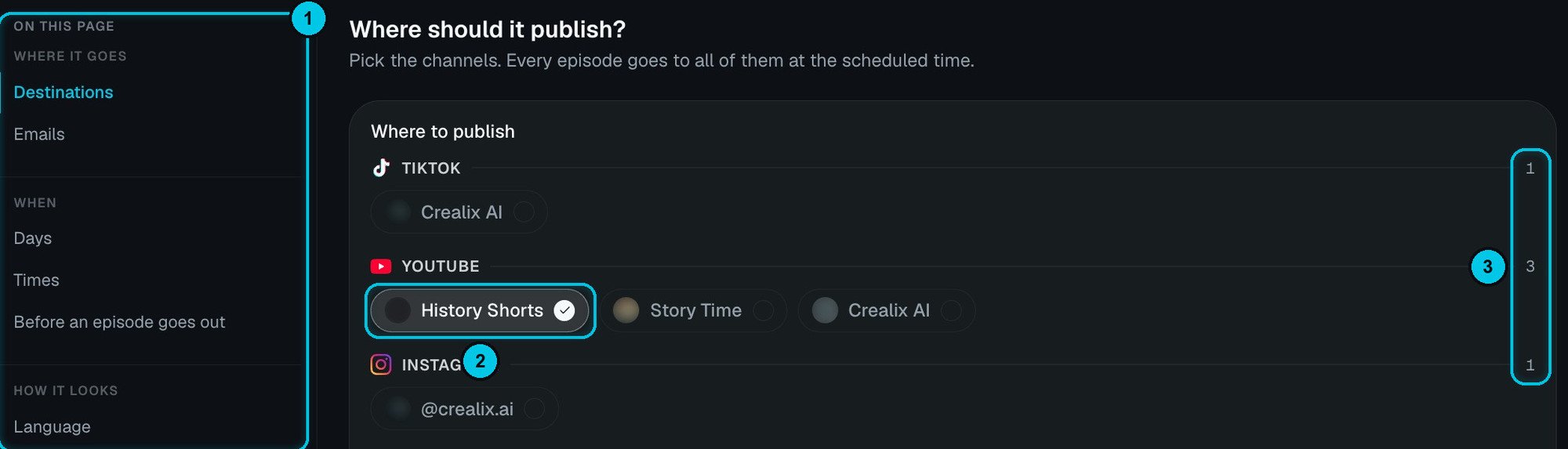
① On this page · ② A selected account · ③ Accounts selected per network
What each network needs
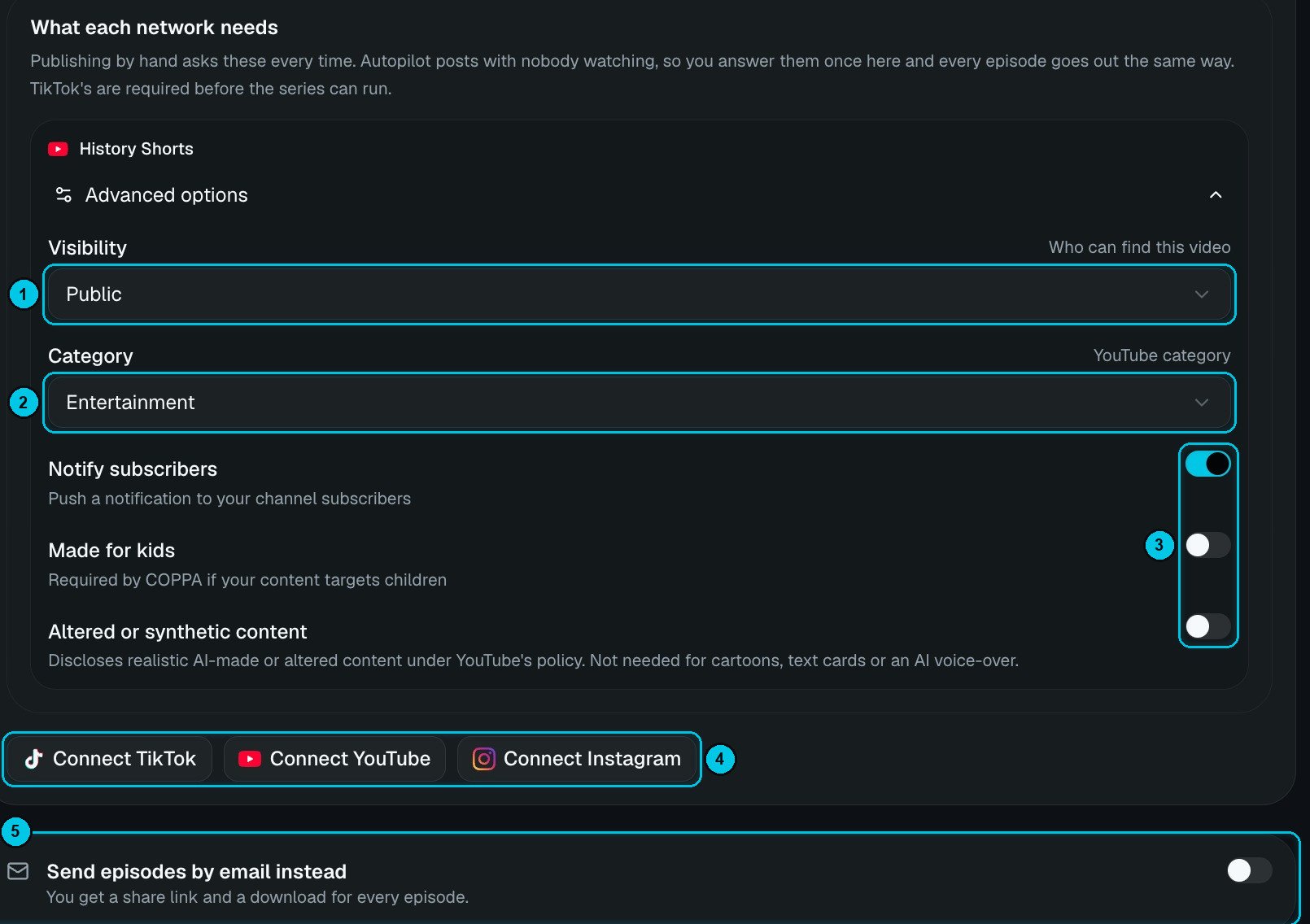
① YouTube visibility · ② Category · ③ Notify subscribers, made for kids, altered content · ④ Connect accounts · ⑤ Send by email instead
- YouTube — Visibility (who can find the video), Category, Notify subscribers, Made for kids (required by COPPA if your content targets children) and Altered or synthetic content (disclose realistic AI-made content; not needed for cartoons, text cards or an AI voice-over).
- TikTok — who can view the post and interaction settings. Required before the series can run.
How each episode is published
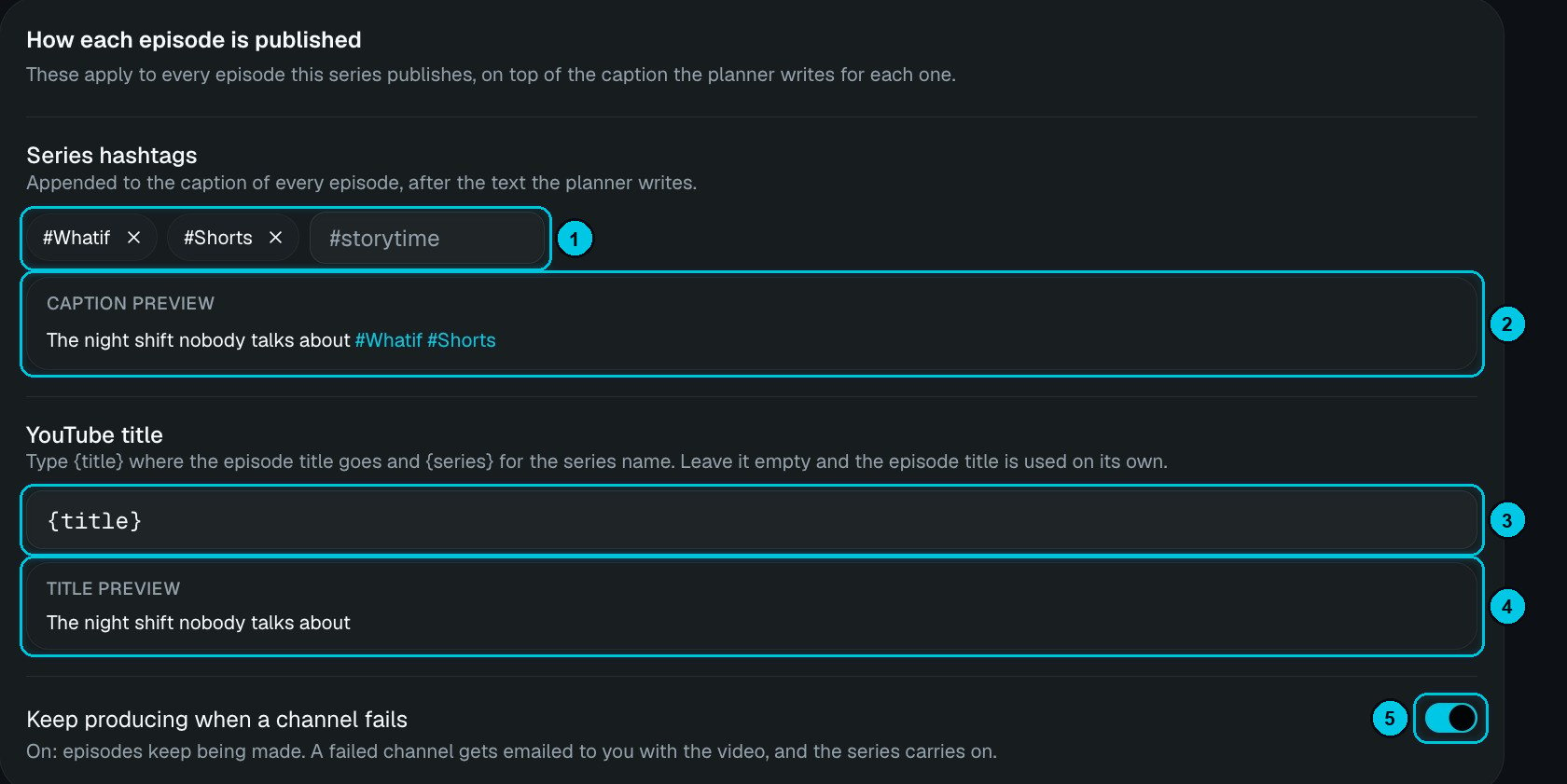
① Series hashtags · ② Caption preview · ③ YouTube title template · ④ Title preview · ⑤ Keep producing when a channel fails
- Series hashtags — appended to the caption of every episode, after the text the planner writes. The preview shows the result.
- YouTube title — type
{title}where the episode title goes and{series}for the series name, for example{title} | {series}. Leave it empty to use the episode title on its own. - Keep producing when a channel fails — when on, episodes keep being made; a failed channel is emailed to you with the video and the series carries on.
Emails
- Email me about this series — approval requests, reminders, delivered videos, publish failures and pauses. Turn it off and everything shows only in the app.
- Email me when an episode is ready and Email me when an episode is published — fine-tune which notices you get.
When
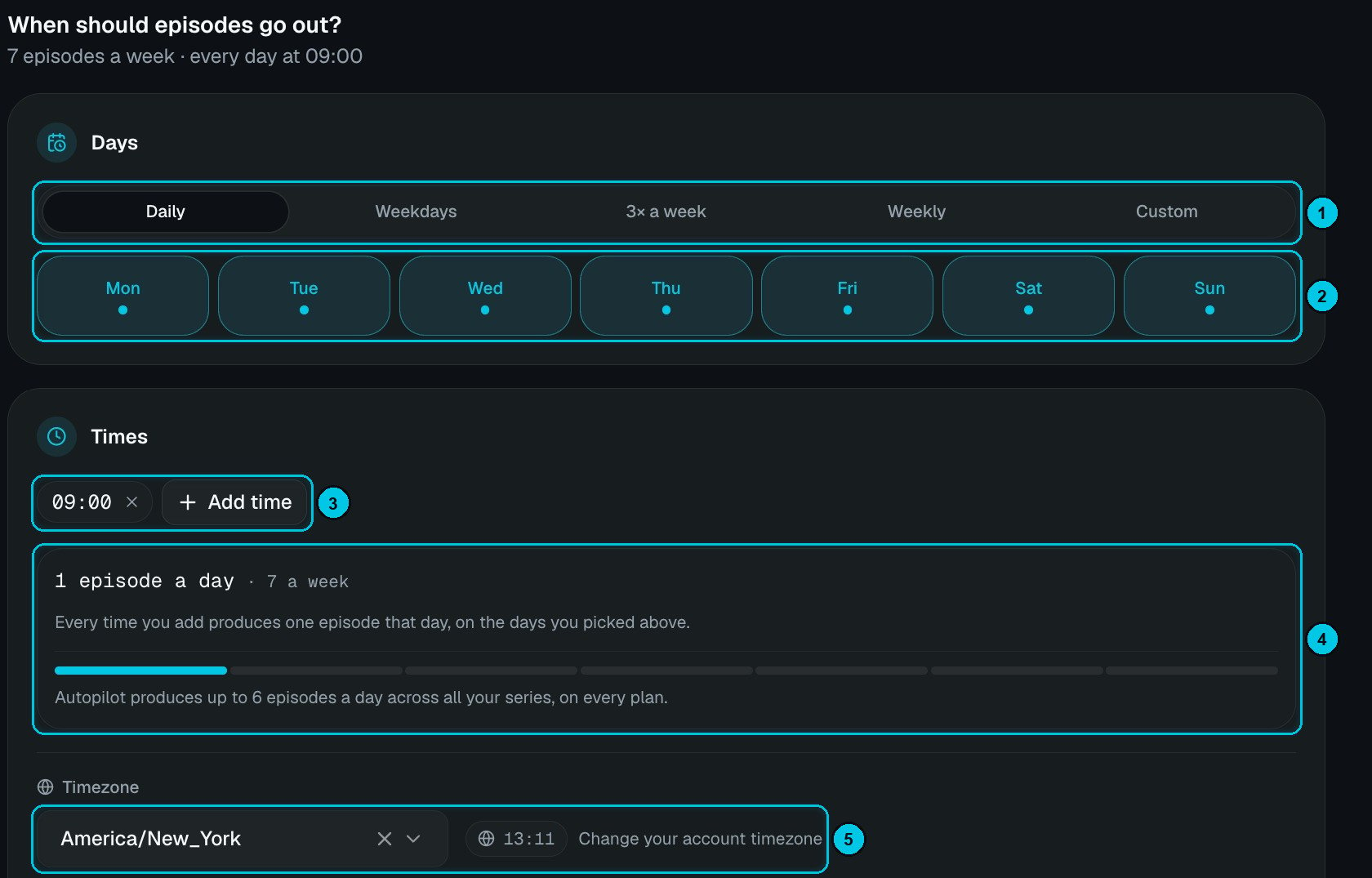
① Days · ② Day picker · ③ Times · ④ Episodes per day · ⑤ Timezone
- Days — Daily, Weekdays, 3× a week, Weekly or Custom (pick any days, Monday to Sunday).
- Times — add one or more times per day; each time is one episode on the days you picked. Your plan sets how many times a series can have per day (1 on Starter, 2 on Creator, 3 on Pro and above), and Autopilot produces up to 6 episodes a day across all your series (7 on Enterprise).
- Timezone — the series follows your account timezone; the current time is shown next to it, with a shortcut to change it.
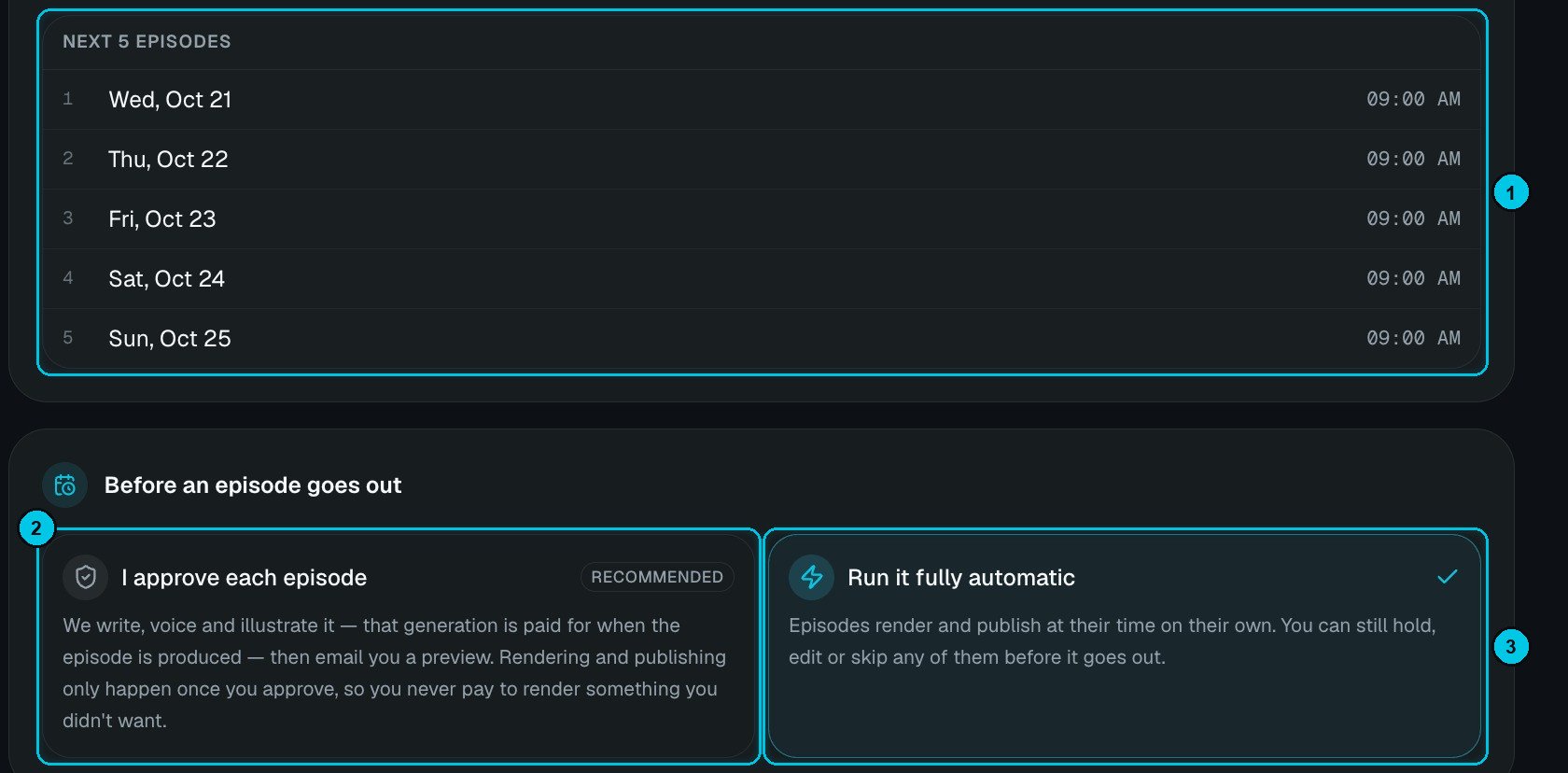
① The next 5 episodes · ② I approve each episode · ③ Run it fully automatic
- I approve each episode (recommended) — written, voiced and illustrated, then emailed to you; rendered and published only after you approve. Choose to have it ready 2, 4, 12 or 24 hours before its slot.
- Run it fully automatic — renders and publishes at its time on its own. You can still hold, edit or skip any episode before it goes out.
Some formats generate images first and animate them in the editor (for example Scene images in Talking Objects or AI Dramas). For those, approval stays on so you can animate before rendering.
How it looks
For each section in Look & variety, choose one option, or add several and let the AI pick per episode. The counter next to a pool shows how many you’ve added out of your plan’s limit (3 on Starter, 5 on Creator, 8 on Pro, 10 on Studio and Enterprise).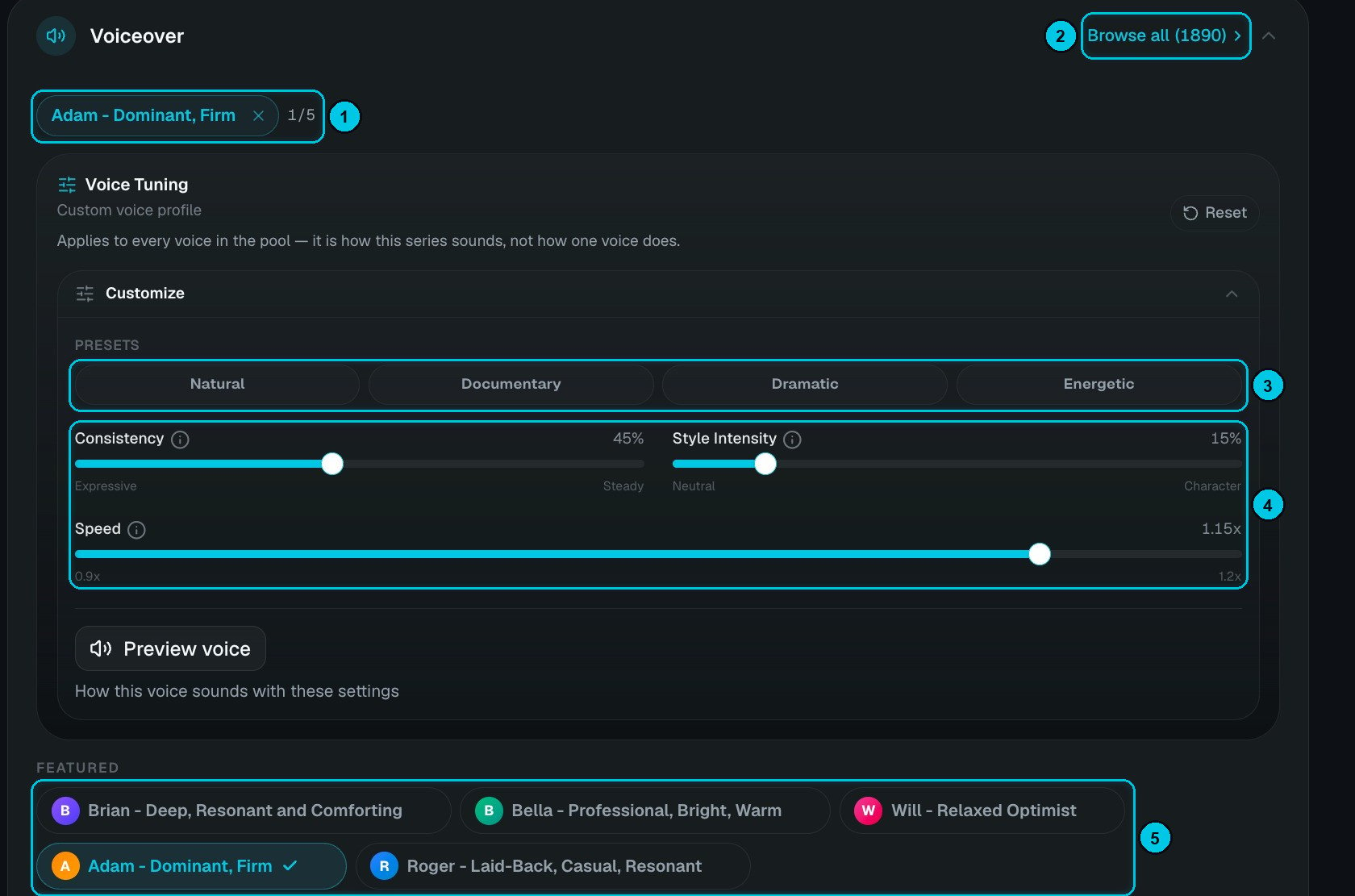
① The voice pool · ② Browse all voices · ③ Presets · ④ Fine-tuning · ⑤ Featured voices
Render quality
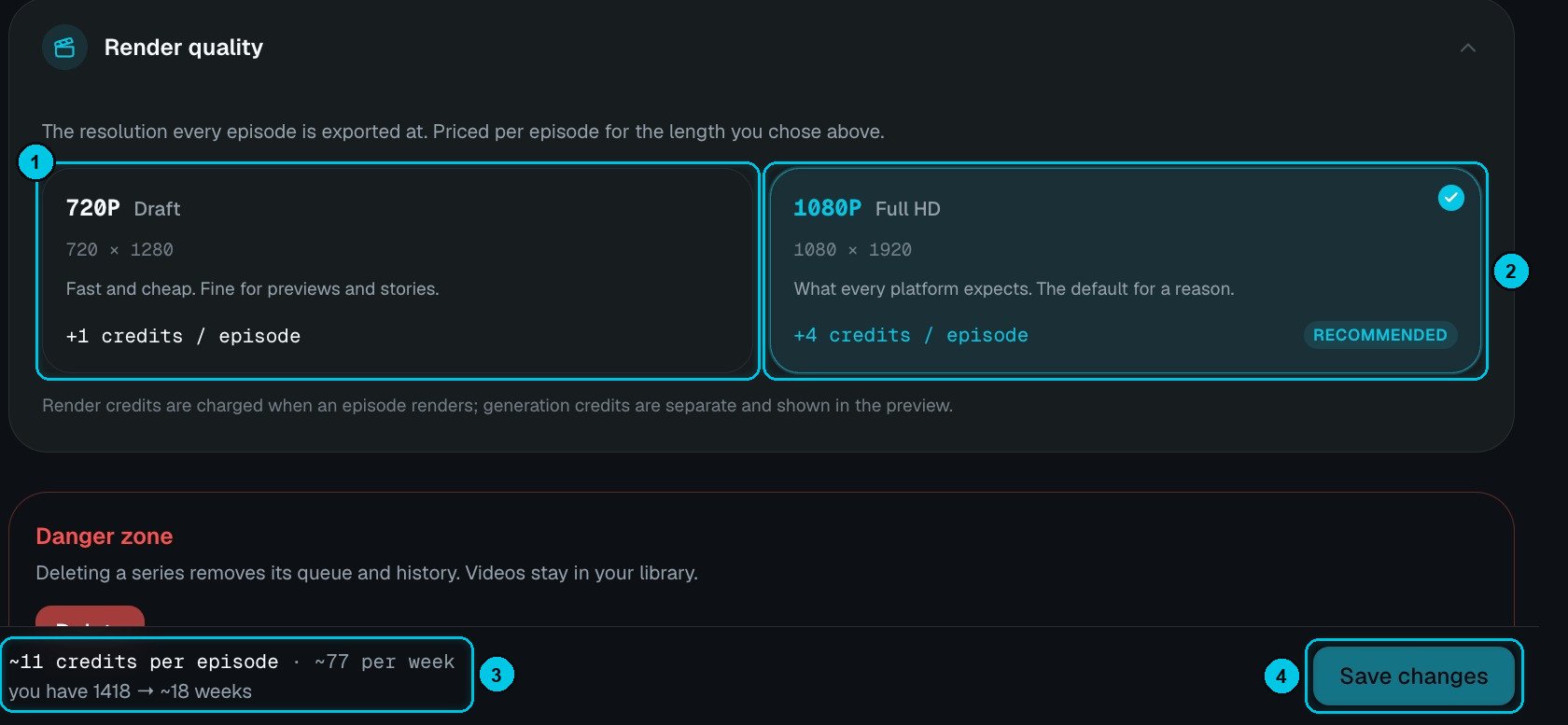
① 720p Draft · ② 1080p Full HD · ③ Live cost estimate · ④ Save changes
Render credits are charged when an episode renders; generation credits are separate. The footer adds it all up — for example ~11 credits per episode · ~77 per week — you have 1,418 → ~18 weeks.