

Choose a render method and quality
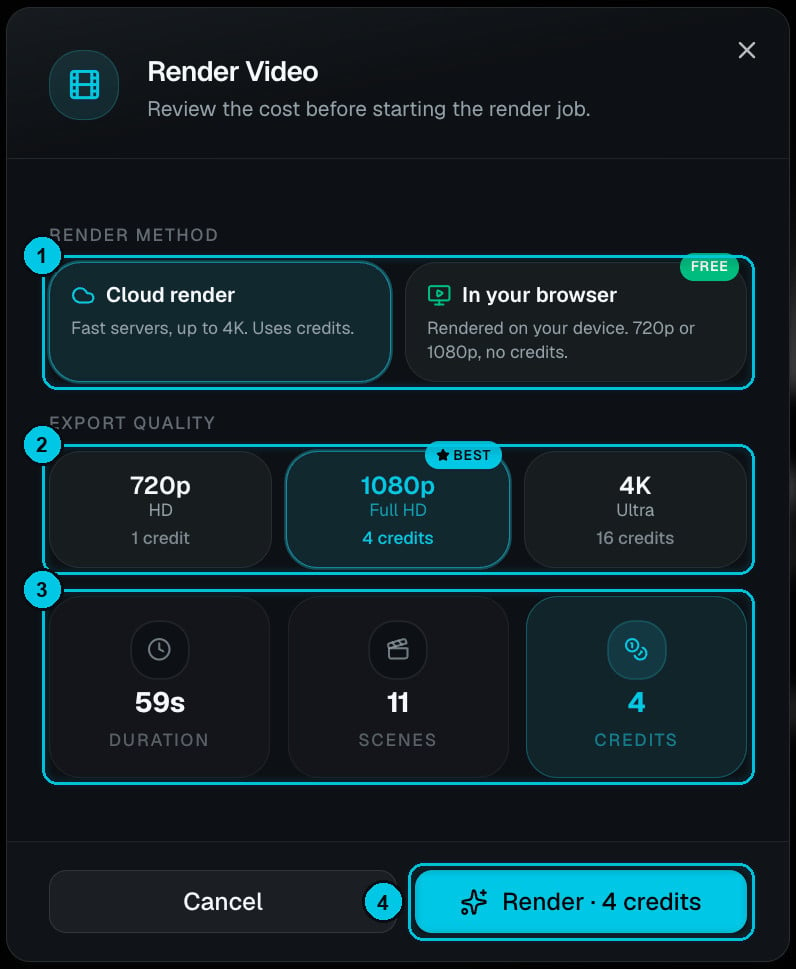
Cloud render: ① method · ② quality · ③ summary · ④ Render
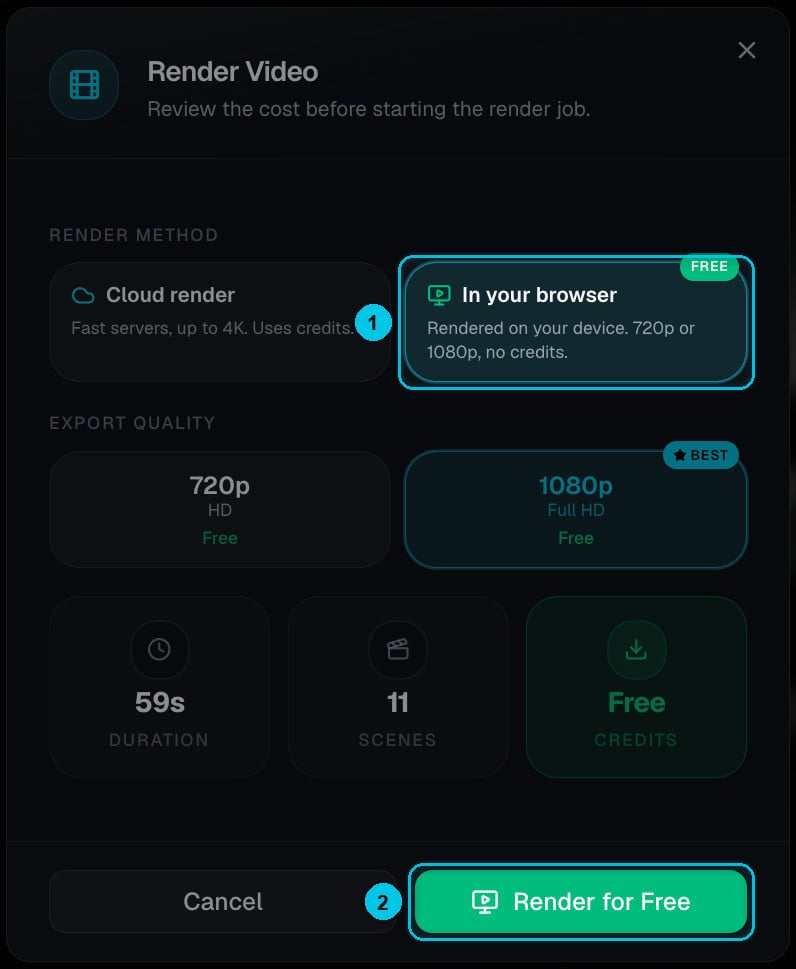
In your browser: ① free method · ② Render for Free
Cloud render
Rendered on Crealix’s servers — fast, up to 4K, and you can close the tab while it runs. Uses credits based on the quality and the length of the video.
In your browser
Rendered on your own device at 720p or 1080p. Free and unlimited — no credits. Keep the tab open and in the foreground until it finishes.
What cloud render costs
The price depends on the quality and the length of the video. For the 59-second, 11-scene video in the screenshot:
The Credits box in the summary (③) and the button (④) always show the exact total for your video. Click Render to start; progress shows in the editor and in Videos, and you can keep working on other projects meanwhile.
Rendering, downloading and publishing require an active plan. On the free plan you can create and preview videos in the editor. Paid plans also remove the Crealix watermark. See Plans.
Download
When the render finishes, the editor shows Your video is ready.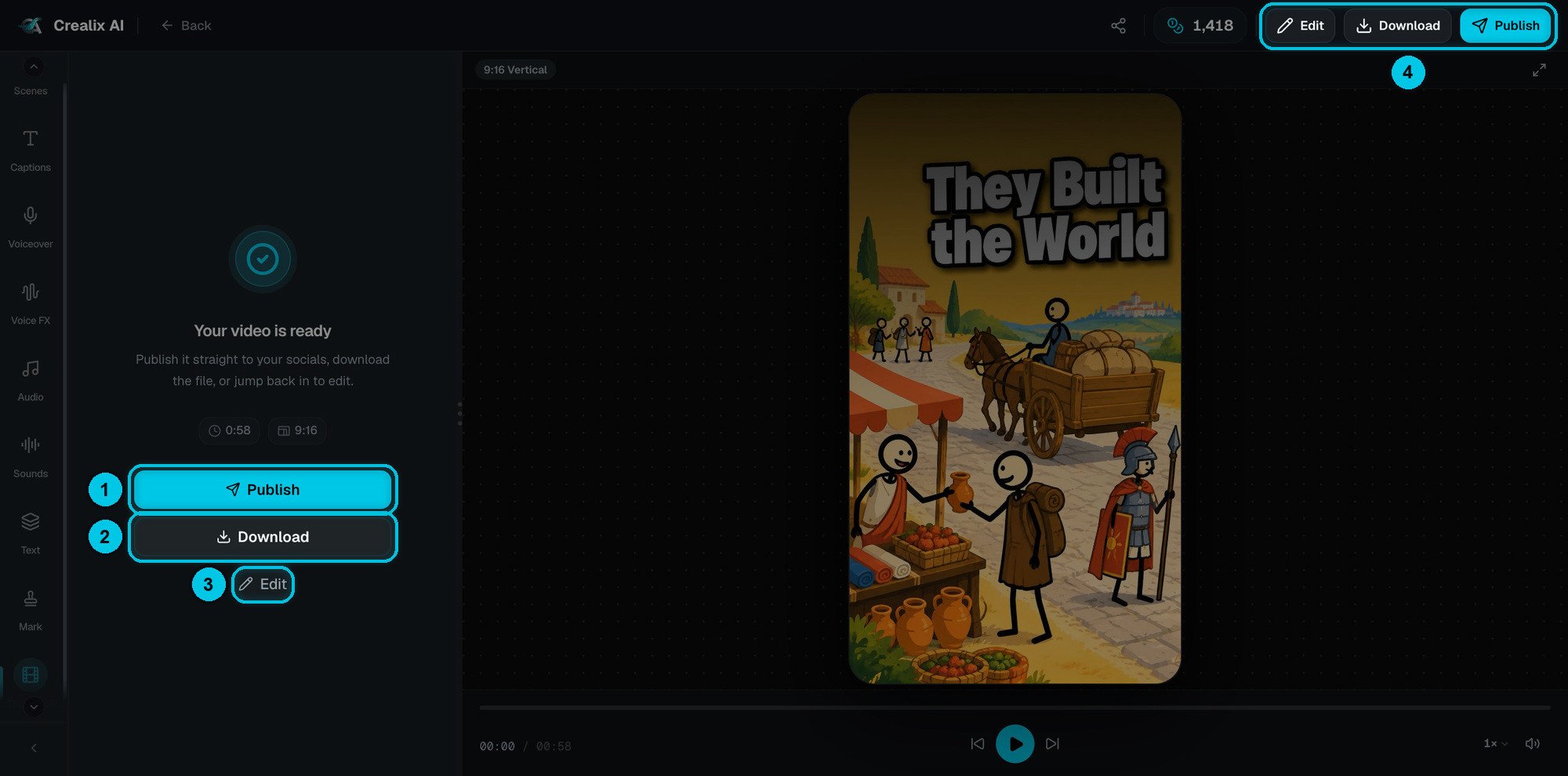
① Publish · ② Download · ③ Edit
Make more changes
Click Edit (③) to go back into the editor. Rendering doesn’t lock anything — Crealix asks you to confirm because the current render will no longer match your changes, then you render again when you’re done.Tips for the best export
Which quality should I pick?
Which quality should I pick?
1080p is the standard for TikTok, Reels and Shorts. Choose 4K for YouTube long-form or when you’ll re-edit the file elsewhere. 720p is fine for quick drafts and client previews.
My browser render is slow or stopped
My browser render is slow or stopped
Browser renders use your computer’s power. Keep the tab in the foreground, close heavy apps, and don’t let the computer sleep. For long videos, cloud render is faster and keeps running if you close the tab.
Can I upscale an existing export to 4K?
Can I upscale an existing export to 4K?
Yes — use the AI Upscaler to take any video or image up to 1080p, 2K or 4K.
Why does my cover appear as the first frame?
Why does my cover appear as the first frame?
Crealix places your cover on the first frame of the MP4 so TikTok, Reels and Shorts pick it as the thumbnail. Change it in Covers & thumbnails.