

Change the narrator
Open Voiceover in the tool rail.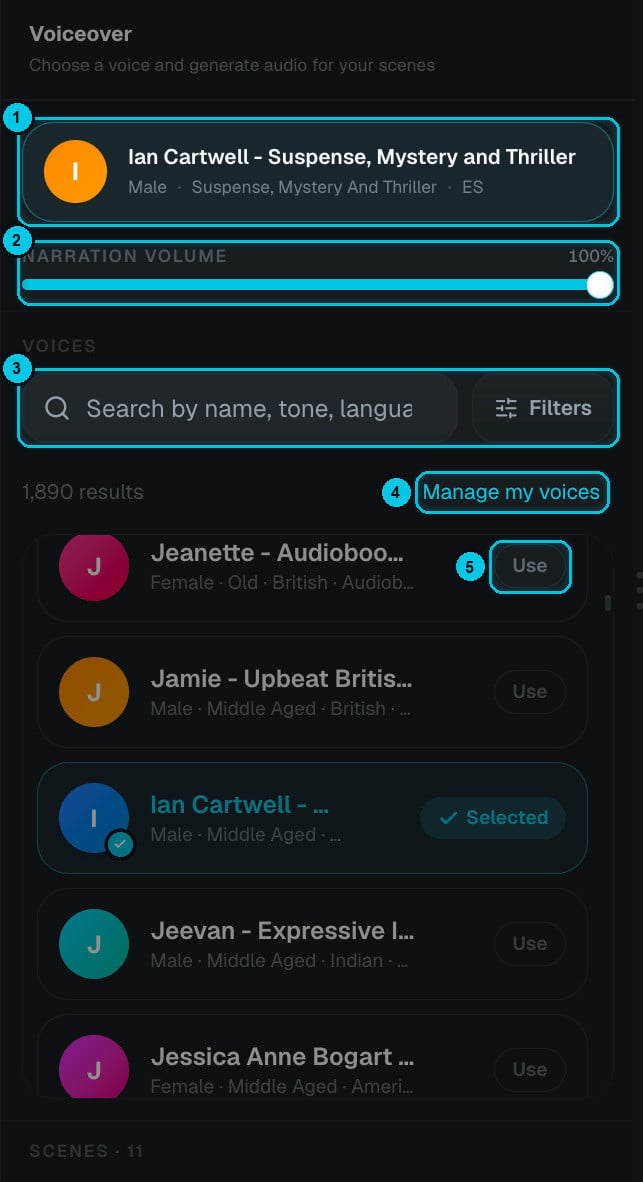
① Current narrator · ② Narration volume · ③ Search and filters · ④ Manage my voices · ⑤ Use a voice
- The current narrator (①) is pinned at the top with their gender, style and language.
- Narration volume (②) sets how loud the voice is in the mix, from 0 to 100%.
- Search (③) by name, tone or language — for example “deep”, “British”, “documentary” or “Spanish”. Filters narrow the library by gender, age, accent, language and use case. The counter shows how many voices match (1,890 in total).
- Press play on any voice to preview it, then click Use (⑤). The selected voice shows Selected.
- Manage my voices (④) opens My Voices, where you can clone your own voice or design a new one — it then appears in this list.
Changing the narrator doesn’t re-record anything by itself — you decide which lines to regenerate, so you never spend credits by accident.
Tune the delivery
The same tuning you saw in the creator is available whenever you re-record: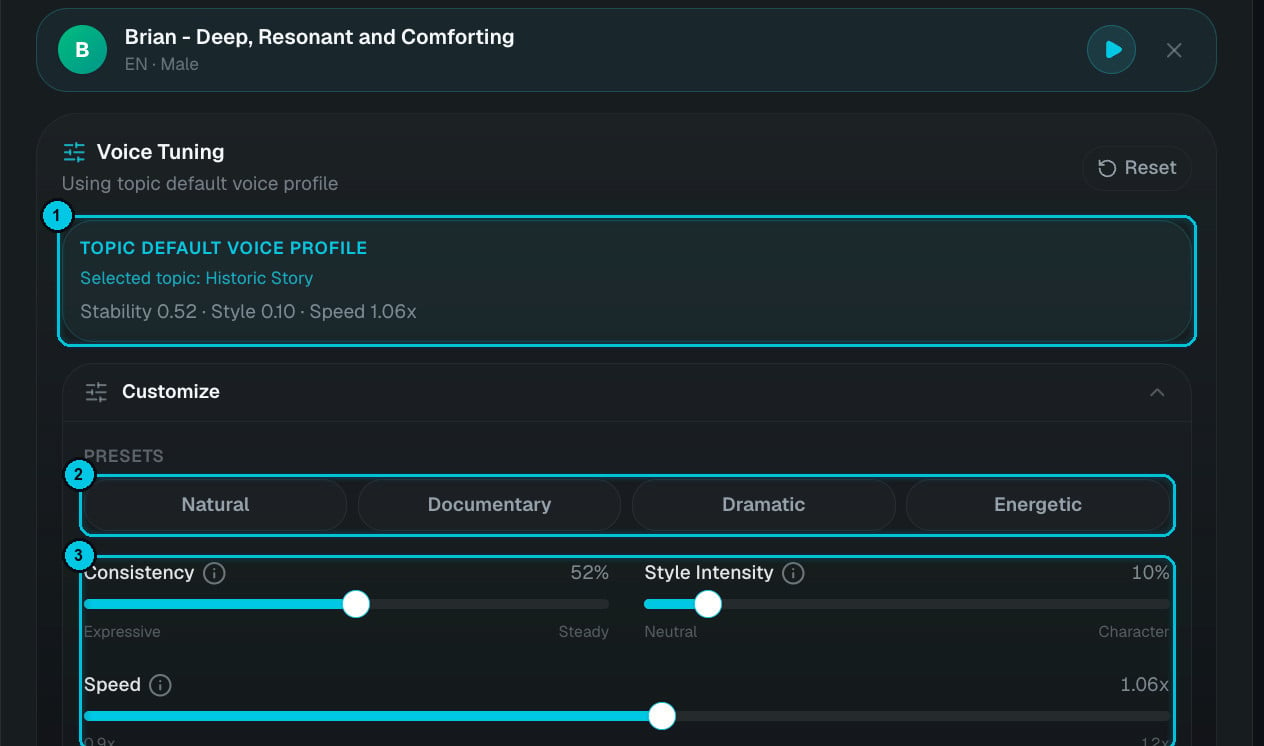
① Default profile for your topic · ② Presets · ③ Consistency, style intensity and speed
Re-record a line
In Scenes, expand a scene and click regenerate next to its voice. You can:- Edit the text to speak first — fix a word, add a pause with punctuation, or spell a name phonetically.
- Pick a preset and adjust Consistency, Style intensity and Speed.
- Preview, then generate.
Voice effects
Open Voice FX to transform the whole narration with one click. Voice effects are free and you can switch between them as often as you like.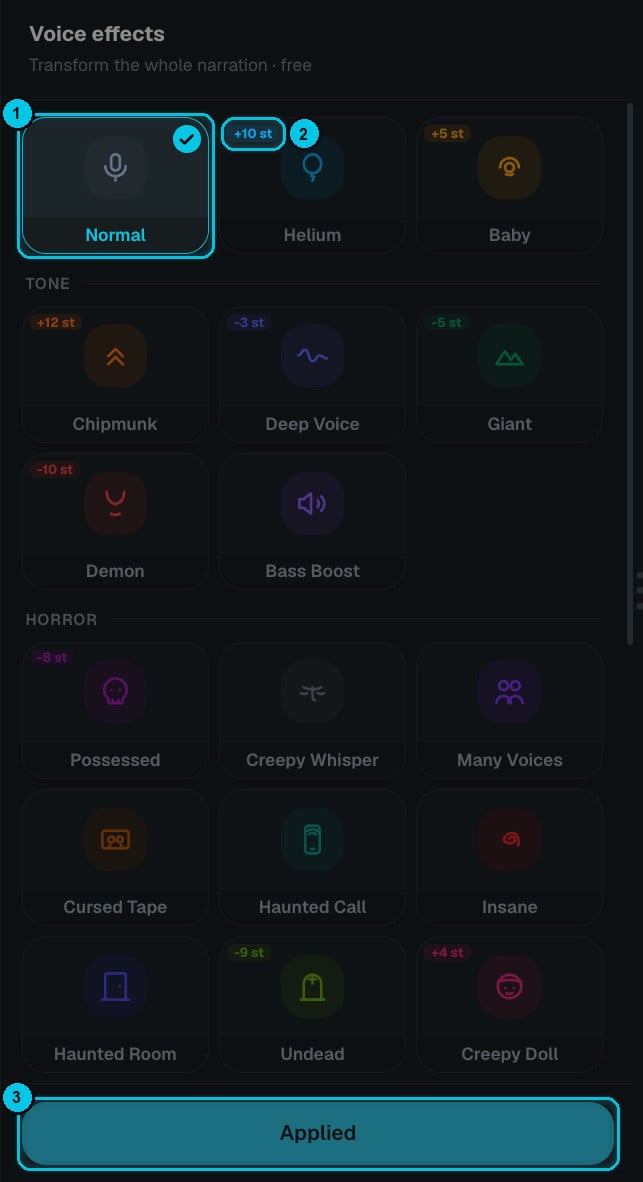
① Selected effect · ② Pitch shift in semitones · ③ Apply
Pitch-shifting effects show how many semitones (st) they move the voice (②). Select an effect, preview it in the player, and click Apply (③). Normal removes any effect.
Voice effects apply to the whole narration. To change the voice of a single scene, re-record that scene with a different voice instead.