

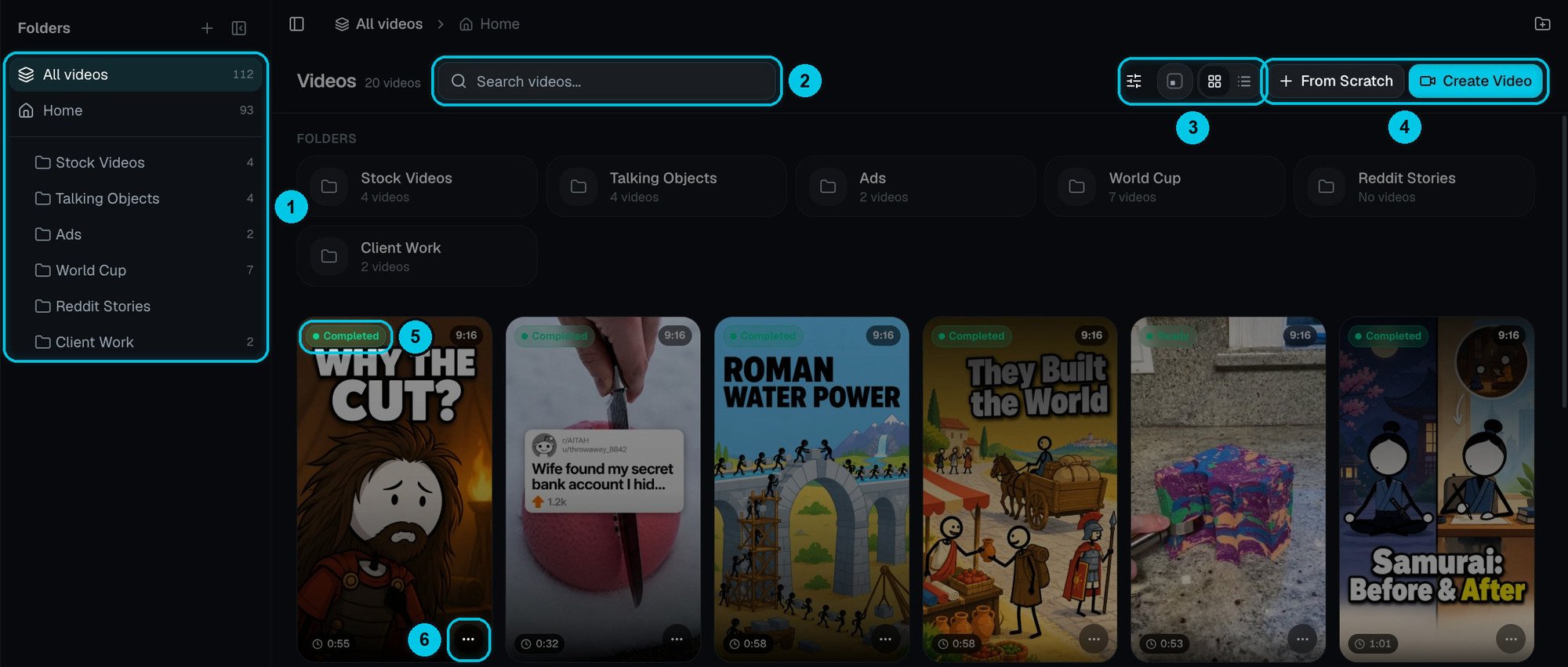
① Folders panel · ② Search · ③ Filters, card size and grid / list · ④ From Scratch and Create Video · ⑤ Status, ratio and length on every card · ⑥ Card menu
Find a video
- Search (②) by title.
- Filters — click the sliders button (③) to show the filter bar:

① Status · ② Aspect ratio · ③ Sort order
- Card size and grid / list view (③) — big covers to browse, a compact list to manage many projects.
- Each card (⑤) shows the cover, the status, the aspect ratio and the length. Click a card to open the project.
Folders
Folders keep series, clients and campaigns apart. The Folders panel (①) lists them all, with how many videos each holds; the same folders appear as shortcuts above your videos.- Create a folder with the + button in the panel. Hover a folder to add a subfolder or rename it — folders can be nested.
- Move videos by dragging a card onto a folder.
- All videos shows everything; Home shows the videos that aren’t in any folder. The breadcrumb at the top (All videos › Home › …) tells you where you are.
- Hide the panel with the button next to the breadcrumb when you want more room for videos.
- Deleting a folder lets you move its videos back to Home first, so nothing is lost.
Video actions
Open the ⋯ menu on any card (⑥):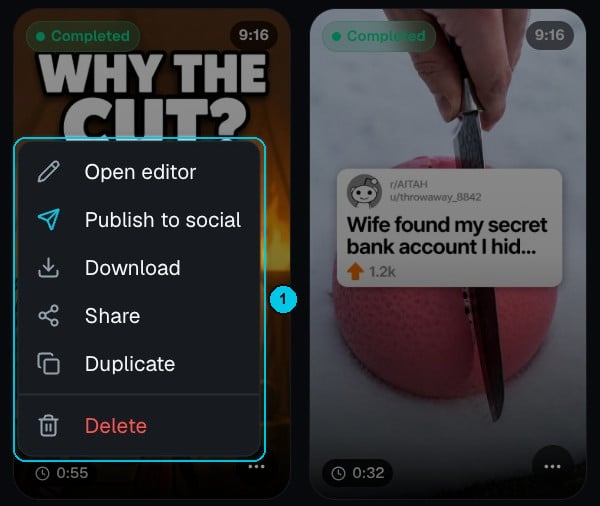
The card menu
If a render failed, the card offers Retry render.
Start something new
- Create Video (④) opens the video creator to pick a format.
- From Scratch opens a blank Studio project where you build scene by scene.