

Pick a style
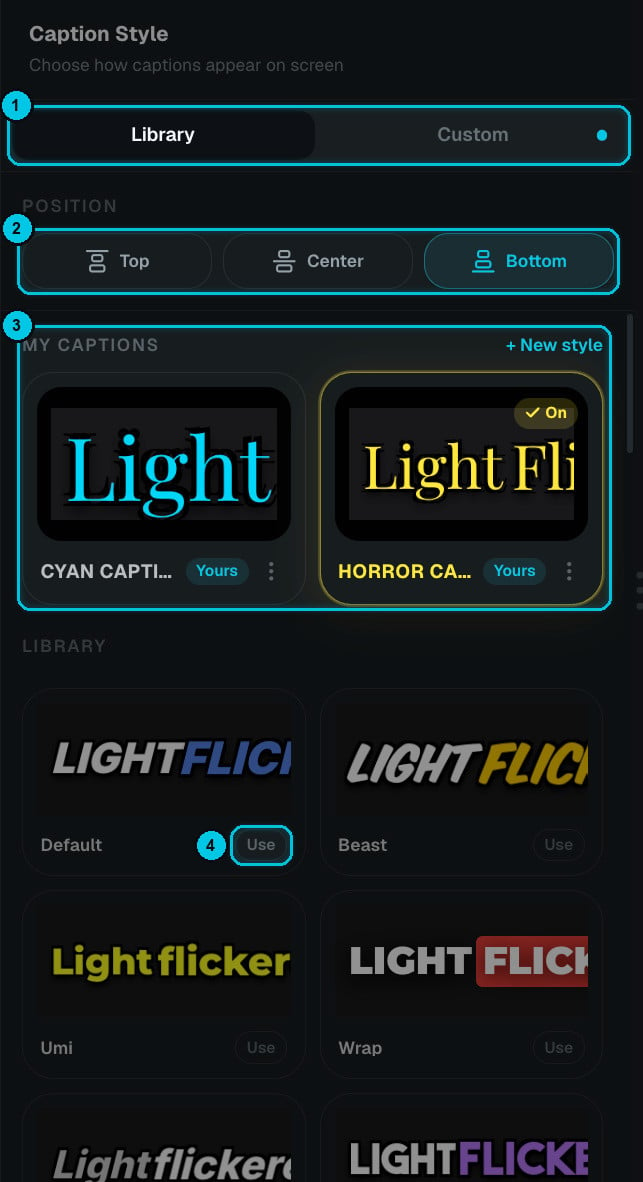
① Library / Custom · ② Position · ③ My Captions · ④ Use a library style
- The Library tab (①) is where you browse; Custom is where you design.
- Position (②) — Top, Center or Bottom. Bottom is the safe default for TikTok and Reels; Center works well for story formats where nothing else is in the middle of the frame.
- My Captions (③) shows the styles you’ve saved, marked Yours. The active one shows On. Click + New style to start a new one; the ⋮ menu on each card has more options.
- The Library has 48 ready-made styles — from clean (Default, Ariel, Elegant) to bold short-form looks (Beast, Umi, Wrap, Tiktok, Neon, Marker). Each is previewed on a real word from your video. Click Use (④) to apply one.
Design your own
Switch to Custom to change every detail of the current style. The preview at the top updates as you go.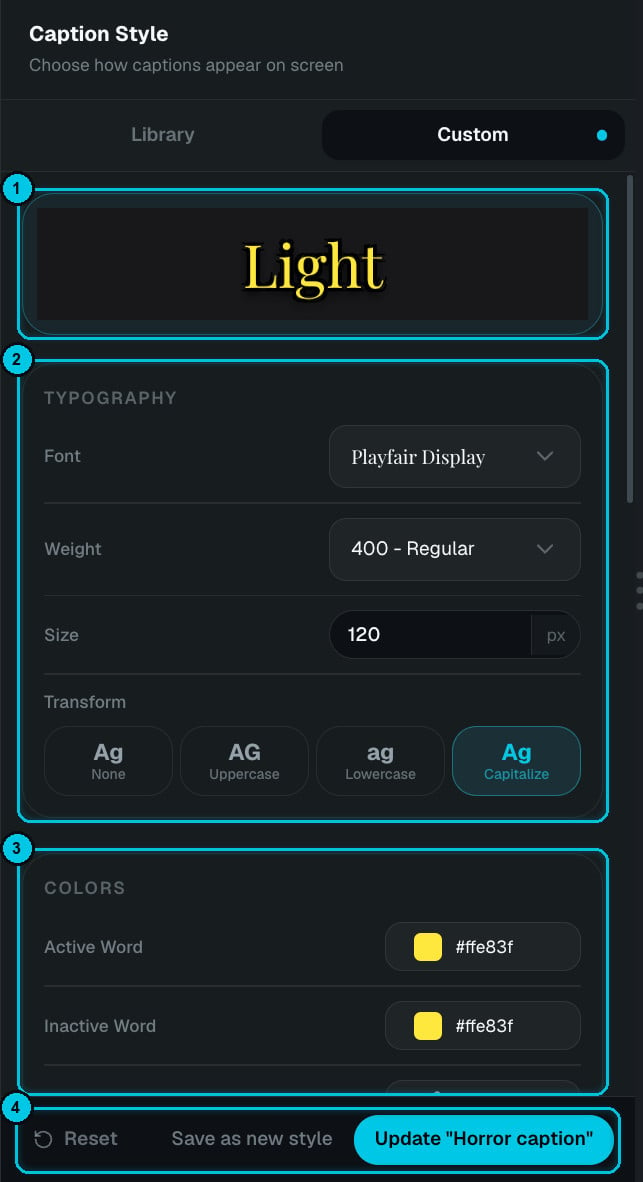
① Live preview · ② Typography · ③ Colors · ④ Save
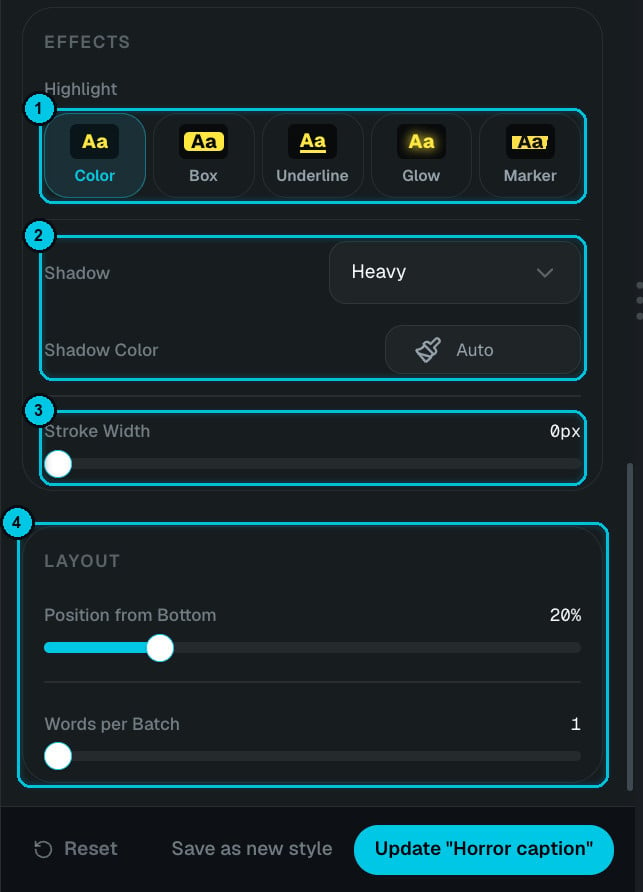
① Highlight · ② Shadow · ③ Stroke · ④ Layout
Typography
Typography
- Font — clean sans-serifs for readability or display faces like Playfair Display for character.
- Weight — how bold the letters are (for example 400 - Regular).
- Size — in pixels, measured on a 1080p frame so it looks the same at every export resolution.
- Transform — None, UPPERCASE, lowercase or Capitalize.
Colors
Colors
- Active word — the word being spoken right now.
- Inactive word — the other words on screen.
- Background — an optional box behind the caption.
Animation
Animation
How words appear: None, Pop, Beast Pop, Bounce In, Karaoke Fill, Hormozi Box, Box Trail, Whip Slide, Shake, Earthquake, Heartbeat, Wave, Spin Stamp, Slot Roll, Blur Focus, RGB Glitch, Typewriter or Clean Fade.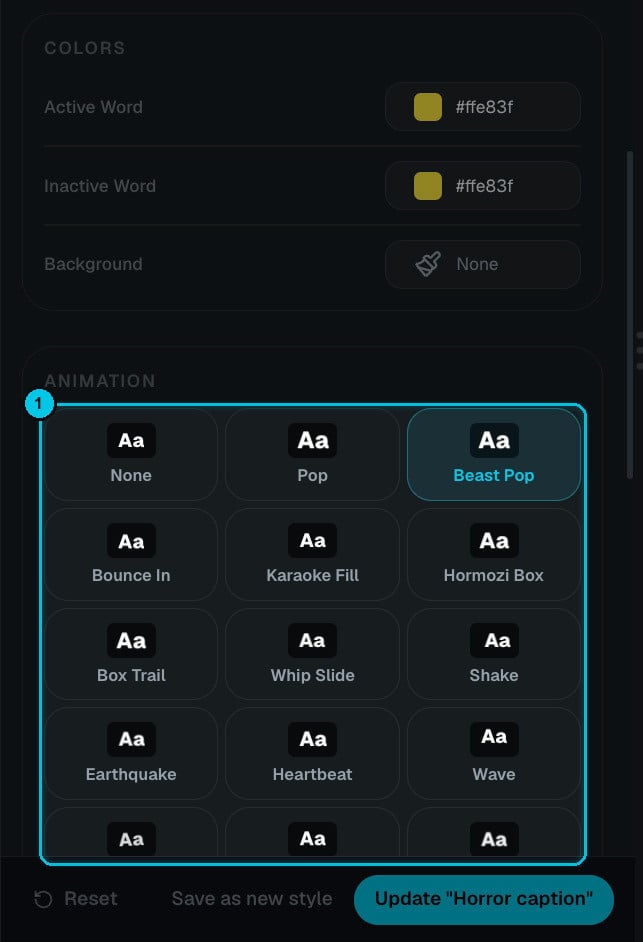
Effects
Effects
- Highlight for the active word — Color, Box, Underline, Glow or Marker.
- Shadow — None, Soft, Heavy, Neon, Outline glow or 3D extrude, with its own shadow color (or Auto).
- Stroke width — an outline around every letter, in pixels.
Layout
Layout
- Position from bottom — the exact height, as a percentage of the frame.
- Words per batch — how many words are on screen at once. 1 gives the punchy one-word-at-a-time look; 3–5 reads more naturally for long videos.
- Update ”…” saves your changes to the style you’re editing.
- Save as new style adds it to My Captions as a new style you can reuse on any video.
- Reset returns to the original settings.