

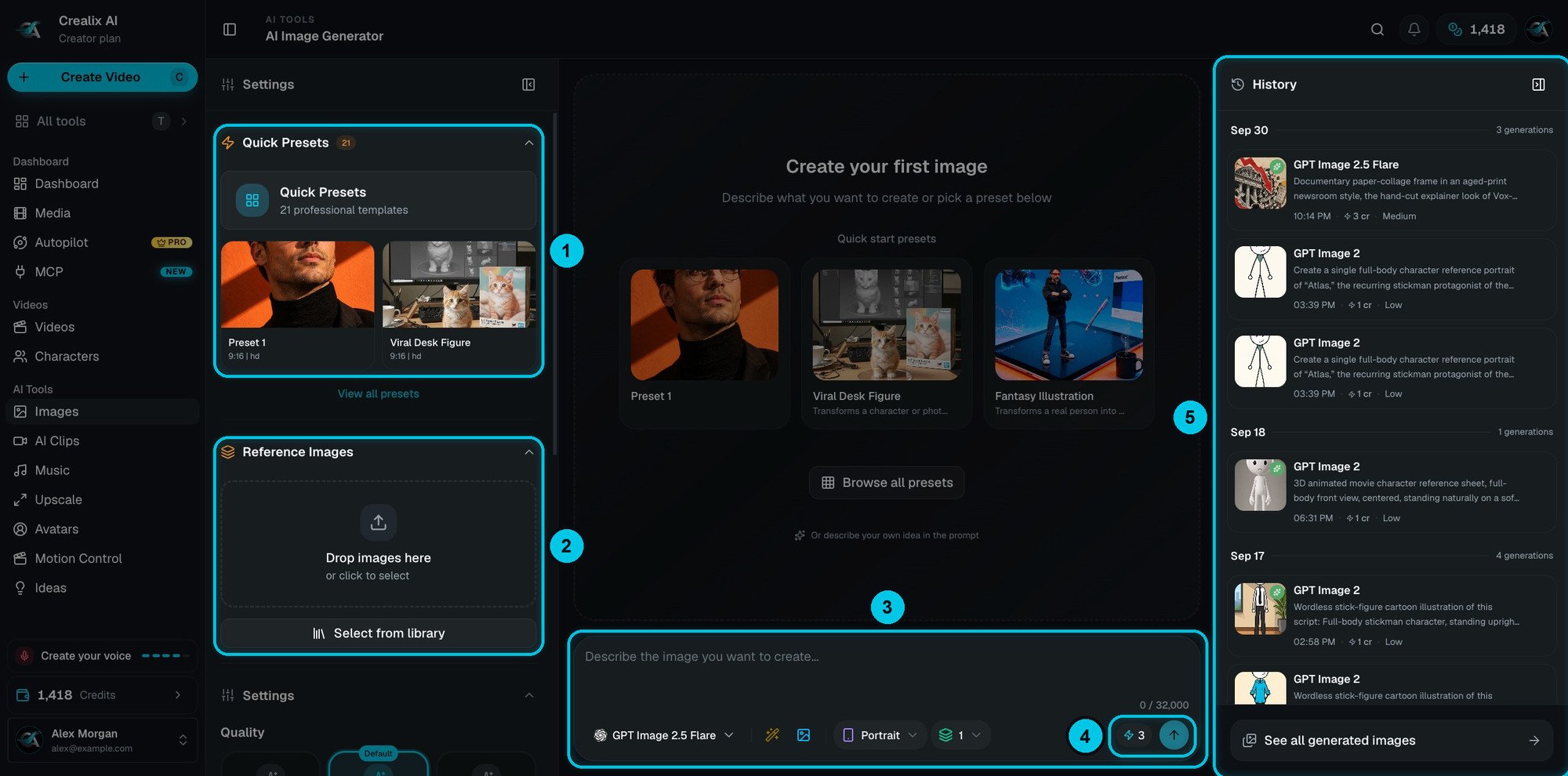
① Quick Presets · ② Reference Images · ③ Prompt bar · ④ Cost and generate · ⑤ History
The prompt bar
Everything starts in the prompt bar at the bottom of the canvas (③):- Prompt — describe the image: the subject, the setting, the style, the lighting and the framing. Two or three precise sentences usually beat a long paragraph.
- Model — GPT Image 2.5 Flare by default. Click its name to open the model picker.
- Enhance (the wand) — turns a short idea into a detailed prompt. You pick an enhancement style first.
- Reference (the picture icon) — attach reference images without scrolling the settings.
- Aspect ratio and number of images — the same options as in the settings panel, at hand.
- Cost (④) — the credits this generation will use. Click the arrow to generate.
Quick Presets
Quick Presets (①) are 21 professional templates — ready-made looks such as Viral Desk Figure or Fantasy Illustration. Click one to load its prompt and settings, then change the subject to yours. View all presets (or Browse all presets on the empty canvas) opens the full gallery.Reference Images
Drop images in Reference Images (②) — or click Select from library — to guide the result:- Keep a character consistent across several pictures.
- Show a product that must appear exactly as it is.
- Match a style from an example image.
- Edit an image — add it as a reference and describe the change: “make it night-time”, “put the logo on the cup”, “remove the person in the background”.
Settings
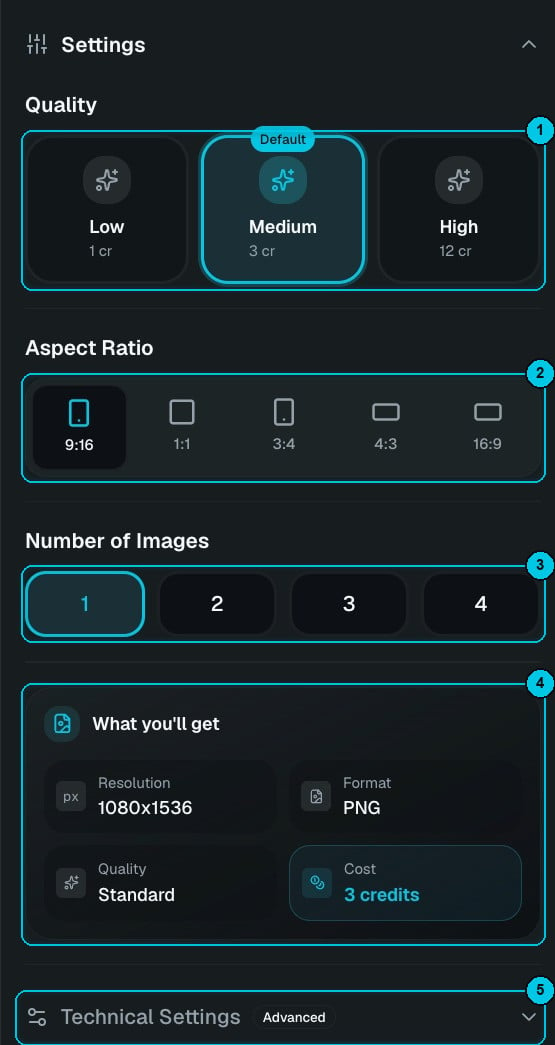
① Quality · ② Aspect ratio · ③ Number of images · ④ What you'll get · ⑤ Technical Settings
- Quality (①) — Low, Medium (default) or High. Higher quality gives finer detail and cleaner text inside the image, and costs more.
- Aspect ratio (②) — 9:16 for TikTok, Reels and Shorts, 1:1, 3:4, 4:3 or 16:9.
- Number of images (③) — 1 to 4 variations in one go. The cost is per image.
- What you’ll get (④) — the output resolution, the number of images and the total credits, before you spend anything.
- Technical Settings (⑤) — extra options for the selected model. Use What to avoid to list what you don’t want in the picture (text, watermark, extra fingers).
Pricing
With the default model, each image costs:
Other models have their own prices, shown on the button before you generate.