

1. Create: choose a format
A format is a ready-made recipe for one kind of video — an AI story, a Reddit story over gameplay, a fruit drama, a glass-skeleton survival video and so on. Each format has its own creator form with the inputs that matter for it (a topic, a script, a Reddit post, a chat, a song…), plus a shared set of options: aspect ratio, duration, language, voice, visual style, music and captions.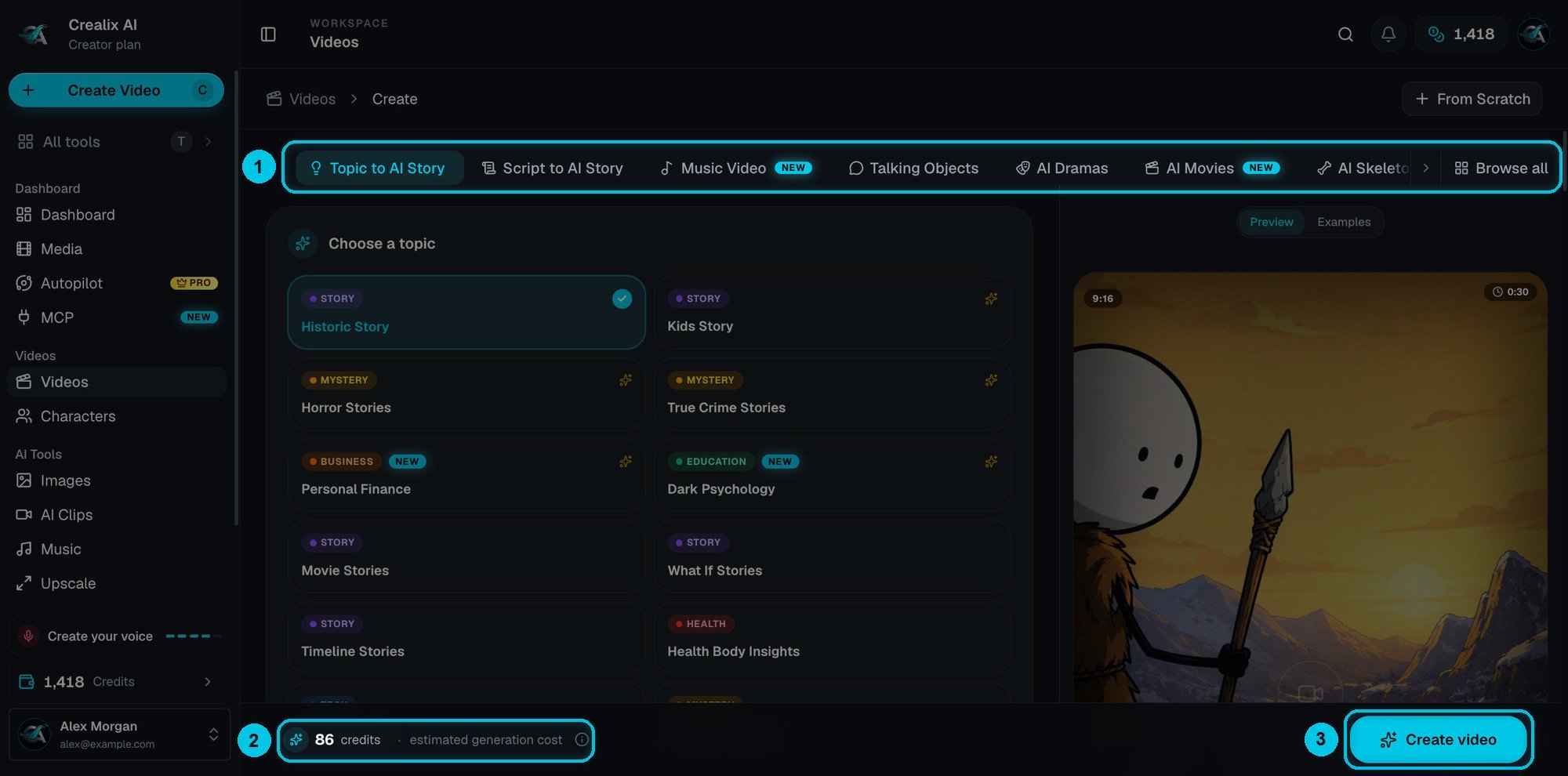
① Pick a format from the tabs · ② the estimate updates as you change settings · ③ Create video
Browse all formats
Compare the 12 formats and Studio side by side.
2. Generate: Crealix produces a draft
When you click Create video, Crealix creates a project and starts producing it in the background:1
Script
An AI writer turns your topic, idea or post into a script timed to the duration you chose — or uses your script word for word in Script to AI Story.
2
Voice
The narration (or each character’s lines) is recorded with the voices you picked, using the delivery settings of your voice tuning.
3
Scenes
The script is split into scenes and each scene gets its visual: an AI image, an AI video clip, stock footage, a chat card, a Reddit card or gameplay — depending on the format.
4
Finishing
Captions are timed word by word to the voice, music and sound effects are laid in, an AI cover is designed, and the video opens in the editor.
Images first or Full AI Video
Most visual formats let you choose a generation path at the bottom of the form: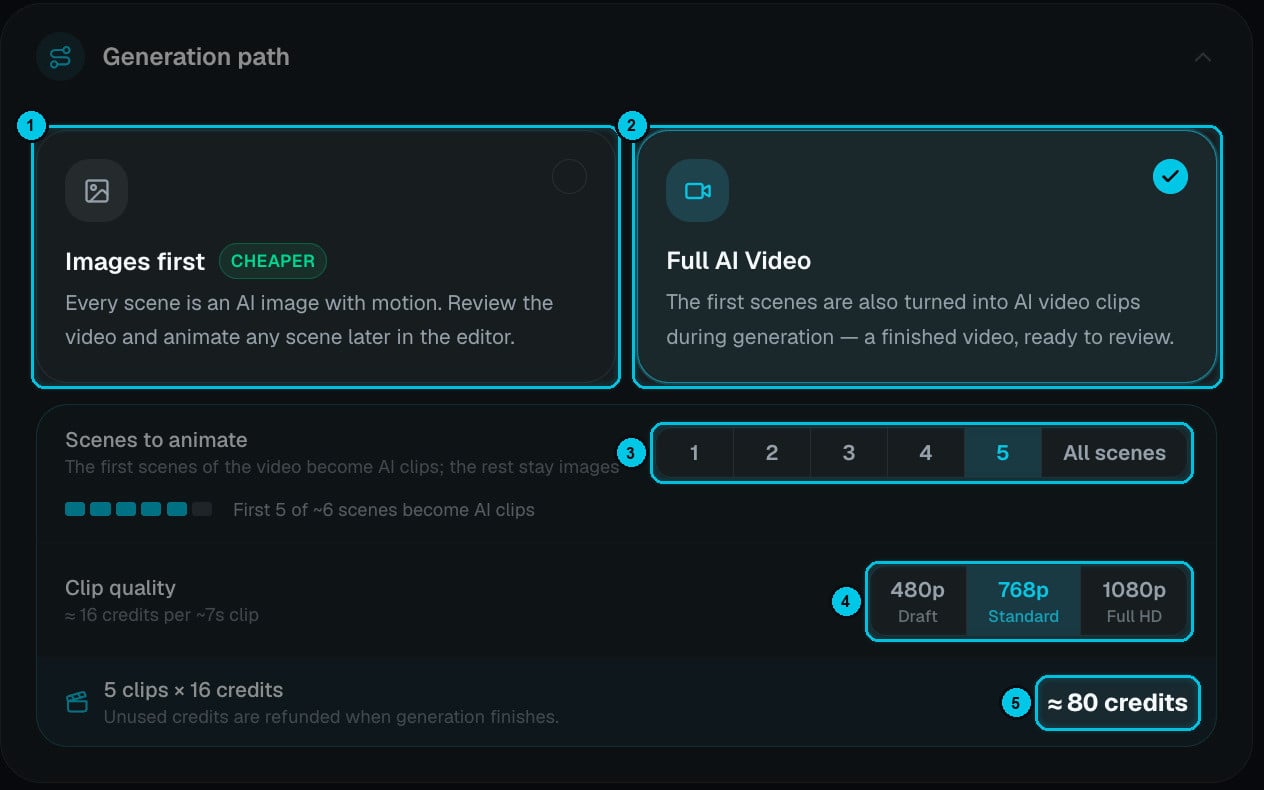
① Images first · ② Full AI Video · ③ how many scenes become clips · ④ clip quality · ⑤ estimated clip cost
3. Edit: change anything
Every generated video opens in the editor. Nothing is locked: rewrite and re-record any line, regenerate or animate a scene, upload your own media, restyle captions, swap the music, add sound effects, text overlays and your logo, and design the cover.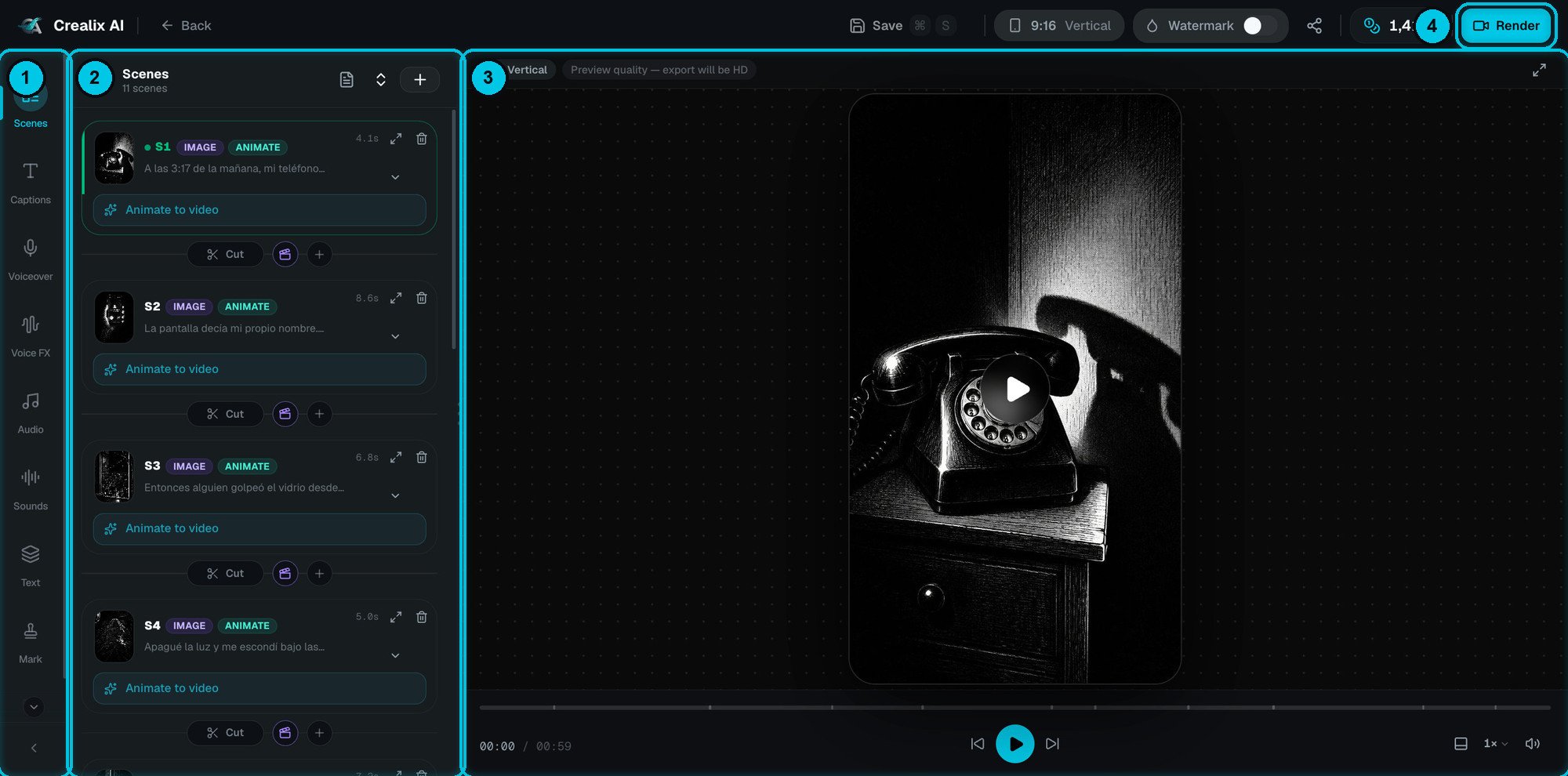
① Tool rail · ② Panel for the selected tool · ③ Live preview · ④ Render
4. Render: export the final MP4
When you’re happy, click Render:Cloud render
Rendered on Crealix’s servers — fast, up to 4K, keeps running if you close the tab. Uses a few credits.
In your browser
Rendered on your own device at 720p or 1080p. Free and unlimited — keep the tab open until it finishes.
On the free plan you can create and preview videos in the editor. Exporting a file — rendering, downloading or publishing — requires an active plan. See Plans.
Credits
Crealix uses one balance of credits for everything that runs AI: generating videos, images, clips, music, avatars and cloud renders.- The creator shows the estimated cost before you create, and every AI button shows its exact price.
- Credits are reserved when generation starts and settled on the actual cost when it finishes — anything unused goes back to your balance.
- Failed generations are refunded automatically.
- Editing is free; you only pay when you ask the AI to make something new.
How credits work
Plan credits vs purchased credits, expiry, and the activity log.
Project statuses
You’ll see these badges on every project card in Videos:Where things live
Videos
Every project, organised in folders.
Media
Every image, clip, track, avatar and upload you’ve made.
Settings
Brand defaults, caption styles, visual styles, voices, social accounts and billing.
Autopilot
Series that produce and publish on a schedule.