

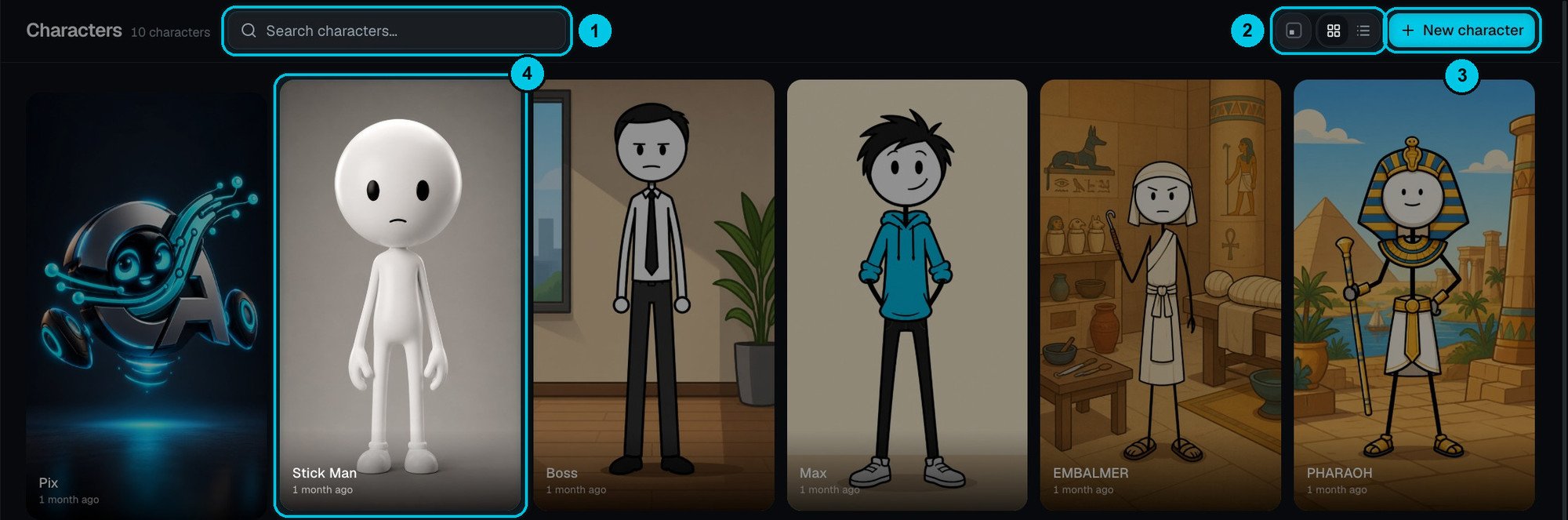
① Search · ② Card size and grid / list · ③ New character · ④ A character
Create a character
Click New character (③). The editor opens on the right: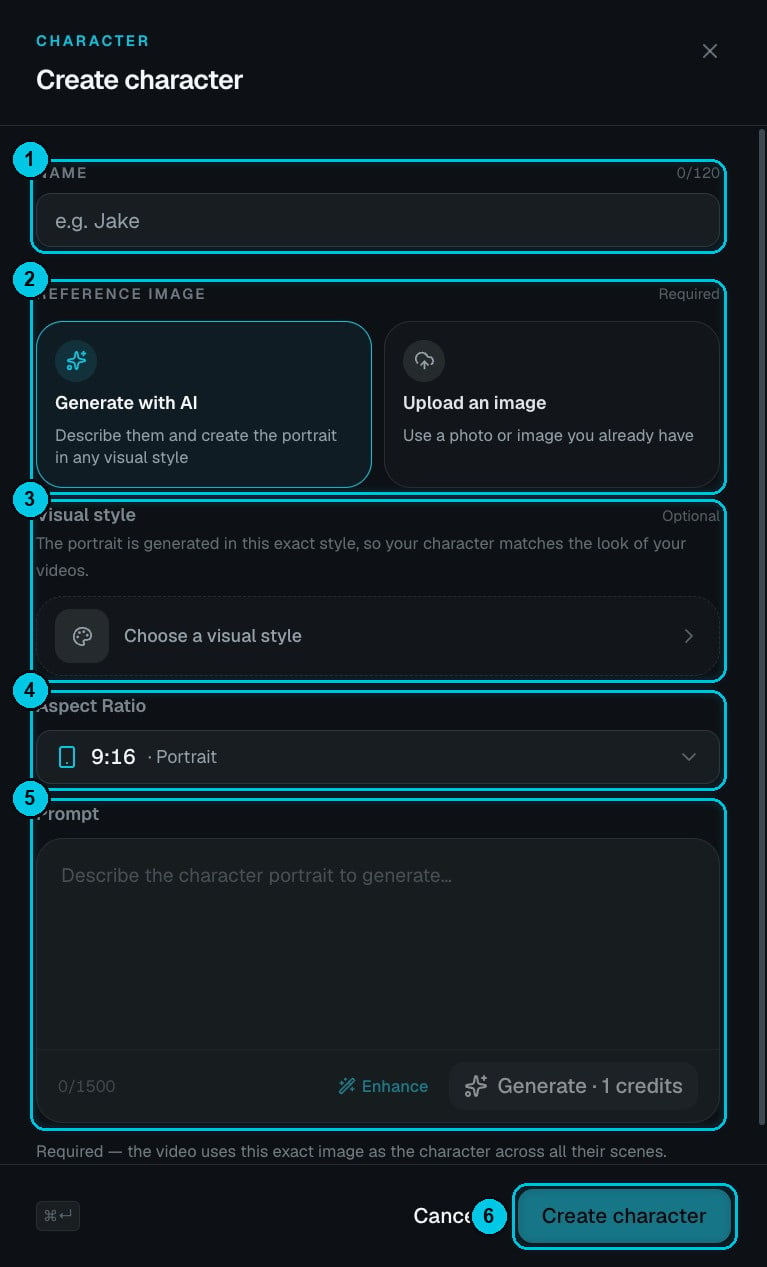
① Name · ② Reference image: generate it or upload it · ③ Visual style · ④ Aspect ratio · ⑤ Prompt, Enhance and Generate · ⑥ Create character
1
Name it
A name like Jake, up to 120 characters (①). It’s how the story and the AI refer to them.
2
Choose how to get the reference image
(②)
- Generate with AI — describe them and Crealix paints a portrait.
- Upload an image — use a photo or artwork you already have.
3
Pick a visual style (optional)
Choose a visual style (③) so the portrait is painted in the exact look of your videos — stickman, cartoon, realistic and so on. A character made in one style looks out of place in another.
4
Choose the aspect ratio
9:16 Portrait by default (④).
5
Describe and generate
Write the prompt (⑤), up to 1,500 characters, or click Enhance to expand a short idea. Generate costs 1 credit. Not happy? Adjust the prompt and generate again.
6
Create
Click Create character (⑥). The video uses this exact image as the character in all their scenes.
Use characters in videos
Select them in the Characters section of the creator form. Crealix casts them into the scenes where they belong and keeps their look consistent.