

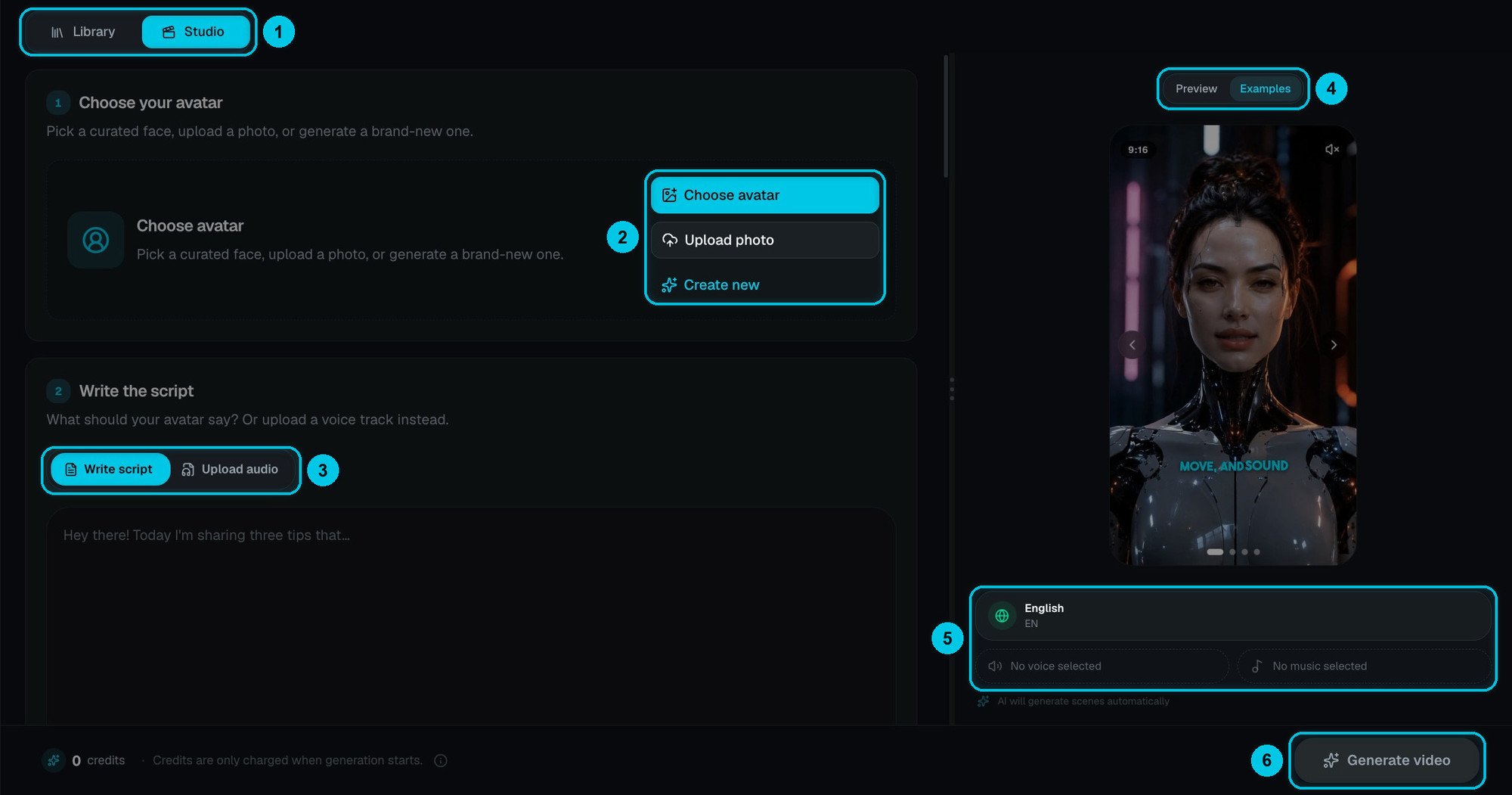
① Library / Studio · ② Choose avatar, Upload photo or Create new · ③ Write script or Upload audio · ④ Preview / Examples · ⑤ Language, voice and music · ⑥ Generate video
1. Choose your avatar
Three ways to get a face (②):- Choose avatar — pick one of the curated faces, ready to use.
- Upload photo — use your own photo. A front-facing, well-lit portrait from the shoulders up works best, with a plain background and nothing covering the face. Only upload people who agreed to it.
- Create new — describe a character and AI generates a brand-new face: a presenter, a mascot or a stylised character.
2. Write the script
Choose how the avatar gets its voice (③):- Write script — type what the avatar should say, up to 5,000 characters, and choose the Narration Language (English, Spanish, Portuguese, French, German, Italian, Chinese, Japanese and more under See more).
- Upload audio — use your own voice track. The avatar lip-syncs to it, so you don’t need a voice.
3. Pick a model and a format
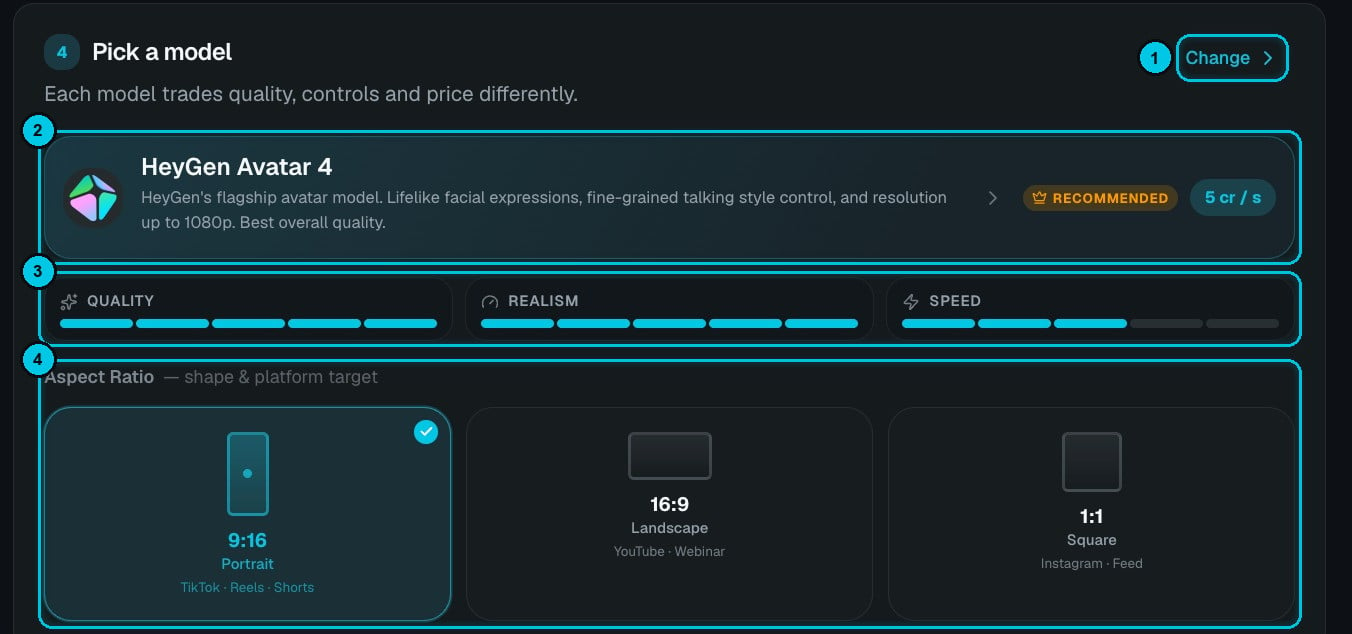
① Change model · ② The selected model, its tier and price per second · ③ Quality, realism and speed · ④ Aspect ratio
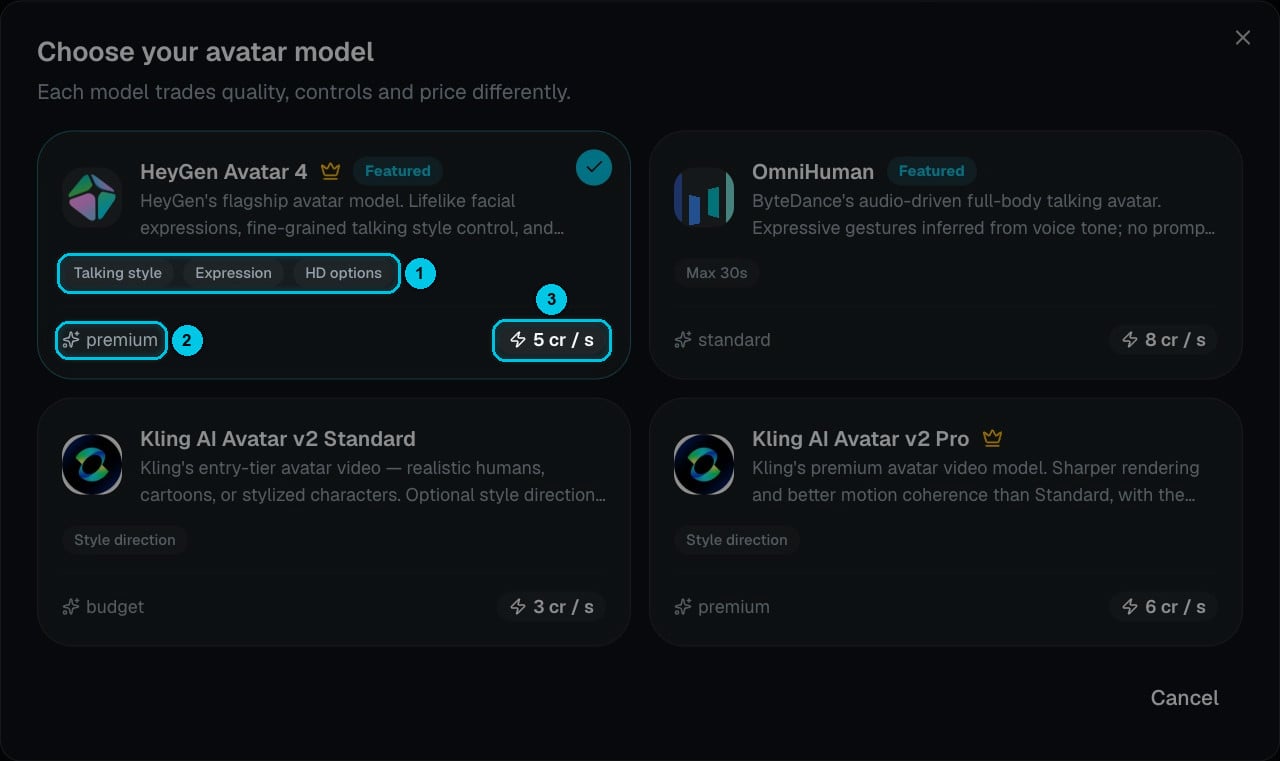
① What the model lets you control · ② Tier · ③ Price per second of video
The cost is the length of the video times the price per second — a 30-second video with HeyGen Avatar 4 costs about 150 credits. The exact total is always shown at the bottom before you generate.
Then pick the Aspect Ratio (④): 9:16 Portrait for TikTok, Reels and Shorts, 16:9 Landscape for YouTube and webinars, or 1:1 Square for Instagram feeds.
4. Voice, music and captions
Further down the Studio:- Voiceover — over 1,800 voices, with featured ones on top; Browse all opens the full library. Your cloned voices are here too. (Not needed if you chose Upload audio.)
- Background Music — the Crealix library, My Music (tracks you made in AI Music) or Custom uploads. Planning to publish on YouTube? Some library tracks may cause copyright claims; your own uploads or music made in Crealix are the safer choice.
- Caption Style — 48 presets in the Crealix Library, plus your own styles under My Captions.
5. Performance controls
Open Performance controls at the bottom of the Studio to direct the delivery.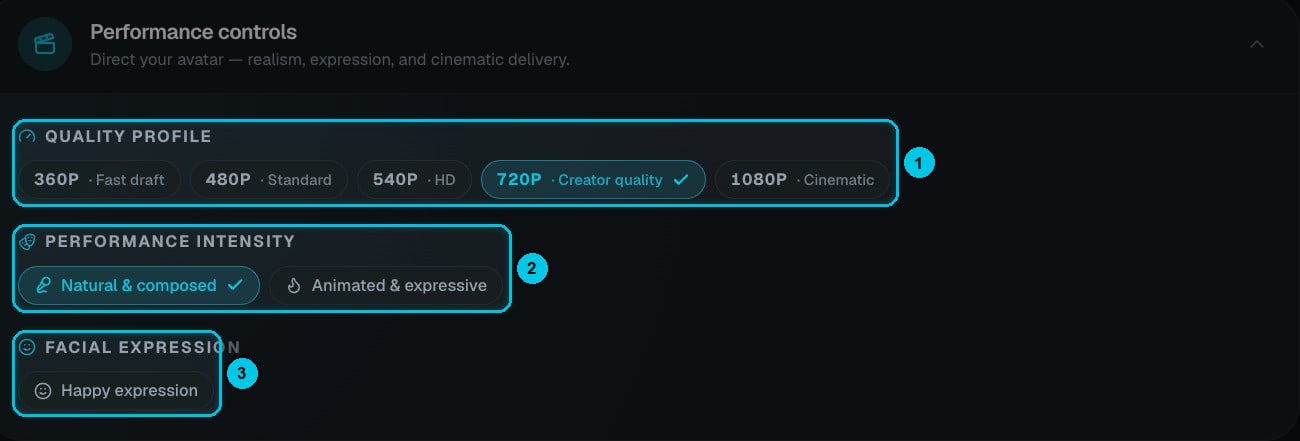
① Quality profile · ② Performance intensity · ③ Facial expression
- Quality profile (①) — 360p Fast draft, 480p Standard, 540p HD, 720p Creator quality (default) or 1080p Cinematic. Test a script at a low resolution, then make the final at 720p or 1080p.
- Performance intensity (②) — Natural & composed for a calm presenter, or Animated & expressive for more energy and movement.
- Facial expression (③) — for example Happy expression for a friendlier delivery.
6. Preview and generate
Preview (④) shows your avatar in the chosen format; Examples plays sample videos. Below it you see a summary of the language, voice and music (⑤). Click Generate video (⑥) — credits are only charged when generation starts, and failed generations are refunded. Finished videos appear in the Library tab and in your media library.Use avatars in other videos
Avatar videos are saved to your media library. You can:- Place one as a video overlay on top of any Crealix video — like a presenter in the corner. See Text overlays & your logo.
- Use one as a source in a Split Video — for example a presenter on top and gameplay below.
- Upscale it to 2K or 4K.