

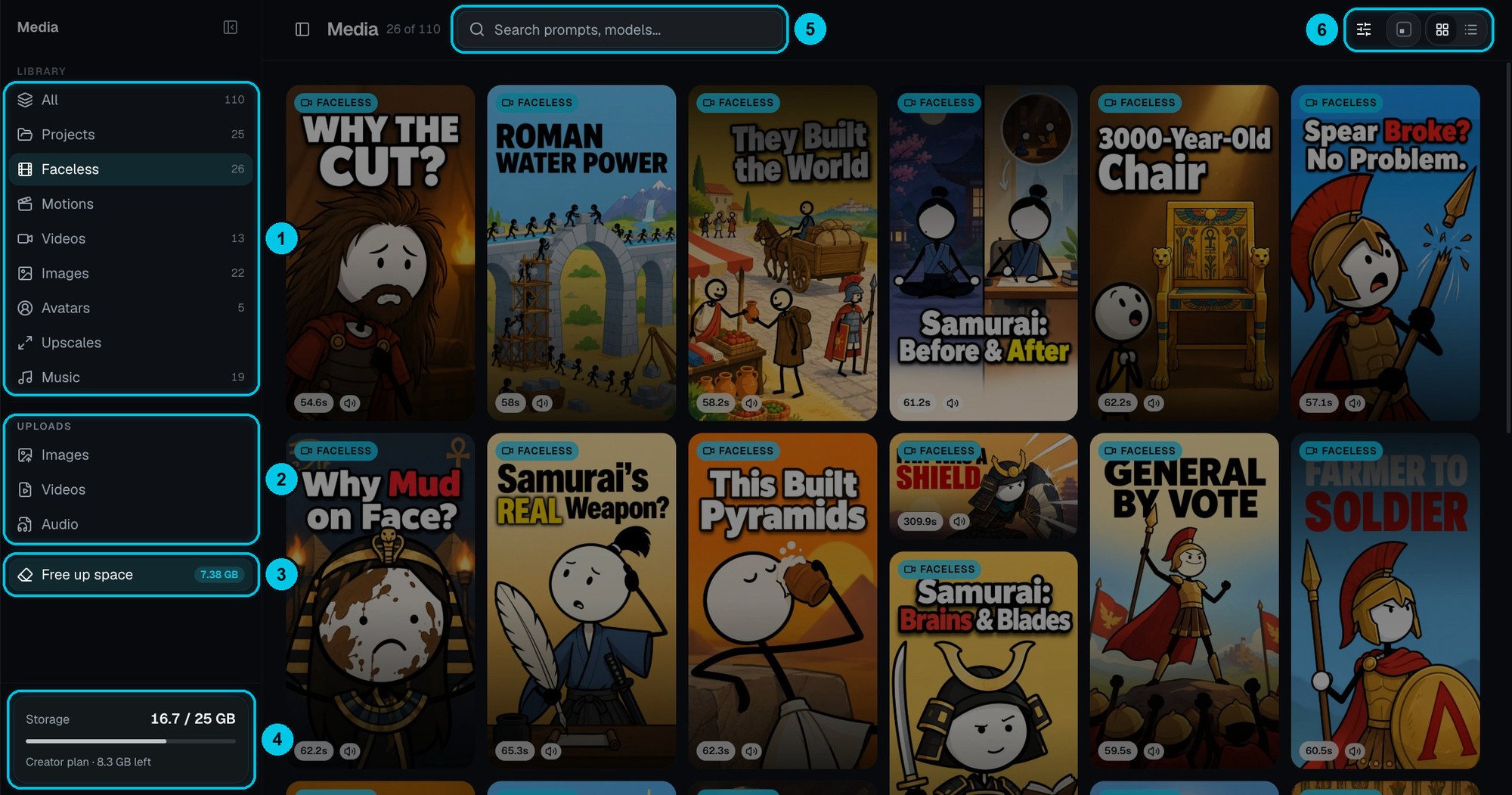
① Library sections · ② Your uploads · ③ Free up space · ④ Storage used on your plan · ⑤ Search · ⑥ Filters, card size and grid / list
Library sections
Each card shows its type and length. Search (⑤) by prompt or model, and switch the card size or between grid and list (⑥).
Open an item
Click any item to preview it. The panel on the right shows everything about it: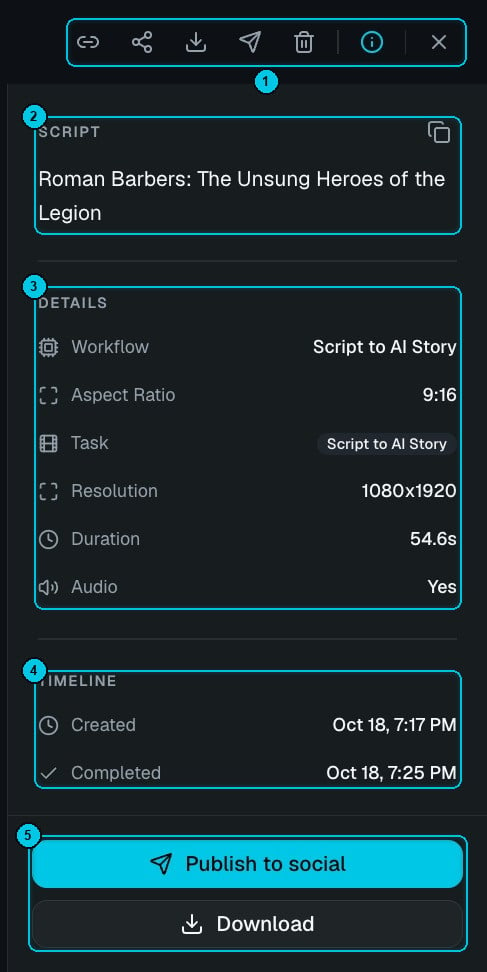
① Copy link, share, download, publish, delete and details · ② The script or prompt · ③ Details · ④ Timeline · ⑤ Publish to social and Download
- Script or prompt (②) — what the item was made from, with a copy button.
- Details (③) — the workflow or model, aspect ratio, resolution, duration and whether it has audio.
- Timeline (④) — when it was created and completed.
- Actions (① ⑤) — copy the link, create a share link, download, publish to social or delete. Use the arrows to move to the next item.
Use media in a video
In the editor, click Library on a scene (or in the background music, overlay and thumbnail panels) to pick anything from here. The same picker has an Uploads tab for dropping in new files.Uploads
Uploads go straight to secure storage. Common formats are supported: MP4, MOV and WebM for video; JPG, PNG and WebP for images; MP3, WAV, OGG and M4A for audio.Storage
The Storage meter (④) shows how much you use out of your plan:
The meter turns amber at 80 % and red at 95 %. When storage is full, new videos, generations and uploads pause until you free space or upgrade — nothing you already have is deleted. If your plan ends, your storage becomes the Free 1 GB: your files stay, but creating pauses until you’re under it.
Free up space
Click Free up space (③) to see what you can delete without losing anything you’re likely to miss.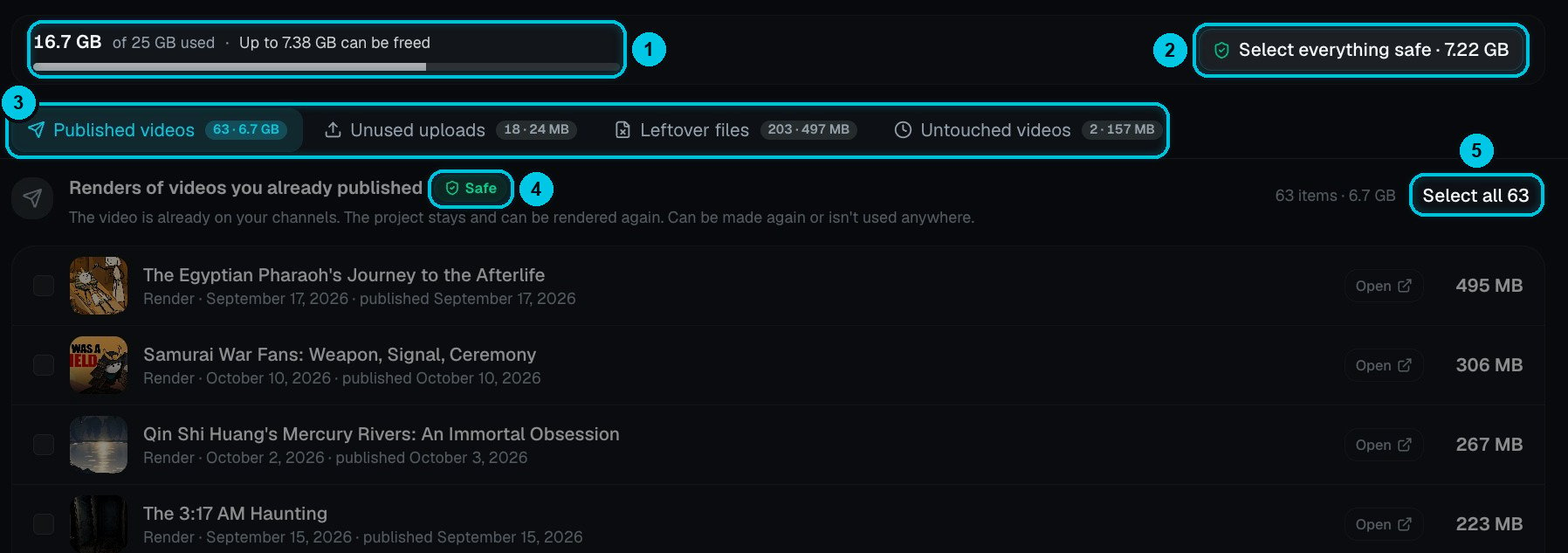
① Usage and how much can be freed · ② Select everything safe · ③ The four categories · ④ Safe to delete · ⑤ Select a whole category
Items marked Safe (④) can be made again or aren’t used anywhere. Select everything safe (②) picks all of them at once; you can also tick items one by one or Select all in a category (⑤). Before anything is deleted, Crealix shows how much you’ll free and asks you to confirm.