

Step by step
1
Write your idea — or paste your script
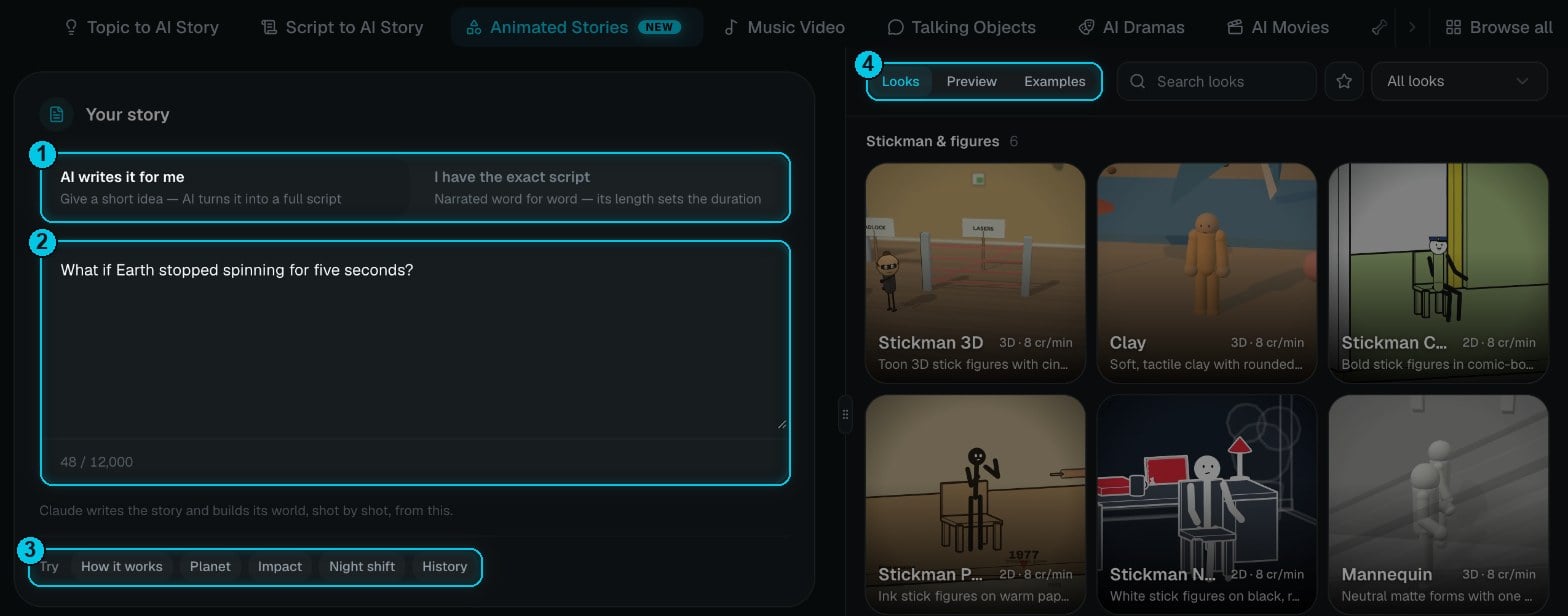
① Who writes the story · ② Your idea or script · ③ Example ideas · ④ Looks, Preview and Examples
- AI writes it for me — give a short idea or a question ②. Claude turns it into a full story, splits it into shots and builds the world each shot happens in.
- I have the exact script — paste your narration. It’s read by one narrator, word for word, and its length sets the video’s duration (up to 3 minutes). One beat per line works best; timestamps and NARRATOR: labels are removed automatically.
2
Choose format, length and language
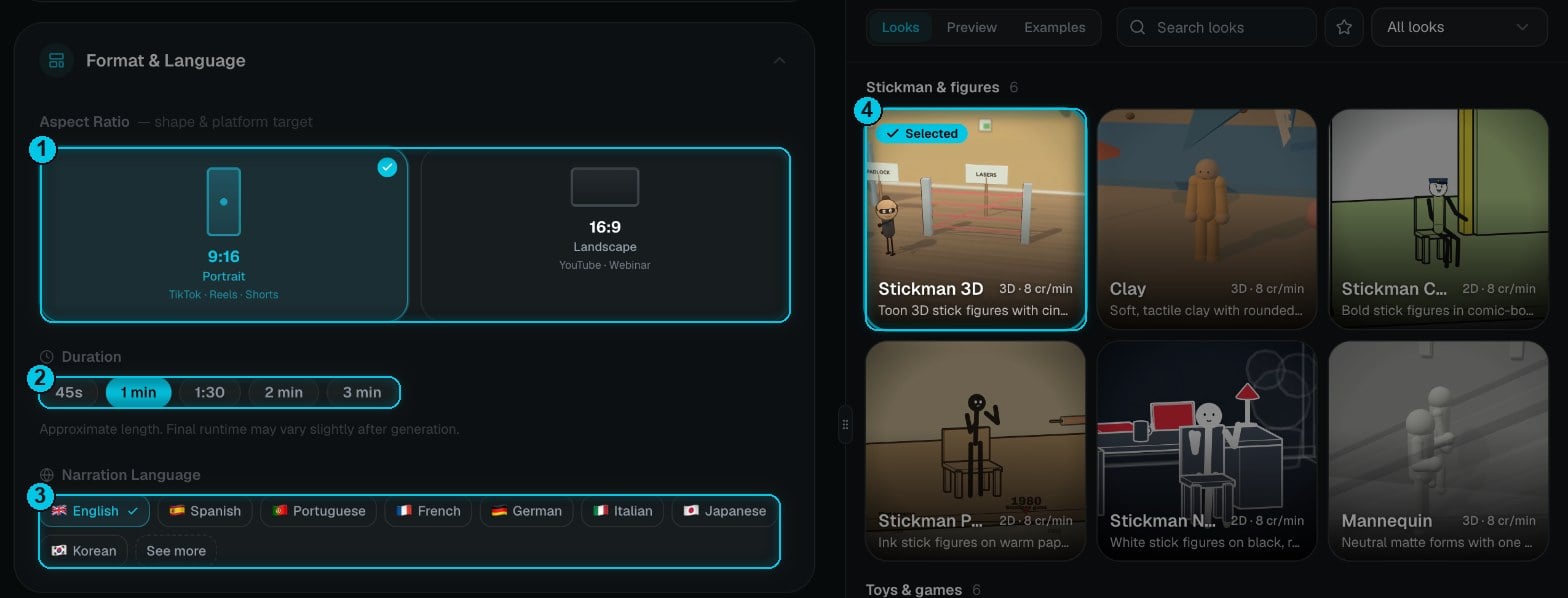
① Aspect ratio · ② Duration · ③ Narration language · ④ The look you picked
- Aspect ratio ① — 9:16 for TikTok, Reels and Shorts, or 16:9 for YouTube.
- Duration ② — 45 s, 1 min, 1:30, 2 min or 3 min. It’s an approximate length; the final runtime can vary slightly. With an exact script, your script sets the length instead.
- Narration language ③ — English, Spanish, Portuguese, French, German, Italian, Japanese, Korean, Mandarin or Indonesian (See more shows the rest). Claude writes the story in that language.
3
Pick a look
The Looks gallery on the right (or Browse all in the Visual Style section) shows every look as a short animated preview, with its engine (3D or 2D) and its price. Every look costs the same — 8 credits per minute. Search looks, filter them, and star your favourites.There are 22 looks in four groups:
Each look has its own palettes (for example Sunny, Teal or Pastel) — pick one under Palette once a look is selected. The look also picks matching captions for you.
4
Voice, music and captions
- Voiceover — one narrator tells the whole story. Pick any of the 1,800+ voices (or one of your own voices), tune it with the presets Natural, Documentary, Dramatic or Energetic, and adjust consistency, style intensity and speed.
- Music — a background track from the library, one of your own, or none. It starts low so the voice leads.
- Captions — word-by-word captions in the style that suits your look; change it here or in the editor.
5
Check the price and create
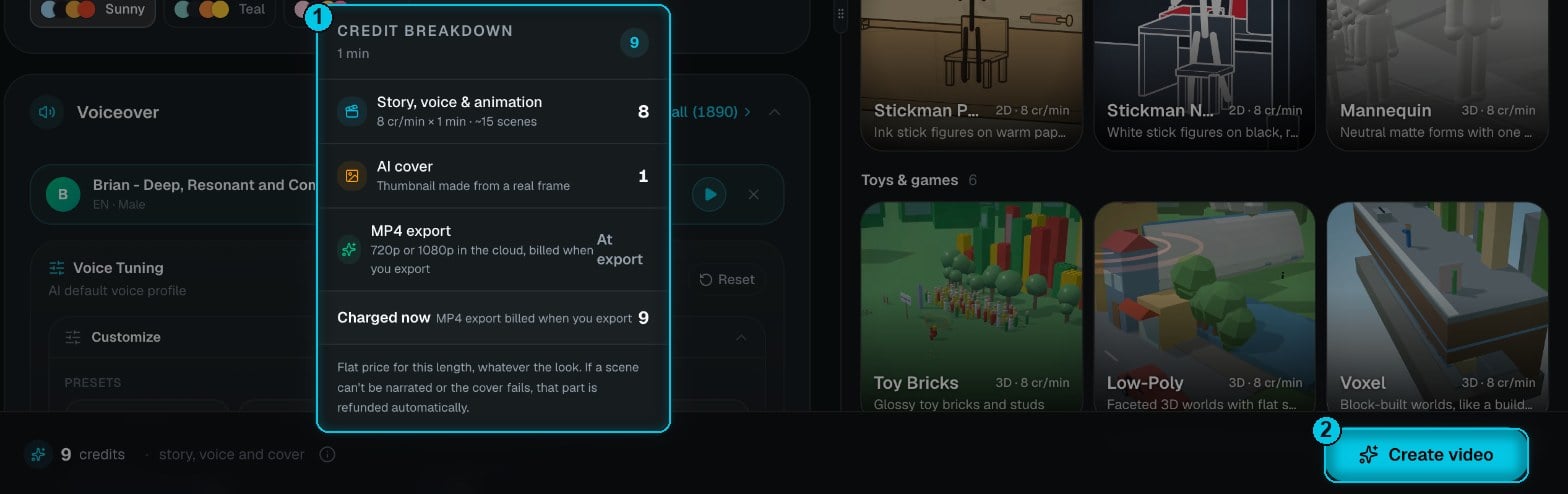
① Credit breakdown · ② Create video
- Story, voice & animation — 8 credits per minute, about 15 scenes per minute.
- AI cover — 1 credit, a thumbnail made from a real frame of your video.
- MP4 export — billed only when you export (see below).
While it’s being made
The video opens straight away and shows its progress in four steps: Story (Claude writes about 15 scenes per minute and builds the world they happen in), Voiceover (every line is recorded), Timing (every shot is timed to the voice, with the music and sounds mixed in) and Cover. You can close the tab — the video keeps generating and waits for you in My Videos.Edit your story
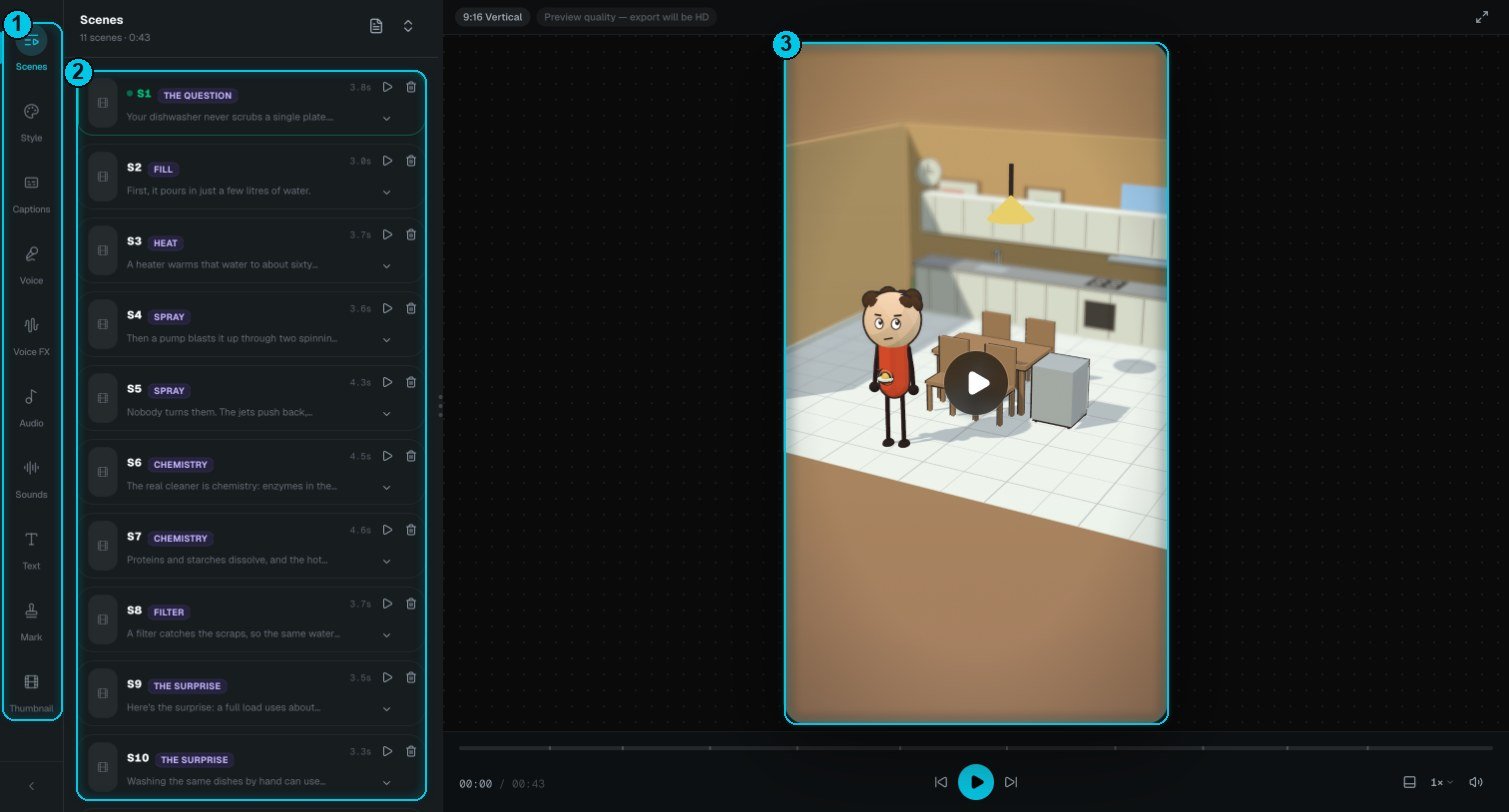
① Editing tools · ② Scenes · ③ Player
Change a scene
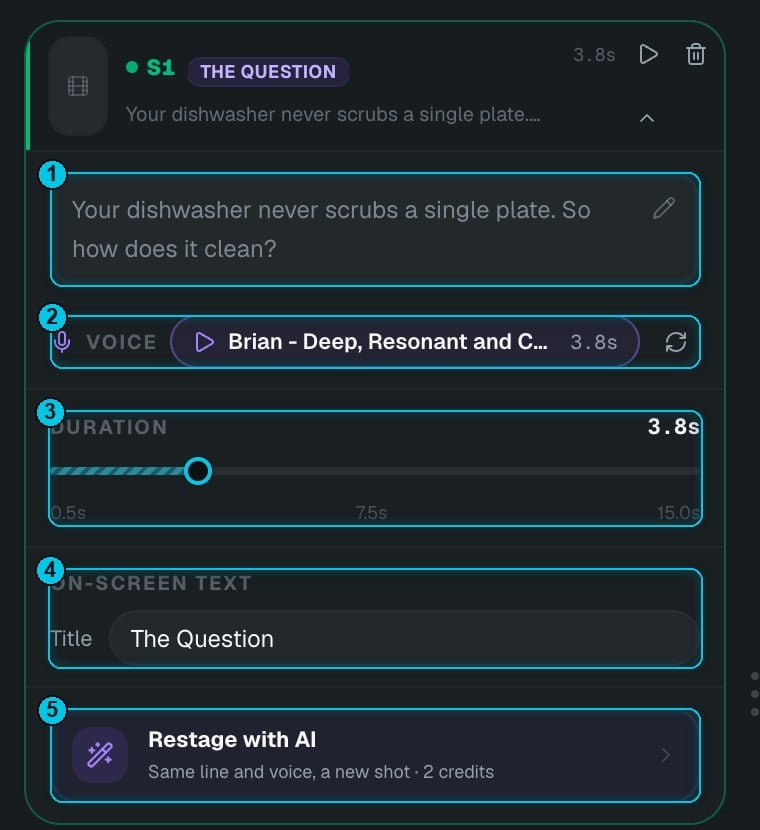
① The line · ② Voice · ③ Duration · ④ On-screen text · ⑤ Restage with AI
- The line ① — click the pencil to rewrite it. The line is re-recorded when you save (1 credit).
- Voice ② — play the line, or regenerate its voiceover. If you changed the voice for the whole video, scenes recorded with the old one are marked Outdated.
- Duration ③ — from 0.5 to 15 seconds. If you make a scene shorter than its voiceover, the voice and captions stop at the cut.
- On-screen text ④ — the scene’s Title, Card or Counter, depending on the story.
- Restage with AI ⑤ — keeps the line, the voice and the length and stages a new shot (2 credits). Optionally describe what you want — “wide shot, from above”. Enhance prompt rewrites your direction for you.
Change the whole look — for free
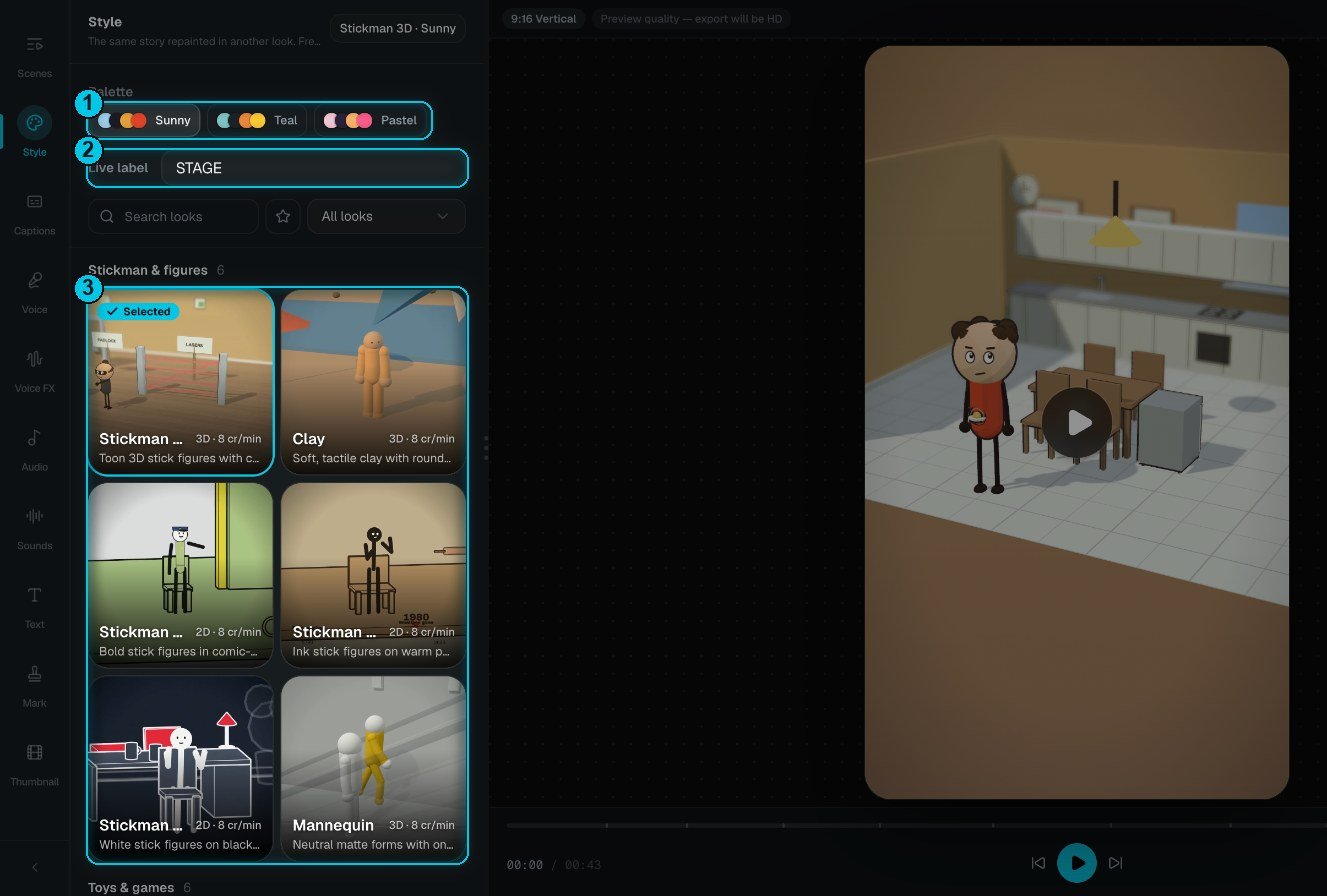
① Palette · ② Live label · ③ Looks
Export
Click Render to export an MP4 in the cloud, in 720p or 1080p. The export is billed when you start it, like every other format: 2 credits per 30 seconds at 1080p, a quarter of that at 720p. See Render & export.What it costs
Plus the MP4 export when you render. Restaging a shot costs 2 credits and re-recording a line 1 credit; changing the look or the palette is free.
Tips
- Ask a real question. “What happens to your body in 60 seconds without oxygen?” gives Claude a clear arc; “space” doesn’t.
- Numbers make it binge-worthy. Days, levels, rules and scores give the story a live counter on screen.
- Generate once, restyle for free. Make the story in one look, then try others in Style before you export.
- Use your own script when you already know every word — the narrator reads it exactly as written.